A List of Useful ADB and Fastboot Commands and their Usage
In this guide, we will be listing all the useful and most frequently used ADB and Fastboot Commands. When it comes to the custom development, then ADB and Fastboot Commands are literally the first steps in this long journey. Not just by the tech enthusiast but these commands are also being used by general users as well.
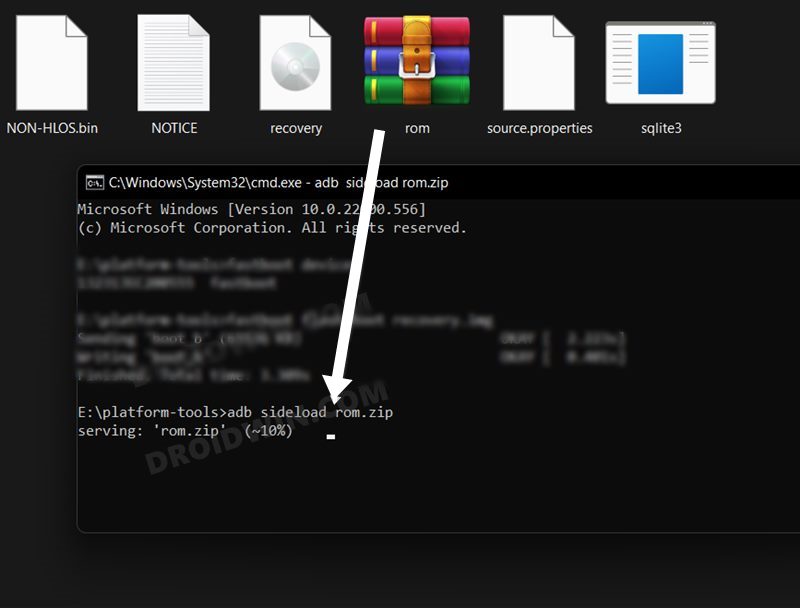
ADB Sideload in Progress
In this regard, if we talk about the basic everyday tasks where these commands are being used, then this could include the likes of opening the ADB shell environment [for carrying out tasks like uninstalling bloatware], rebooting the device to stock recovery for resetting the device or flashing firmware via ADB sideload.
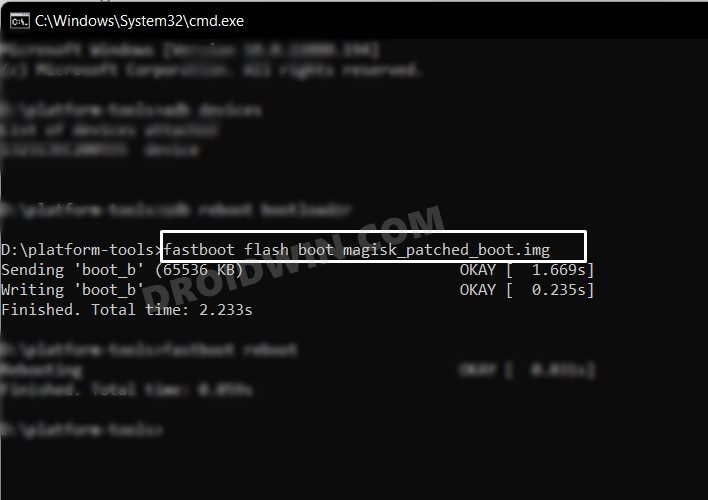
Flashing Magisk Patched for Root
Then if we turn our attention toward the technical aspects, then you could use these commands for booting the device to Fastboot/FastbootD Mode, unlocking the bootloader, flashing custom recovery like TWRP, flashing Magisk patched boot.img for rooting, and a slew of other tasks. So owing to their such a higher position in the pecking order, this guide will make you aware of some of the most important ADB and Fastboot Commands. Follow along.
- The Prerequisites to Executing ADB and Fastboot Commands STEP 1: Download Android SDK Platform Tools STEP 2: Enable USB Debugging STEP 3: Open CMD inside Platform Tools
- Most Commonly Used ADB Commands Check ADB Connection ADB Shell Command Reboot to Bootloader/Fastboot Mode Reboot to TWRP or Stock Recovery Pull Any File via ADB Pull Push files via ADB Push ADB Sideload Start ADB Server Kill ADB Server Install APK via ADB Command Update APK via ADB Command Move App to SD Card via ADB Uninstall App via ADB Command Check Installed Apps via ADB Check System Apps via ADB Uninstall System Apps via ADB List All Third Party Apps via ADB Take a Screenshot via ADB Delete File via ADB Deleter Folder via ADB Create New Folder via ADB Copy Files via ADB Move Files via ADB
- Most Commonly Used Fastboot Commands Reboot to Fastboot Mode Verify the ADB Connection Unlock Bootloader via Fastboot Relock Bootloader via Fastboot Boot to TWRP via Fastboot Install File to Boot Partition Install TWRP To Recovery Partition Install TWRP to Boot partition Erase Userdata Erase Everything via Fastboot Check Current Active Slot Change Active Partition Reboot to OS from Fastboot Reboot from Fastboot to Recovery Mode Boot to FastbootD Mode
- Advanced Level Fastboot Commands
- How to Fix All Possible ADB and Fastboot Errors
The Prerequisites to Executing ADB and Fastboot Commands
Before you could execute any of the ADB and Fastboot Commands, you will first have to checkmark a few prerequisites listed below.
STEP 1: Download Android SDK Platform Tools
First and foremost, you will have to download the Android SDK Platform Tools on your PC. This is the official ADB and Fastboot binary provided by Google and is the only recommended one. So download it and then extract it to any convenient location on your PC. Doing so will give you the platform-tools folder, which will be used throughout this guide.

STEP 2: Enable USB Debugging
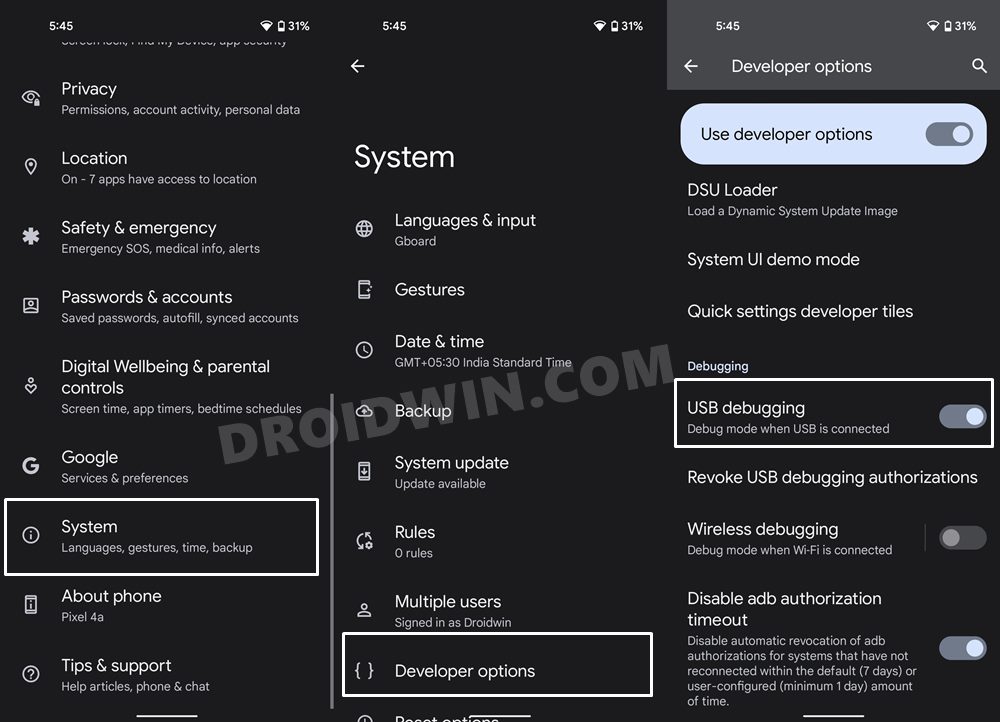
Next up, you will have to enable USB Debugging on your device so as to make it recognizable by the PC in ADB mode. So head over to Settings > About Phone > Tap on Build Number 7 times [MIUI number for Xiaomi devices] > Go back to Settings > System > Advanced > Developer Options > Enable USB Debugging.
STEP 3: Open CMD inside Platform Tools
- Head over to the platform-tools folder, type in CMD in the address bar, and hit Enter.
- This will launch the CMD window with the platform-tools folder directory.
- You should execute all the ADB and Fastboot commands only in this CMD window.
Most Commonly Used ADB Commands
Here are some of the important as well as the most widely used ADB Commands and their functions.
Check ADB Connection
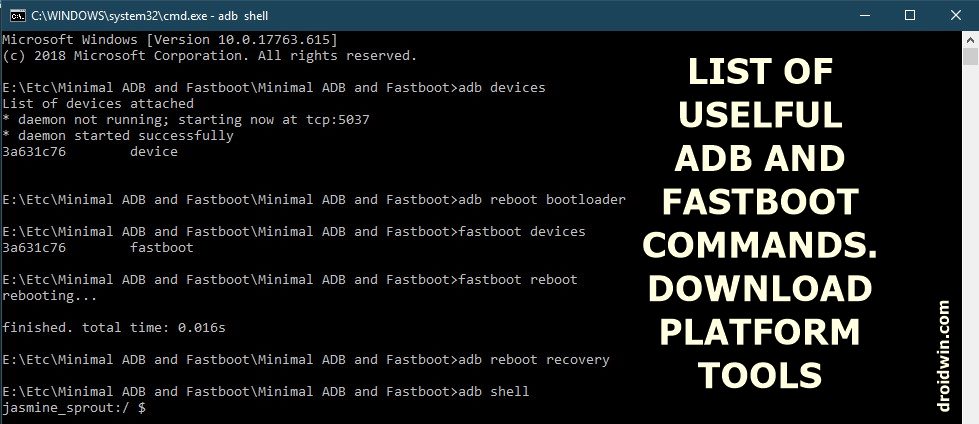
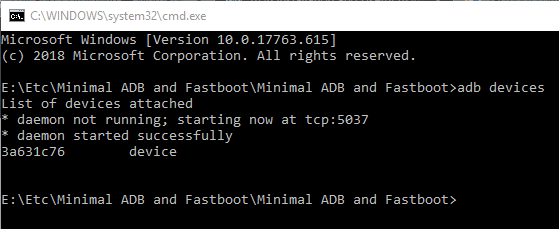
To check whether the device is properly connected and is in ADB, enter the below code. Until you get an alphanumeric code with the word ‘device’ next to it (see screenshot below), you cannot carry out any further operations. Also, make that device is not recognized as ‘unauthorized’. Don’t Miss: Fix Waiting for Device Error in ADB Devices
adb devices
ADB Shell Command
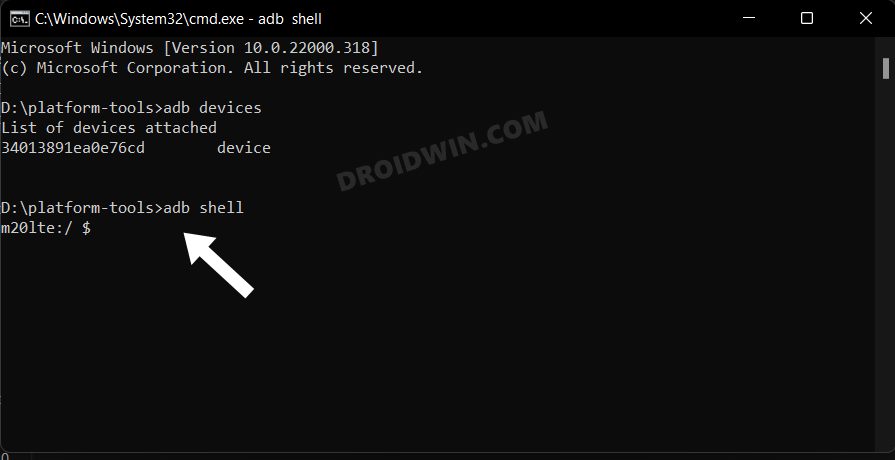
This opens the Shell environment and allows you to carry out tasks that are slightly technical in nature. Well, you could even carry out some root-released tweaks on your non-rooted device using the ADB shell commands.
adb shell
To make sure that the command has been usefully executed, you should see your device name or ID right after entering this command.
Reboot to Bootloader/Fastboot Mode
adb reboot bootloader
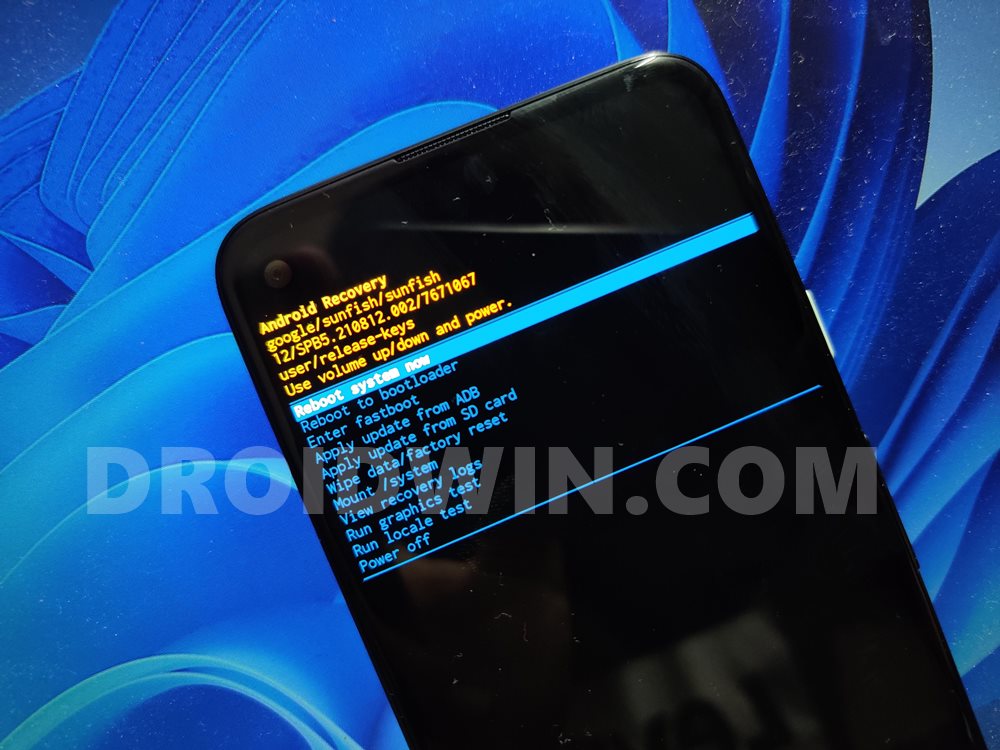
Reboot to TWRP or Stock Recovery
adb reboot recovery
Pull Any File via ADB Pull
To ‘pull’ any file from your device and send it over to your PC, enter:
adb pull /file-location-on-device/filename
Push files via ADB Push
Similarly to ‘push’ any file to the device from a PC, type:
adb push filename /location-where-file-is-to-be-sent-on-device
ADB Sideload
adb sideload filename.zip
Start ADB Server
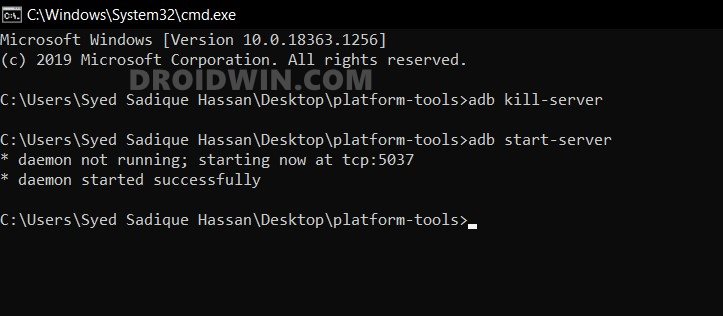
When you need to start the ADB server , in case it does not automatically “kills the daemon” and “start on a specific port”, type the below command:
adb start-server
Kill ADB Server
If the command tool gets hanged or is not performing as expected, you may kill the server by entering the below code:
adb kill-server
Install APK via ADB Command
To install an APK file on your device, enter the below command:
adb install filename.apk
Update APK via ADB Command
To reinstall or update an APK, type:
adb install -r filename.apk
Move App to SD Card via ADB
To move the app to sdcard (if supported by your device):
adb install -s filename.apk
Uninstall App via ADB Command
To uninstall an APK file on your device, type:
adb uninstall filename.apk
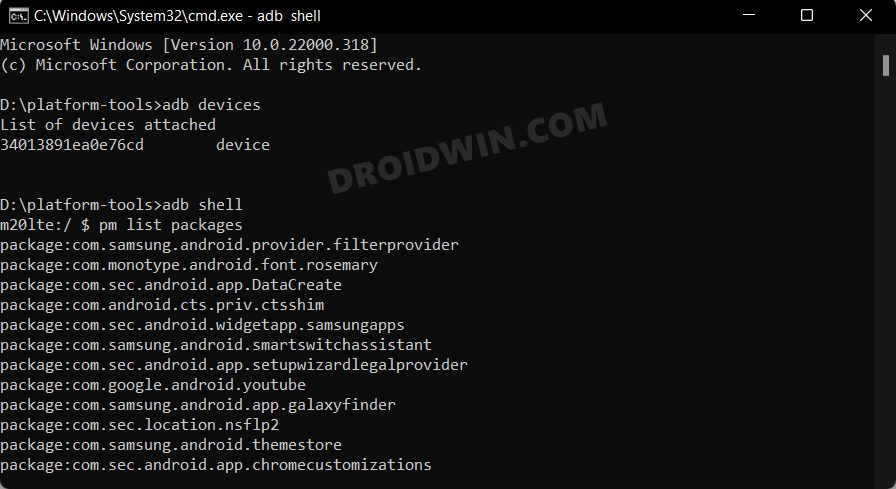
Check Installed Apps via ADB
adb shell pm list packages
Check System Apps via ADB
To list all the system apps :
adb shell pm list packages -s
Uninstall System Apps via ADB
adb shell pm uninstall -k –user 0 app-package-name
List All Third Party Apps via ADB
To list third-party apps installed:
adb shell pm list packages -3
Take a Screenshot via ADB
To capture screenshots from your device: [Detailed Guide: How to Take Screenshots in Android via ADB Commands ]
adb shell screencap /sdcard/screenshot.png
Then to download the captured screenshot to your PC:
adb pull /sdcard/screenshot.png
Delete File via ADB
To delete a file , type :
adb shell rm -f /file_location_name
Deleter Folder via ADB
To delete a folder , enter the below code:
adb shell rm -rR /folder_location_name
Create New Folder via ADB
To create a new folder on your device, type:
adb shell mkdir /sdcard/NewFolder
Copy Files via ADB
To copy a file from one location and paste it to another location (on your device), type:
adb shell cp /file_location_name_1 /file_location_name_2
Move Files via ADB
To move a file from one location to another (on your device), enter the below code:
adb shell mv /file_location_name_1 /file_location_name_2
Most Commonly Used Fastboot Commands
Here are some of the most commonly used as well as the most important Fastboot Commands and their functions.

Reboot to Fastboot Mode
To reboot your device to fastboot or bootloader mode, enter the below code:
adb reboot bootloader
Verify the ADB Connection
Once your device is booted to fastboot mode, enter the below command to check whether the connection is successful or not. If you see an alphanumeric code and the word fastboot written next to it (see screenshot below), it means your device is successfully connected to fastboot mode. Now you may try out other fastboot commands.
fastboot devices

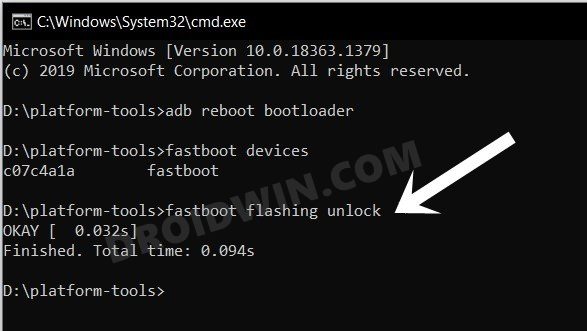
Unlock Bootloader via Fastboot
fastboot oem unlock OR fastboot flashing unlock
Relock Bootloader via Fastboot
To relock the bootloader of your device, enter:
fastboot oem lock OR fastboot flashing lock
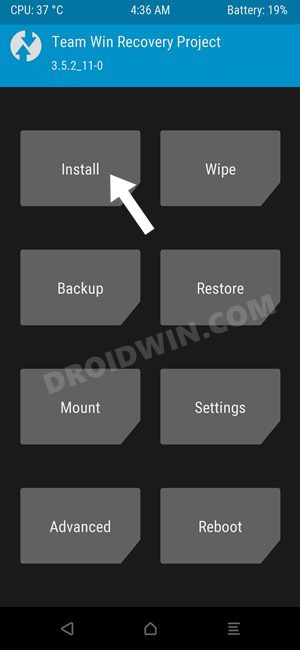
Boot to TWRP via Fastboot
fastboot boot recovery twrp.img
Install File to Boot Partition
To flash (install) a boot file from the command shell, such as flashing magisk patched boot.img , type in the below code:
fastboot flash boot boot-file-name.img
Install TWRP To Recovery Partition
fastboot flash recovery recovery-name.img
Install TWRP to Boot partition
fastboot flash boot recovery-name.img
Erase Userdata
To erase all the userdata on your device (i.e.formatting the userdata partition), enter the following code:
fastboot erase userdata
Erase Everything via Fastboot
This will erase everything from your device. Your device will be just as it came out of the box
fastboot -w
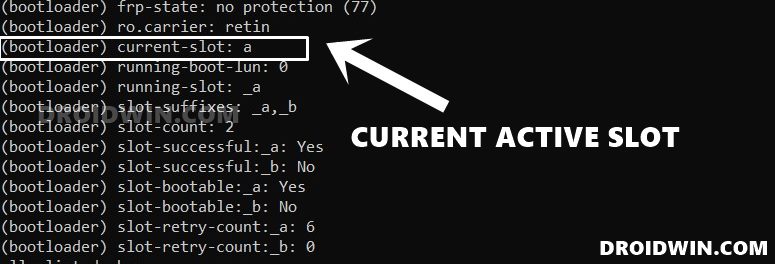
Check Current Active Slot
If you have a dual A/B Partition device, then you could check the current active partition via the following command:
fastboot getvar all
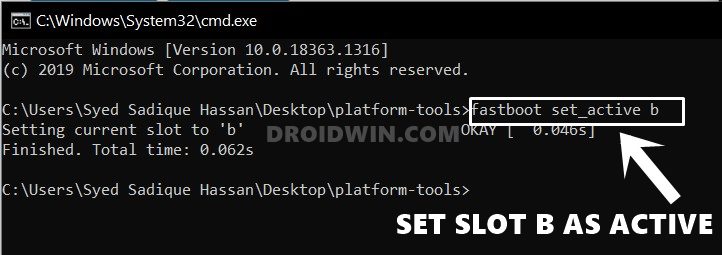
Change Active Partition
fastboot set_active b
Reboot to OS from Fastboot
To reboot your device to Android OS , enter the below code:
fastboot reboot

Reboot from Fastboot to Recovery Mode
To Reboot from Fastboot to Recovery Mode, either TWRP or stock, use the below command:
fastboot reboot recovery fastboot oem reboot-recovery
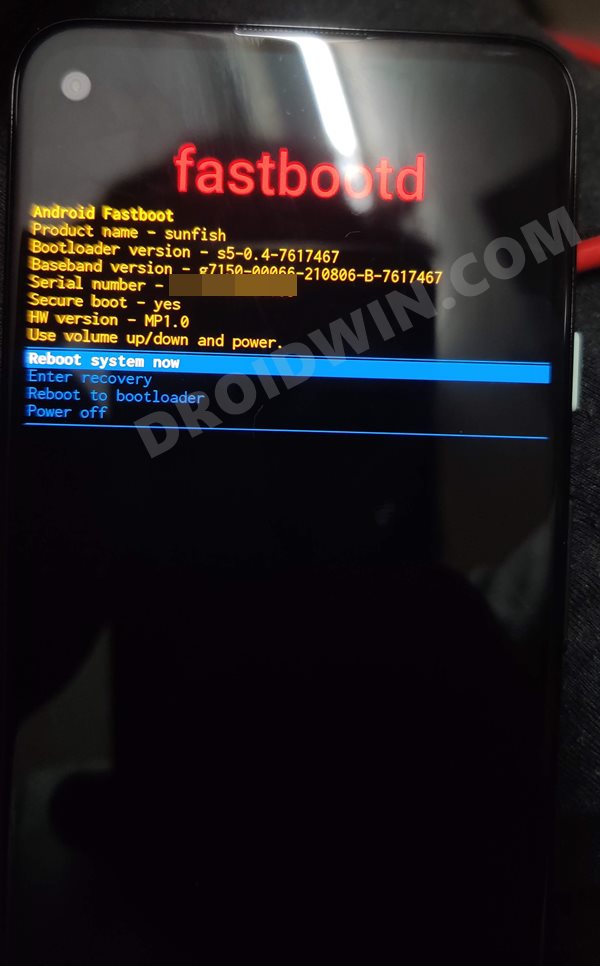
Boot to FastbootD Mode
From ADB: adb reboot fastboot From Fastboot Mode: fastboot reboot fastboot
Advanced Level Fastboot Commands
fastboot oem acvp


fastboot oem avb_menu_delay

             "INFO oem avb_menu_delay orange [delay_seconds]"


fastboot oem barcode


fastboot oem bcd

             "INFO oem bcd read <command|status|recovery|stage>"

             "INFO oem bcd upload recovery"

             "INFO oem bcd wipe <command|status|recovery|stage>"

             "INFO oem bcd write <command|status|recovery|stage> <value>"


fastboot oem bcm_rmem

fastboot oem boot fastboot

fastboot oem boot recovery


fastboot oem boottrace

             "INFO oem boottrace [enable|disable]"


fastboot oem bpst

             "INFO bpst [enable|disable]"


fastboot oem clear_dm_verity_error


fastboot oem cmdline

             "INFO oem cmdline add <cmdline>"

             "INFO oem cmdline del <cmdline>"

             "INFO oem cmdline set [cmdline]"

             "INFO oem cmdline show"


fastboot oem continue-factory

fastboot oem cryptorng


fastboot oem dbgc

             "INFO oem dbgc sjtag-ap [cmd]"

             "INFO oem dbgc sjtag-gsa [cmd]"

             "INFO oem dbgc uart-console [enable|disable]"

             "INFO oem dbgc uart-mux [uart_num|uart_name]"


fastboot oem dck_wipe

             "INFO dck_wipe [esim-id]"


fastboot oem ddr

fastboot oem ddrtest

fastboot oem disable-usb-debugging

fastboot oem disable-verification

fastboot oem disable-verity

fastboot oem display


fastboot oem displaycolor

             "INFO display_color [auto|<color>|stop]"


fastboot oem dtbdump

fastboot oem dump-chipid

fastboot oem enable-factory-lock

fastboot oem enable-verification

fastboot oem enable-verity

fastboot oem enter-shipmode


fastboot oem esim_atp

             "INFO esim_atp [esim-idx]"


fastboot oem esim_bootstrap

             "INFO esim_bootstrap unlock"

             "INFO esim_bootstrap status"

             "INFO esim_bootstrap lock"


fastboot oem esim_eid

             "INFO esim_eid [esim-id]"


fastboot oem esim_erase

             "INFO esim_erase [esim-id]"


fastboot oem esim_trace_config

             "INFO esim_trace_config set [0, 1]"

             "INFO esim_trace_config get"


fastboot oem esim_ver

             "INFO esim_ver_ext [esim-id]"

             "INFO esim_ver [esim-id]"


fastboot oem esim_ver_ext

             "INFO esim_ver_ext [esim-id]"


fastboot oem etm2dram

fastboot oem faceauth_eval

fastboot oem factory-lock

fastboot oem factory-reset

fastboot oem fg_hw_info

fastboot oem fg-reset

fastboot oem force-fastboot

fastboot oem fs_spread_v2


fastboot oem fuse

             "INFO oem fuse get_asb_data"

             "INFO oem fuse flashkey"

             "INFO oem fuse cm_test_done"

             "INFO oem fuse cm_provision_start [commit]"

             "INFO oem fuse cm_provision_ok"

             "INFO oem fuse cm_provision_enable [commit]"


fastboot oem fuse-check

fastboot oem fuse-check-mp

fastboot oem fuse-cm-status

fastboot oem fuse-lock

fastboot oem fuse-patch-check

fastboot oem fuse-version

fastboot oem get_bpst

fastboot oem get_config

fastboot oem get-cycle-count

fastboot oem get_platform_info


fastboot oem gsa

             "INFO oem gsa wakelock release"

             "INFO oem gsa wakelock acquire"

             "INFO oem gsa version"

             "INFO oem gsa trace <dump|ping>"

             "INFO oem gsa runtest <test-port-name>"

             "INFO oem gsa run_crypto_test"

             "INFO oem gsa log [id]"

             "INFO oem gsa load_app"

             "INFO oem gsa auth_img"

             "INFO oem gsa ar"


fastboot oem gsa_dicepubkey


fastboot oem gsc

             "INFO oem gsc version"

             "INFO oem gsc uart-passthru [val]"

             "INFO oem gsc test-secure-link"

             "INFO oem gsc sjtag-cfg [val]"

             "INFO oem gsc reset"

             "INFO oem gsc rescue"

             "INFO oem gsc reprovision"

             "INFO oem gsc id"

             "INFO oem gsc header [sec]"

             "INFO oem gsc gsa-key-provision"

             "INFO oem gsc get-secure-link-state"

             "INFO oem gsc debug-dump"

             "INFO oem gsc avb state"

             "INFO oem gsc avb rb <slot> [val]"

             "INFO oem gsc avb lock <index> [val]"


fastboot oem gsc_avb

fastboot oem gsc_debug_dump

fastboot oem gsc_get_secure_link_state

fastboot oem gsc_gsa_key_provision

fastboot oem gsc_header

fastboot oem gsc_id

fastboot oem gsc_reprovision

fastboot oem gsc_rescue

fastboot oem gsc_reset

fastboot oem gsc_sjtag_cfg

fastboot oem gsc_test_secure_link

fastboot oem gsc_uart_passthru

fastboot oem gsc_version

fastboot oem halt


fastboot oem hdcp

             "INFO oem hdcp key_test"


fastboot oem kcmdline_test


fastboot oem max-ram-size

             "INFO oem max-ram-size [ram size in MB]"


fastboot oem metrics_test


fastboot oem mte

             "INFO oem mte [init|on|off]"


fastboot oem off-mode-charge

fastboot oem otp


fastboot oem pkvm

             "INFO oem pkvm status"

             "INFO oem pkvm enable"

             "INFO oem pkvm disable"

             "INFO oem pkvm auto"


fastboot oem ramdump

             "INFO ramdump wipe_file <file name>"

             "INFO ramdump stage_file [file name]"

             "INFO ramdump sha256_dump [enable|disable]"

             "INFO ramdump now"

             "INFO ramdump encryption [enable|disable]"

             "INFO ramdump compression [enable|disable]"

             "INFO ramdump [enable|storage|usb]"


fastboot oem reboot-bl1rec

fastboot oem reboot-rom

fastboot oem regulator

fastboot oem reset-cycle-count

fastboot oem reset-first-usage-date

fastboot oem reset-first-usage-date-prod

fastboot oem rm_config


fastboot oem rma

             "INFO oem rma send_response"

             "INFO oem rma get_challenge"


fastboot oem s2mpg

             "INFO oem s2mpg voltage <regulator-name|all|none> [#samples]"

             "INFO oem s2mpg current-hr <regulator-name> [#samples]"

             "INFO oem s2mpg current <regulator-name|all> [#samples]"

             "INFO oem s2mpg <index|name> regdump"

             "INFO oem s2mpg <index|name> chip_id"


fastboot oem schedule-shipmode

fastboot oem screencap

fastboot oem set_bpst

fastboot oem set_config


fastboot oem set_platform_info

             "INFO set_platform_info <id> <prod> <stage> <maj> <min> [var]"


fastboot oem set_st33_power

             "INFO set_st33_power <on/off>"


fastboot oem setbrightness

fastboot oem sha1sum

fastboot oem silentota

             "INFO silentota [enable|disable|status]"


fastboot oem silentota_status


fastboot oem tmu

             "INFO oem tmu trimcfg [zone]"

             "INFO oem tmu tmuctrl [zone]"

             "INFO oem tmu temp [zone:0 top/1 sub]"

             "INFO oem tmu rd32 <offset> [zone]"


fastboot oem trusty

             "INFO oem trusty version"

             "INFO oem trusty runtest <test-port-name> [pin_cpu <cpu_id>]"


fastboot oem uart

             "INFO oem uart virt-enable [selection]"

             "INFO oem uart virt-disable [selection]"

             "INFO oem uart mux <selection>"

             "INFO oem uart list"

             "INFO oem uart enable [selection] [loglevel]"

             "INFO oem uart disable [selection]"

             "INFO oem gsc uart-passthru [val]"

             "INFO oem dbgc uart-mux [uart_num|uart_name]"

             "INFO oem dbgc uart-console [enable|disable]"


fastboot oem udfps

             "INFO oem udfps update-cal"

             "INFO oem udfps status"

             "INFO oem udfps get-cal-url"


fastboot oem ufs_provision

             "INFO ufs_provision [enable|disable]"


fastboot oem verify-erased


fastboot oem watchdog

             "INFO   oem watchdog [enable|disable]"
How to Fix All Possible ADB and Fastboot Errors
While on one hand, these commands offer a plethora of goodies, on the other hand, they have their fair share of issues as well. Fortunately, each of them could be fixed without much hassle. I have compiled various guides pertaining to all the major ADB and Fastboot Errors as well as the steps to fix them. Likewise, I have also documented a comprehensive guide that acts as a universal guide for all ADB/Fastboot Fixes. So without further ado, let’s check them out:
- A Universal Guide to Fix All Possible ADB and Fastboot Errors [Recommeded]
- Fix Waiting for Device Error in ADB or Fastboot Commands
- Fix adb server version doesn’t match this client; killing.
- How to fix ADB Device not found [List of Devices Attached is blank]
- Detailed Steps to Fix adb is not recognized Error
- How to Fix Unauthorized Device with ADB Commands [3 methods]
- How to Fix Nokia Device Stuck in No Command Screen
- Fix Failed (remote: ‘flashing is not allowed for critical partitions)
- Fix FAILED (remote: Partition should be flashed in fastbootd)
- How to Fix FAILED (remote: Command not allowed)
- Fix fastboot: error: Couldn’t parse partition size ‘0x’
- How to Fix Android Device stuck in Fastboot Mode

- Ganapathy 3 years ago Reply My pixel 4a was working fine until last week and stuck into a fastboot mode loop in the middle of the day for no reason (applied the usual monthly security update one or two days before)! The screen shows: FastBoot mode Product revs: sunfish MP1.0 (ROW) Bootloader revs: s5-0.5-9825683 Baseband revs: g7150-00112-230505-B-10075601 Serial number: 14021XXXnnnnnn Secure-Boot: PRODUCTION NOS-production: error Ddr: 6GB Hynix LPDDR4X Ufs: 128GB SKHynix Device-State: error! Boot-slot: a Enter Reason: failed to load/verify boot images On navigating thru volume keys, the options, “Start / Power off / BarCode / Rescue mode / Recovery mode / Restart Bootloader” nothing worked except “BarCode” !! At this stage, connected my mobile to PC via usb and tried the following command: C:\Users\Ganpat\AppData\Local\Android\Sdk\platform-tools>adb devices * daemon not running; starting now at tcp:5037 * daemon started successfully List of devices attached C:\Users\Ganpat\AppData\Local\Android\Sdk\platform-tools> But “fastboot devices” list out my mobile’s serial number! Now what I wanted is how to take backup of my data (folders like Downloads, Pictures, DCIM, etc… )? Is it possible to take backup of our data using fastboot commands? Kindly guide, Thanks Ganapathy
- Uzair 3 years ago Reply My device is not recognised in fastboot mode on platform tools, miflash tools, etc Also i dont see my phone in Device manager. I installed various drivers and was able to find my device in device manager under the name Andriod but when i go to fastboot mode it (Andriod in device manager) vanishes.
- CuriousRussian 3 years ago Reply Could you also advise on this command: fastboot wipe-super super_empty.img What it actually does. Does it work on locked devices? Why system doesn’t boot after switching slot to inactive and how can i fix it? More fixes for loocked bootloaders.. Sadique Hassan 3 years ago Reply Hi mate, I’m not exactly sure about this command but by looking at the command, we are wiping the super partition to make way for the super.img from another firmware. As of now, I have seen the practical application of this command while flashing Pixel Experience ROM on OnePlus 9RT and Mi A2 and Lineage ROM on Mi 9 and 8 series. Moroever, you cannot flash this super.img [or any file for that matter] on a locked bootloader.
- sachin 3 years ago Reply Hi, i have query can we per define the screen recording time period or length of screen recording . if yes then please share the procedure
- Ahsan Saigal 4 years ago Reply Just a basic question, A bricked Redmi note 9 pro and A Redmi note 9 s . both on bootloop and both were not bootloader enabled before they got bricked . any solution on how to enable bootloader on bricked devices ?
- Marc 4 years ago Reply Hi, I’m able to issue ADB commands to my ASUS TF201, already in unlocked bootloader. Fastboot fails, as device is not recognized. I fail to understand what the cause might be…ADB can reboot into bootloader mode, just before selecting RCK, Android or WipeData. But from then on, Fastboot commands do nothing. As if the device is not seen by my PC…. What should I do now? Thanks! Sadique Hassan 4 years ago Reply Hi Marc, could you please install the Google’s Android Bootloader Interface Drivers and let me know the results. محمد 4 years ago Reply hi i test your ways that say on this topic l have a redmi note 10 s . icant install twrp on my phone. in last try in cmd shoe me this : error the imulator not detect . i dont know what do
- Clive 5 years ago Reply Hello Sadique Hassan, May I first congratulate you on an excellent set of instructions for adb/fastboot. Your articles are definitely the clearest and easiest to follow I have seen! Thanks! Now I have a question: I’m using an Acer Iconia One 8 tablet, model B1-850 running Android 5.1, and also using the original power/data-transfer cable it came with, NOT a cheap alternative. All your instructions worked exactly as described! I was able to do various things on the tablet with adb commands and also reboot it into recovery mode. However, the command “adb reboot bootloader” did NOT put the tablet into fastboot mode as expected, it just turned it off. No restart, it just shutdown. Why? Is there something else I was supposed to do first? I tried unlocking the bootloader in the developer options menu on the tablet, but that made no difference. Then I thought it could be a driver problem so I installed the Acer drivers downloaded from their official website, but that also made no difference. Then I tired the Android bootloader interface drivers as described in one of your other posts, which also made no difference. So why doesn’t it go into fastboot mode as expected if all other adb commands work correctly? I’ve had this tablet for 4 years and it’s never failed once. It is NOT rooted, is that necessary first perhaps? Would an OTG interface cable instead of the original one it came with make any difference? Thanks for your help in advance! Clive.
- Kaiser 5 years ago Reply Sadique Hassan, I cannot begin to tell you how much I really enjoy reading your articles, your knowledge is quite impeccable and I have learned a great deal from them, from my side of the world, Thank you so much!!
- Paul 5 years ago Reply I have an alcatel 5002H_EEA and i cant unlock the bootloader I’ve managed to get to fastboot mode with oem unlock and usb debugging on and neither command, fastboot oem unlock nor fastboot flashing unlock work what can I do?
- Ismail 5 years ago Reply Hello Sir, please tell me that my mobile “Vivo 1601” is able to bootloader unlock…thanking you for very informative website agin
- afzal 5 years ago Reply hello, sir how can I fix this error? failed (remote: partition does not exist) please Sadique Hassan 5 years ago Reply Hi Afzal could you please let me the command that you have executed? And also the device on which you are using these commands.
- Chris nsa 5 years ago Reply This is the best, well explained adb and fastboot commands ever Sadique Hassan 5 years ago Reply Thanks, Chris for the Appreciation.
- Orange Dive 73 16GB Black 5 years ago Reply It’s a shame you don’t have a donate button! I’d certainly donate to this superb blog! I suppose for now i’ll settle for bookmarking and adding your RSS feed to my Google account. I look forward to fresh updates and will share this site with my Facebook group. Talk soon! SHAIK SHAFI 3 years ago Reply Hello sir you are number Sadique Hassan 5 years ago Reply Thanks a lot for these encouraging words. Your valuable views and feedback for this site more than compensate for the donations! sahikh 4 years ago Reply having issue with device i can only access fastboot not able to boot the device with its os i tried but boot loader is locked any way to unlock oem Veetz 5 years ago Reply Please help. I opened up a powershell through odin and I entered the command “adb devices” and got adb server version (39) doesn’t match this client (41); killing… *daemon started successfully List of devices attached (Serial number) recovery I’m trying to sideload magisk. Please help. I’m still learning as this is my first time rooting a phone. Sadique Hassan 5 years ago Reply Hi Veetz, It’s because you have two instances of ADB installed on your PC. Do you have Android Studio installed as well? Because it’s looking that the Studio’s ADB binaries are conflicting with the Android SDK one. If you don’t have it, then try removing one instance of ADB from the environmental variables path.
(Cancel Reply)
Δ
