Ad Blockers are not allowed on YouTube! Here’s How to Bypass it
UPDATE: 15th June 2025: We have added a few workarounds [at the end of this guide] that will help you bypass the “Ad Blockers are not allowed on YouTube” prompt.
So here we are at it again. This never-ending debate about the fair usage of ad blockers will last till eternity. On one hand, for the publishers, ads are their major source of income, whereas this is perhaps the most infuriating part for the end users. Owing to this, they straightaway opt for an ad blocker. Not only do these extensions block display, start, and mid-roll ads, but they could now even auto-detect sponsors and block them as well!
But just as we thought users were getting the upper hand over Google in this battle, the Silicon Valley giant has played a masterstroke. Every user who has an ad-blocker turned on and visits the YouTube website will soon be greeted with the “Ad Blockers are not allowed on YouTube” prompt. Along with that, you will be given two options: Allow YouTube Ads or Try YouTube Premium.
- Ad Blockers are not allowed on YouTube!
- How to Bypass “Ad Blockers are not allowed on YouTube” Prompt Use Embedded Videos Using Script Using Multi-Level Script Remove “Easy List” Ads Disable Cosmetic Filters Using Dynamic Filtering Using Safari’s “Hide Distractions”
Ad Blockers are not allowed on YouTube!
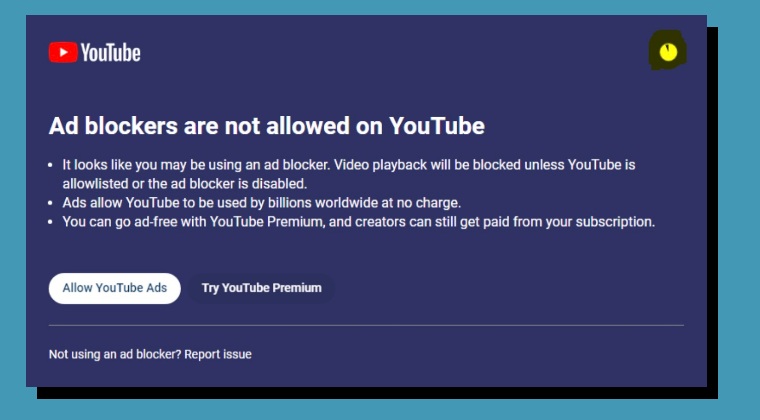
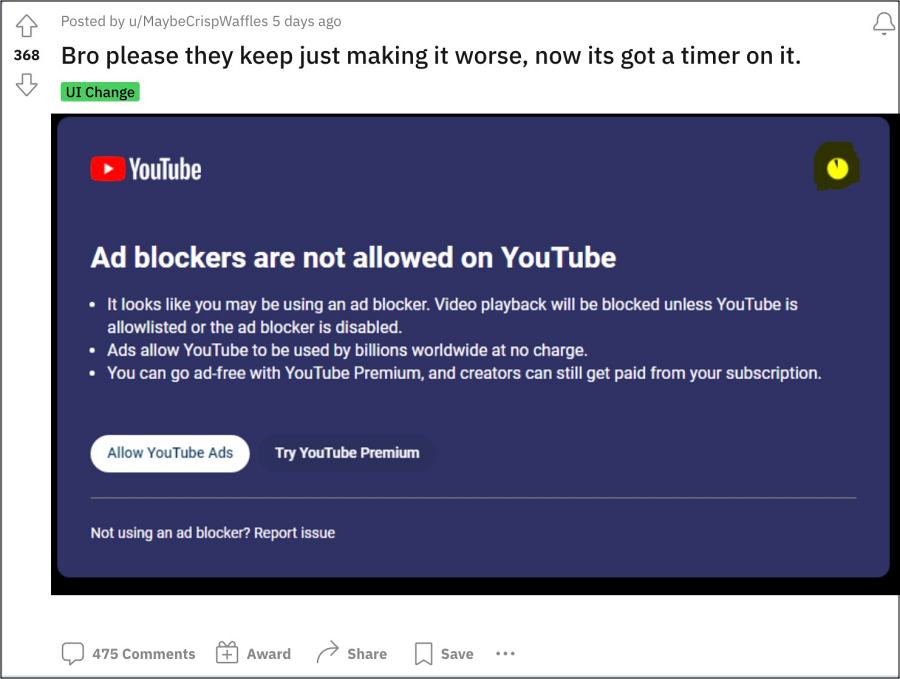
If you don’t want to opt for any of the aforementioned two approaches, then you have just one alternative at hand- wait for around 30-60 seconds for the pop-up to disappear, and then you may watch the video. This move comes soon after Google forced users to enable their search history or else their feed would be completely blank . So this new move will only add more insult to injury.
How to Bypass “Ad Blockers are not allowed on YouTube” Prompt

Well, obviously you aren’t going to buy the premium subscription, or else, you wouldn’t be here! So, apart from that, what other options do we have at hand to bid adieu to this prompt? Let’s find out.
Use Embedded Videos
You can watch the videos via the Share > Embed feature, and there will be no prompt whatsoever because YouTube has yet to add it in embedded videos!

Using Script
You can add the below script to uBlock Origin and block the prompt from appearing. Here’s how [NOTE: if you are unable to install uBlock, then have a look at this guide first].
- Click on the uBlock Origin extension icon > Dashboard.
- Then paste the below script and click on Apply Changes. www.youtube.com##+js(set, yt.config_.EXPERIMENT_FLAGS.service_worker_enabled, false)
- Now reload YouTube and you’ll not get any prompts.
Using Multi-Level Script
Apart from using a single-level script as shown above, you can also use a multi-level script. Here’s how:
- Click on the uBlock Origin extension icon > Dashboard.
- Then paste the below script and click on Apply Changes. www.youtube.com##+js(nano-stb, resolve(1), *, 0.001) www.youtube.com##+js(set, yt.config_.EXPERIMENT_FLAGS.web_enable_ab_rsp_cl, false) www.youtube.com##+js(set, yt.config_.EXPERIMENT_FLAGS.ab_pl_man, false) ||googlevideo.com/videoplayback$xhr,3p,method=get,domain=www.youtube.com www.youtube.com##+js(nano-stb, resolve(1), *, 0.001) www.youtube.com##+js(set, yt.config_.EXPERIMENT_FLAGS.web_enable_ab_rsp_cl, false) www.youtube.com##+js(set, yt.config_.EXPERIMENT_FLAGS.ab_pl_man, false) ||googlevideo.com/videoplayback$xhr,3p,method=get,domain=www.youtube.com
- Now reload YouTube and check out the result.
Remove “Easy List” Ads
Some users were able to rectify this problem by removing the Easy List filter. Here’s how it can be done:
- Click on the uBlock Origin extension icon > Dashboard.
- Now go to the Filter List tab and uncheck the Easy List filter.
- Now reload YouTube and verify the result.
Disable Cosmetic Filters
For some, it was disabling the Cosmetic Filtering that did the job for them. Here’s how you can try it out:
- Click on the uBlock Origin extension icon > Dashboard.
- Then go to its Settings tab and uncheck Cosmetic Filters.
- Now reload YouTube and you shouldn’t get the prompts.
Using Dynamic Filtering
Using uBlock’s Dynamic Filtering, you can disable the static filter and hence bypass the YouTube “Ad Blockers are not allowed not YouTube” pop-up. Here’s how:
- Click on the uBlock Origin extension icon > Dashboard.
- Then go to Settings > Check ” I am an advanced user”.
- Now open YouTube > click on the uBlock Origin extension icon.
- Then select More > All. Now, click on the red box next to static in the third column. First column: what is to be dynamically filtered. Second column: global dynamic filtering rules, i.e. whatever rule appears in this column applies everywhere, on all sites. Third column: local dynamic filtering rules, i.e. whatever rule appears in this column applies to the current site only.
- For now, our intention is to block the prompt on YouTube, that’s why we used the third column.
Using Safari’s “Hide Distractions”
If you are using the Safari browser, then you can easily remove the “Ad Blockers are not allowed not YouTube” Prompt via its Hide Distraction filter. The only drawback is that it will only come into play after you have received the prompt, whereas the other workarounds mentioned here will prevent the prompt from appearing in the first place.
- When the prompt appears, click on the menu icon to the left of the URL bar.
- Then select Hide Distraction Items, click on the prompt, and it will be gone!
- Fix YouTube Search and Watch History missing from the App
- Cannot view YouTube Videos if Watch History is off? Here’s why!
- YouTube Related Videos not loading: How to Fix
- Fix: Cannot remove videos from YouTube Watch Later 502 Error

(Cancel Reply)
Δ
