ADB Sideload Without PC: Flash Firmware/OTA/Custom Rom
In this guide, we will show you the steps to carry out ADB Sideload without using a PC. Nowadays, most custom ROMs come with their own set of recovery and the developers recommend you use that recovery itself for flashing their ROM. These AOSP recoveries don’t have the normal Install option to flash the ROM, rather, you’ll have to use the ADB Sideload option to get this job done.
Apart from that, the Sideload process also comes in handy if you are planning to install official updates onto your device in a stock environment. In this regard, it goes without saying that having a PC is one of the first and most obvious prerequisites for carrying out this task. Or is that really the case? Well, as surprising as it may sound, you could carry out ADB Sideload even without using a PC! And in this guide, we will show you how to do that. Follow along.
- ADB Sideload Without PC: Flash Firmware/OTA/Custom Rom METHOD 1: Using System UI Tuner METHOD 2: Using OTG STEP 1: Enable USB Debugging and OEM Unlocking STEP 2: Unlock Bootloader Without PC [If Needed] STEP 3: Download ROM/Firmware STEP 4: Set up the working environment STEP 5A: Via TWRP STEP 5B: Via ADB Sideload
ADB Sideload Without PC: Flash Firmware/OTA/Custom Rom
Before starting, please take a backup of all the data on your device. Droidwin and its members wouldn’t be held responsible in case of a thermonuclear war, your alarm doesn’t wake you up, or if anything happens to your device and data by performing the below steps.
METHOD 1: Using System UI Tuner
- First off, download the firmware for your device.
- Then, rename it to update.zip and transfer it to the Internal Storage [not inside any folder].
- After that, download, install, and set up Shizuku on your device.
- Then download and install System UI Tuner . Now, launch the app.
- Then, reach the Write Secure Settings page and hit Grant.
- Now enable USB Debugging and connect your device to your PC.
- Then, download and extract Android SDK Platform Tools on your PC.
- Now open Command Prompt inside that folder and type in: adb shell pm grant com.zacharee1.systemuituner android.permission.WRITE_SECURE_SETTINGS adb shell pm grant com.zacharee1.systemuituner android.permission.PACKAGE_USAGE_STATS adb shell pm grant com.zacharee1.systemuituner android.permission.DUMP
- Then swipe the next screen, hit Grant, and tap Allow all the time in the Shizuka prompt.
- Once you reach the app’s home screen, tap System and select Lock Screen.
- Then tap on Lock Screen Shortcuts and choose either Left or Right.
- Then search Software Update [com.wssyncmldm] > com.wssyncmldm/com.idm.fotaagent.enabler.ui.maindescription. AdminMainActivity
- Finally, hit OK. Now, lock your device and select the left shortcut.
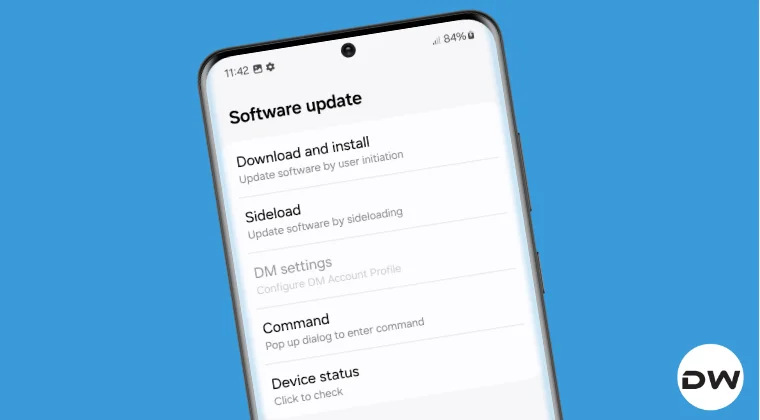
- This will open a hidden Software Update page.
- Select Sideload and choose the update.zip file. It will now copy the package, verify it, and then install it.
- Once done, reboot your device for the update to be installed.
METHOD 2: Using OTG

STEP 1: Enable USB Debugging and OEM Unlocking
First off, you will have to enable USB Debugging and OEM Unlocking on your device. The former will make your device recognizable by the PC in ADB mode. This will then allow you to boot your device to Fastboot Mode. On the other hand, OEM Unlocking is required to carry out the bootloader unlocking.
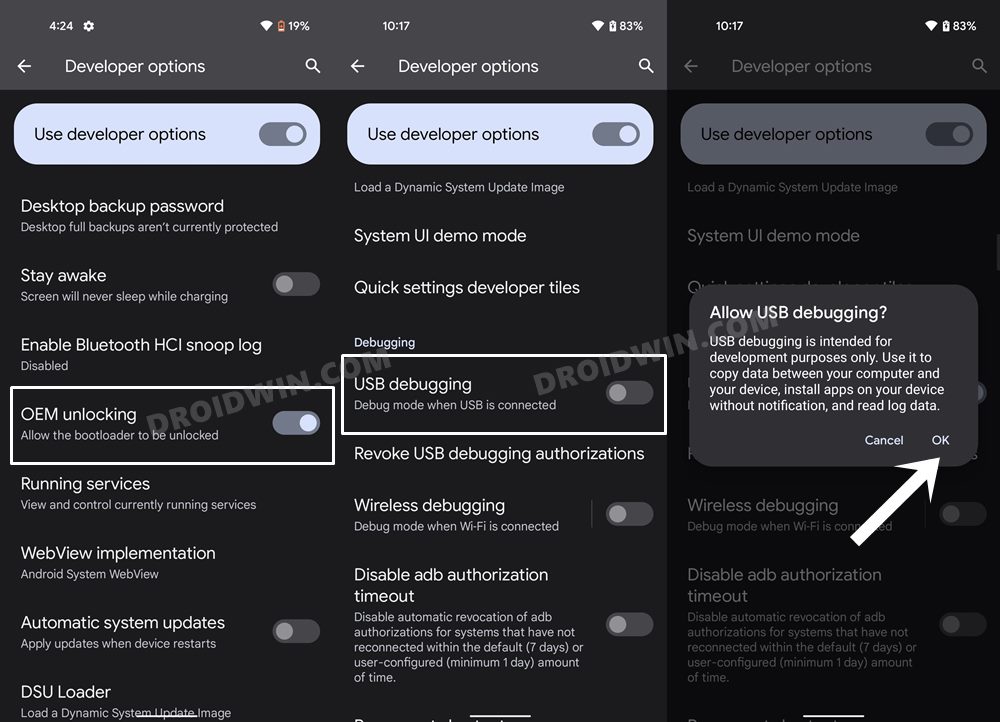
So head over to Settings > About Phone > Tap on Build Number 7 times > Go back to Settings > System > Developer Options > Enable USB Debugging and OEM Unlocking.
STEP 2: Unlock Bootloader Without PC [If Needed]
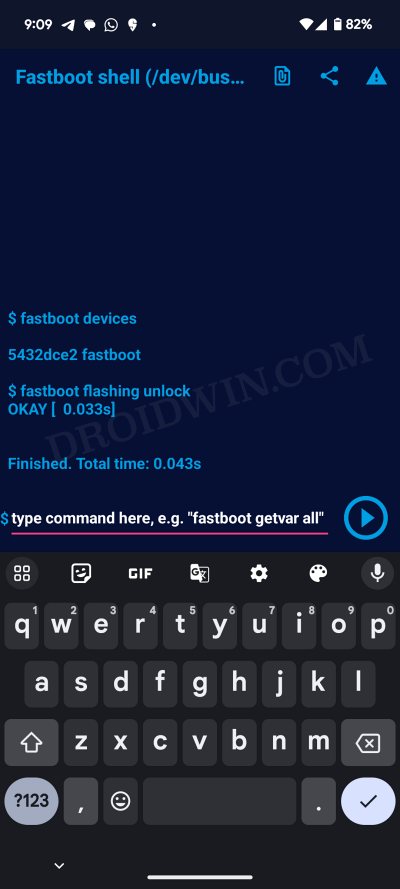
If you are planning to install/update a custom ROM via ADB Sideload, then you’ll have to unlock the bootloader. On the other hand, if you simply wish to install an official OTA update, then there’s no need for that. So if the former is the case with you, then refer to our guide on How to Unlock Bootloader on any Android without PC [Video] .
STEP 3: Download ROM/Firmware
Download the desired ROM and transfer it to your primary device. Make sure that the ROM version is either the same or higher than the currently installed [downgrading is not allowed via ADB Sideload and even via TWRP. It’s only the Fastboot Method using which you can do the downgrade; however, that might prove to be beyond the scope of this app. So let’s stick with the sideload and TWRP method only]. Moroever, download the firmware on your secondary device [which is acting as a PC or in other words, where the Bugjaeger app is installed].
STEP 4: Set up the working environment
- First off, connect the USB OTG adaptor to your second device.
- Likewise, plug in the USB Type A end to the OTG.
- On the other hand, plug the Type C end to your primary device.
- Now download and install the Bugjaeger app on your second device.
- Then launch the app and you’ll get a prompt “Open Bugjaeger to handle
”. Tap OK. - Now, from the Commands page of the app, tap on List Devices. Your primary device should be listed at the bottom.
- If that doesn’t happen, then unplug and replug the USB cable/OTG. You might have to do this a few times until you get the prompt/device name.
- Now, refer to the section that corresponds to your requirement for flashing the Custom ROM- TWRP or ADB Sideload.
STEP 5A: Via TWRP
Before you start with this process, download a custom recovery and transfer it to your secondary device [place it in Internal Storage, not inside any folder]. Also, verify whether your device has a recovery partition or not .
- From the Bugjaeger app, tap on Reboot Bootloader to boot the device to Fastboot Mode.
- After that, type in the below command in the Bugjaeger console: fastboot flash recovery //If you have a recovery partition fastboot boot //If you don’t have a recovery partition
- Now tap on the attachment icon at the top right and select the recovery.img file. Then hit Enter.
- If you flashed the recovery [the first command], then use the below command to boot to it: fastboot reboot recovery
- You may now follow the ROM-specific installation steps to flash the ROM.
- This usually involves Format Data > Flash ROM via Install option > Format Data > Reboot to System.
STEP 5B: Via ADB Sideload
- From the Bugjaeger app, tap on Reboot Bootloader to boot the device to Fastboot Mode.
- Then use the required commands from below to flash the partition files: fastboot wipe-super place_the_super_empty.img_file fastboot flash boot place_the_boot.img_file fastboot flash dtbo place_the_dtbo.img_file fastboot flash recovery place_the_recovery_file fastboot flash vbmeta place_the_vbmeta.img_file fastboot flash vendor_boot place_the_vendor_boot.img_file
- Now type in the below command to boot to the newly flashed recovery: fastboot reboot recovery
- From recovery, go to Format Data/Factory Reset.
- Then transfer the ROM ZIP file to your main device from the secondary device.
- Now, head to Apply Update > Apply from ADB.
- Your device will now boot to the Sideload Mode.
- Then type in the below command to flash the ROM: adb sideload rom.zip
- Once done, do a format data once again from the recovery.
- Finally, select Reboot System Now to boot to the OS.
Sideloading Stock ROM
- From the Bugjaeger app, go to the Fastboot tab.
- Then select Reboot to Recovery.
- After that, select Pick file and perform a sideload.
- Now choose the downloaded ROM/firmware ZIP.
- The sideloading will now start. Once done, you’ll be notified of the same.
- You may then sideload other files [such as GApps] in a similar manner.
- Once done, simply unplug the OTG and reboot your device to the OS.
- How to Install Firmware via ADB Sideload on Pixel 8/Pro
- Flash Firmware on Fairphone 5 via Fastboot & ADB Sideload
- How to Install One UI 6.0 via ADB Sideload on Samsung
- How to Install OTA Updates via ADB Sideload in Nothing Phone 2

(Cancel Reply)
Δ
