Add Clear All button in Pixel Recent Apps at the bottom
In this guide, we will show you the steps to add the Clear All button in Recent Apps at the bottom of your Pixel device. If you are looking for a clean stock ecosystem with the perfect implementation of the Android OS, then you shouldn’t look any further than what the Pixel devices have to offer. The minute details such as the ability to edit the clipboard, copy content directly from Recent Apps, and Live Trnalsate are just some of its nifty features.
On the flip side though, it has also made son glaring omissions that one would certainly expect to have. For example, once you type in the unlock PIN, you will have to hit Enter as well whereas other devices will straightaway unlock the device as soon as you type in the current PIN. Likewise, the settings shortcut icon has been transferred to the bottom of the notification panel [which was earlier at the top and is easier to access].
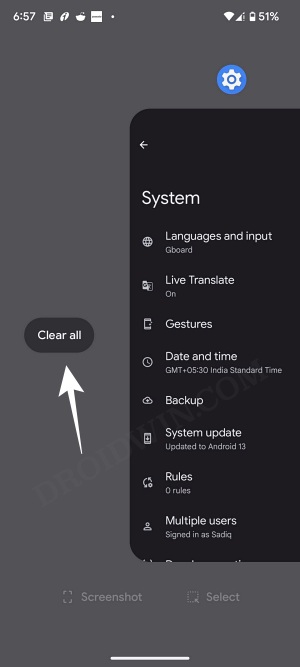
Recent Apps Close All button on Pixel
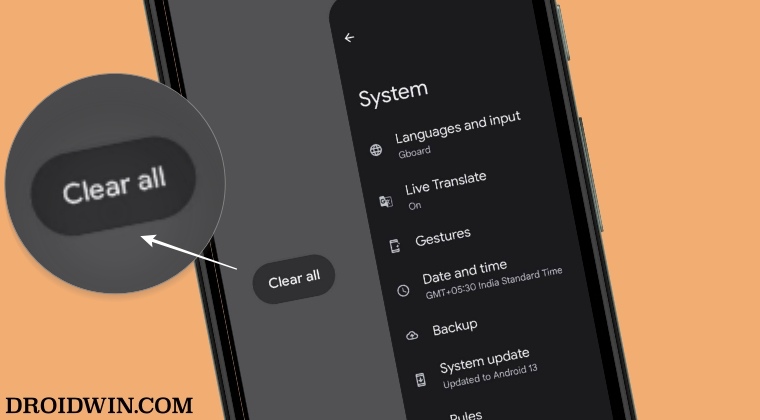
While these issues wouldn’t make a difference between day and night, but it definitely would have given it more brownie points from the ease of convenience factor. Talking about convenience, there’s another broken implementation of small yet important functionality. On Piel devices, the Clear All button has been replaced at the extreme left of the Recent Apps screen. By default, when you access Recent Apps, then you will be taken to the extreme right.
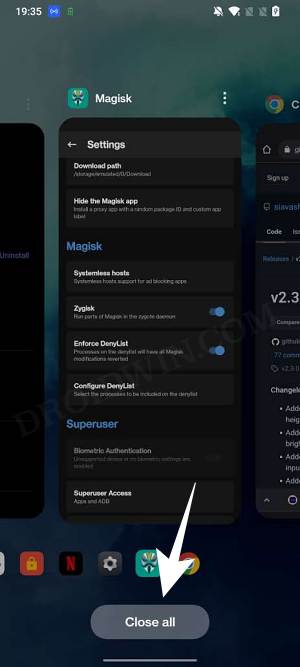
Recent Apps Close All button on OnePlus
So you will have to scroll past all the open apps until you reach the extreme left and then only will you be able to access the button to close all the recent apps at once. if we talk about other OEMs, then most of them have fixed the Clear All button at the bottom which you could access from any section of the Recents App screen. So is there a way to emulate the same behavior on a Pixel device? Well, there is one but it comes with a catch. So without further ado, let’s check it out.
How to Add Clear All button in Recent Apps at the bottom on Pixel
The only catch that this workaround involves is the requirement of a rooted device. So if that’s well and good, then refer to our guide on How to Root Pixel Devices running Android 13 via Magisk . Once done, you may then start off with the below instructions right away.
- Launch the Magisk app and tap on the settings icon situated at the top right.
- Then enable the toggle next to Zygisk and restart your device.
- Now download the LSposed Module (Zygisk Version) and transfer it to your device.
- Then launch Magisk, go to the Modules section, and tap on Install from Storage.
- Now navigate to the LSposed Module and select it. It will now be flashed. Once done, hit Reboot.
- Then download the AOSP Mod and flash it onto your device via Magisk. Once done, hit Reboot.
- Now launch the AOSP Mod, go to the Miscellaneous section and enable the toggle next to Add Clear All Button to bottom of Recents page
Update: Nothing OS 2 also adopts the Left Position of Clear All in Recents Apps
Nothing Phone 2 has just made its way, housing the latest Nothing OS 2.0. While there are quite a few noteworthy features to look forward to, it seems to have taken a page out of Pixel’s book as it has also adopted the same infuriating UI/UX design of placing the Clear All button at the extreme left in the Recent Apps screen and instead, it has given us the Screenshot option! Seriously, I doubt anyone who wants to take a screenshot would go to the Recents App of all places!
But all this begs an important question- is there a way out? Well, as of now there doesn’t exist any module as such that should help you get this job. While it’s quite early days for this device but judging by the active participation of Nothing Phone 1 in the custom development, its successor will surely be blessed with a plethora of mods, out of which we hope that one would actually address this issue. As and when that happens, we will update this section accordingly.
- Pixel 7/Pro: Quick Tap to Start Action/Back Tap not working [Fix]
- How to Add More App Icons to the Home Screen on Pixel
- Enable Call Screening on Pixel 7/Pro in Unsupported Regions
- Pixel 7 Pro Connected but not Charging: How to Fix

- Putler - Huylo 3 years ago Reply Thank you!
(Cancel Reply)
Δ
