Add Power Menu to Windows 11 Right-Click/Context Menu
In this guide, we will show you the steps to add the Power menu to the Windows 11 right-click or context menu. There exists quite a few methods through which you could turn off or restart your PC. You could do so from the Start Menu or via the Ctrol+Alt+Del screen, The tech enthusiasts might even take the help of the command prompt to get the job done.
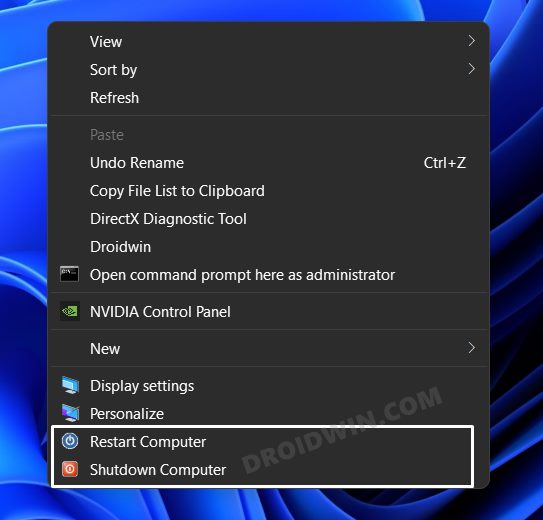
But wouldn’t it be much easier to get access to the power options in just a single mouse click? Well, if you nod your head in the affirmative, then this guide is all you need. In this tutorial, we will show you the detailed steps to add the Power menu to the Windows 11 right-click/context menu. Follow along for the instructions.
How to Add Power Menu to Windows 11 Right-Click/Context Menu
Before starting with the below steps, it is recommended to take a backup of the registry beforehand. Once that is done, you may then get started with the instructions.
- Open Notepad from the Start Menu as an administrator and copy-paste the below command: Windows Registry Editor Version 5.00 [HKEY_CLASSES_ROOT\DesktopBackground\Shell\Restart Computer] “icon”=“shell32.dll,-221” “Position”=“Bottom” [HKEY_CLASSES_ROOT\DesktopBackground\Shell\Shutdown Computer] “icon”=“shell32.dll,-329” “Position”=“Bottom” [HKEY_CLASSES_ROOT\DesktopBackground\Shell\Restart Computer\command] @=“shutdown.exe -r -t 00 -f” [HKEY_CLASSES_ROOT\DesktopBackground\Shell\Shutdown Computer\command] @=“shutdown.exe -s -t 00 -f”
- Then go to File > Save as and change the Save as type to All Files. Name it Power Options.reg and hit Save.
- Now double click to open the Power Options.reg file. You will get a confirmation, click YES. That’s it.
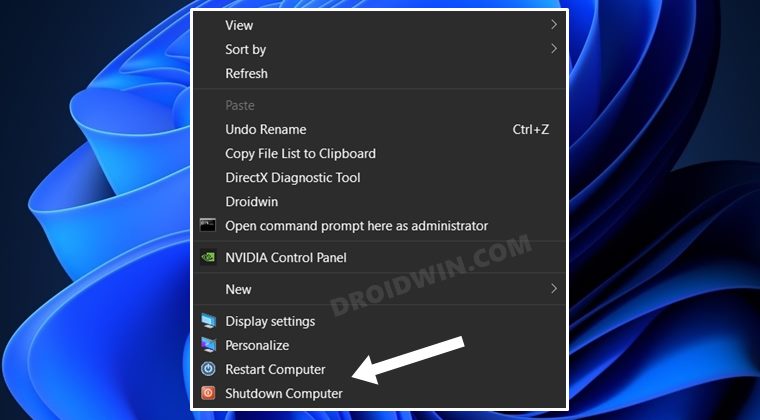
- Just right-click in an empty location on the desktop and you should see the Shutdown and Restart options.
How to Remove Power Menu from Context Menu
- Open Registry Editor from the Start Menu and head over to the below location HKEY_CLASSES_ROOT\DesktopBackground\Shell
- Then right-click on the Shutdown Computer key and select Delete > Yes.
- Likewise, delete the Restart Computer in a similar manner. That’s it.
- Both the options will now be removed from the right-click menu.
- How to Add Website Shortcut in Windows 11 Right-Click Menu
- Add Dark/Light Mode option in Windows 11 Right-Click Menu
- Add ‘Open CMD as Admin’ in Windows 11 Right-Click Menu
- Windows 11 Right Click: How to Get Windows 10 Context Menu

(Cancel Reply)
Δ
