Add/Remove Folders to This PC in File Explorer on Windows 11
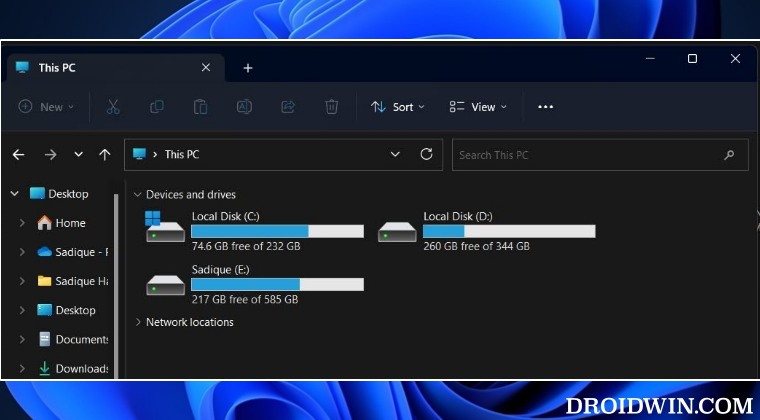
In this guide, we will show you a nifty method to add or remove folders from This PC in File Explorer on your Windows 11 PC. By default, Windows has cluttered the This PC section with tons of folders, including the likes of 3D Objects, Desktop, Documents, Downloads, Music, Pictures, and Videos. This results in a cluttered usage experience and might not be in sync with some users’ requirements.
Fortunately, Microsoft has done the job easy for those sets of users starting with Windows 11 build 25136 and 22621.160, it has created a new section titled Windows Folders which now houses all those folders within itself. So instead of being present right in front of you, these folders will now be shifted to the side navigation bar. However, this feature is slowly being rolled out in batches, so it might take a while before your PC is blessed with the same.
Fortunately, you could skip this waiting queue and remove folders from This PC in File Explorer on your Windows 11 PC right away via a nifty workaround. However, there are still a few who preferred the earlier UI as it was easier for them to access those folders in that UI/UX. So for those users, this guide will also show them the steps to add those folders back to This PC in File Explorer on their Windows 11 PC. So without further ado, let’s check out both these approaches.
How to Add Folders to This PC in File Explorer on Windows 11
- Create a new text file and paste the below commands: Windows Registry Editor Version 5.00 ; 3D Folders [HKEY_LOCAL_MACHINE\SOFTWARE\Microsoft\Windows\CurrentVersion\Explorer\MyComputer\NameSpace{0DB7E03F-FC29-4DC6-9020-FF41B59E513A}] ; Desktop [HKEY_LOCAL_MACHINE\SOFTWARE\Microsoft\Windows\CurrentVersion\Explorer\MyComputer\NameSpace{B4BFCC3A-DB2C-424C-B029-7FE99A87C641}] “HideIfEnabled”=- ; Documents [HKEY_LOCAL_MACHINE\SOFTWARE\Microsoft\Windows\CurrentVersion\Explorer\MyComputer\NameSpace{d3162b92-9365-467a-956b-92703aca08af}] “HideIfEnabled”=- ; Downloads [HKEY_LOCAL_MACHINE\SOFTWARE\Microsoft\Windows\CurrentVersion\Explorer\MyComputer\NameSpace{088e3905-0323-4b02-9826-5d99428e115f}] “HideIfEnabled”=- ; Music [HKEY_LOCAL_MACHINE\SOFTWARE\Microsoft\Windows\CurrentVersion\Explorer\MyComputer\NameSpace{3dfdf296-dbec-4fb4-81d1-6a3438bcf4de}] “HideIfEnabled”=- ; Pictures [HKEY_LOCAL_MACHINE\SOFTWARE\Microsoft\Windows\CurrentVersion\Explorer\MyComputer\NameSpace{24ad3ad4-a569-4530-98e1-ab02f9417aa8}] “HideIfEnabled”=- ; Videos [HKEY_LOCAL_MACHINE\SOFTWARE\Microsoft\Windows\CurrentVersion\Explorer\MyComputer\NameSpace{f86fa3ab-70d2-4fc7-9c99-fcbf05467f3a}] “HideIfEnabled”=-
- If you don’t want to add any folder, then simply delete that line of command.
- For instance, if you don’t want to add the Videos Folder, then simply delete the following two lines from the above file: ; Videos [HKEY_LOCAL_MACHINE\SOFTWARE\Microsoft\Windows\CurrentVersion\Explorer\MyComputer\NameSpace{f86fa3ab-70d2-4fc7-9c99-fcbf05467f3a}] “HideIfEnabled”=-
- Once you have made the desired changes, go to File > Save As > change Save As Type to All Files.
- Then give it any name of your choice but keep the extension .reg and save it.
- Now launch that file. You’ll get a prompt, click on YES.
- That’s it. Those folders will now be added under This PC in File Explorer on your Windows 11 PC.
How to Remove Folders from This PC in File Explorer on Windows 11
- Create a new text file and paste the below commands: Windows Registry Editor Version 5.00 ; 3D Folders [-HKEY_LOCAL_MACHINE\SOFTWARE\Microsoft\Windows\CurrentVersion\Explorer\MyComputer\NameSpace{0DB7E03F-FC29-4DC6-9020-FF41B59E513A}] ; Desktop [HKEY_LOCAL_MACHINE\SOFTWARE\Microsoft\Windows\CurrentVersion\Explorer\MyComputer\NameSpace{B4BFCC3A-DB2C-424C-B029-7FE99A87C641}] “HideIfEnabled”=dword:022ab9b9 ; Documents [HKEY_LOCAL_MACHINE\SOFTWARE\Microsoft\Windows\CurrentVersion\Explorer\MyComputer\NameSpace{d3162b92-9365-467a-956b-92703aca08af}] “HideIfEnabled”=dword:022ab9b9 ; Downloads [HKEY_LOCAL_MACHINE\SOFTWARE\Microsoft\Windows\CurrentVersion\Explorer\MyComputer\NameSpace{088e3905-0323-4b02-9826-5d99428e115f}] “HideIfEnabled”=dword:022ab9b9 ; Music [HKEY_LOCAL_MACHINE\SOFTWARE\Microsoft\Windows\CurrentVersion\Explorer\MyComputer\NameSpace{3dfdf296-dbec-4fb4-81d1-6a3438bcf4de}] “HideIfEnabled”=dword:022ab9b9 ; Pictures [HKEY_LOCAL_MACHINE\SOFTWARE\Microsoft\Windows\CurrentVersion\Explorer\MyComputer\NameSpace{24ad3ad4-a569-4530-98e1-ab02f9417aa8}] “HideIfEnabled”=dword:022ab9b9 ; Videos [HKEY_LOCAL_MACHINE\SOFTWARE\Microsoft\Windows\CurrentVersion\Explorer\MyComputer\NameSpace{f86fa3ab-70d2-4fc7-9c99-fcbf05467f3a}] “HideIfEnabled”=dword:022ab9b9
- If you don’t want to remove any folder, then simply delete that line of command from above.
- For instance, if you don’t want to remove the Videos Folder, then simply delete the following two lines from the above file: ; Videos [HKEY_LOCAL_MACHINE\SOFTWARE\Microsoft\Windows\CurrentVersion\Explorer\MyComputer\NameSpace{f86fa3ab-70d2-4fc7-9c99-fcbf05467f3a}] “HideIfEnabled”=-
- Once you have made the desired changes, go to File > Save As > change Save As Type to All Files.
- Then give it any name of your choice but keep the extension .reg and save it.
- Now launch that file. You’ll get a prompt, click on YES.
- Those folders will now be removed from This PC in File Explorer on your Windows 11 PC.
- How to Hide Files and Folders from Search in Windows 11
- Guide to Disable Shadows in Windows 11
- How to Remove Duplicate Drives in File Explorer on Windows 11
- How to Add Memory, CPU and GPU Widgets in Windows 11

(Cancel Reply)
Δ
