Adobe Photoshop Lags when using Alt key: How to Fix
In this guide, we will show you various methods to fix the Adobe Photoshop lag issue when using the Alt key. When it comes to the raster graphics editor software, then there’s hardly an iota of doubt that the offering from Adobe is the absolute best in this domain. The ability to edit and compose raster images in multiple layers has completely been streamlined using this software and the support for masks and alpha compositing proves to be the icing on the cake. However, in spite of all the goodies attached, it isn’t free from its fair share of issues.
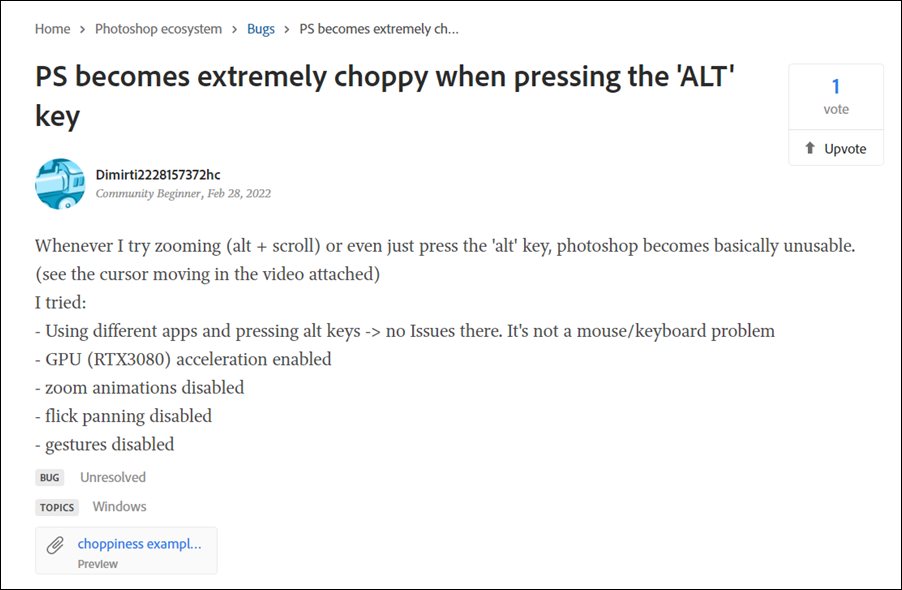
Recently users had reported that the software was freezing and crashing while dealing with PSD and PSB files. While that issue has been addressed, a small one has already made its way. Many users have voiced their concern that Photoshop becomes extremely laggy and choppy as and when they use the Alt key . And when it comes to this software, the Alt key is used across a plethora of tasks. These include the likes of activating the color picker, zooming in via mouse wheel, switching keyboard layout, inserting content, among others.
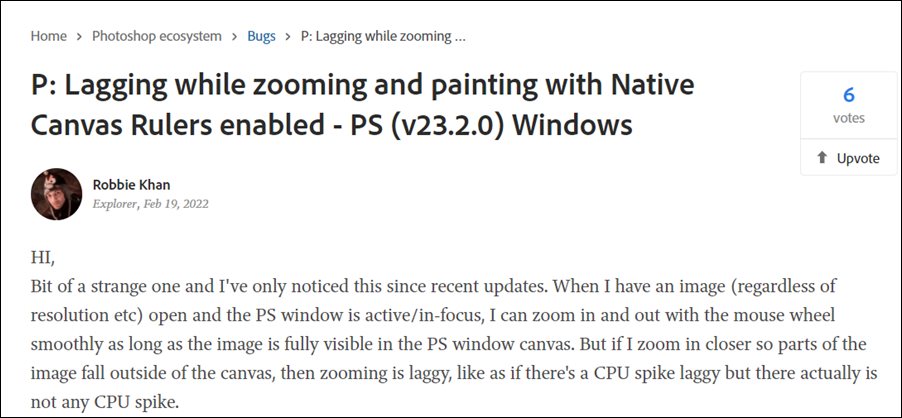
But as of now, it is taking ages for the users to carry out any of these tasks. As soon as one presses the Alt key, the mouse cursor motion stutters quite a lot and the frames per second seem to drop to the absolute minimum. If you are also getting bugged with any of these issues, then this guide shall come in handy. In this tutorial, we will make you aware of various methods to fix the Adobe Photoshop lag issue when using the Alt key. Follow along.
- How to Fix Adobe Photoshop Lags when using the Alt key FIX 1: Disable Native Canvas Rulers FIX 2: Use Third-Party Tool FIX 3: Downgrade to Old Version
How to Fix Adobe Photoshop Lags when using the Alt key
Do note that there’s no universal fix as such. You will have to try out each of the below-mentioned workarounds and see which one works best in your favor. So with that in mind, let’s get started.
FIX 1: Disable Native Canvas Rulers
The use of grids, guides, and rulers is beyond debatable among the most useful tools. However, as of now, it seems to be the culprit behind the software’s slow performance. Therefore, you should consider temporarily disabling it and then check out the results. Here’s how it could be done:
- Launch Photoshop and go to the Preferences menu.
- Then select Technology Previews from the left-hand side.
- After that, uncheck “Enable Native Canvas Rulers”.
- Check if it fixes the Adobe Photoshop lag issue when using the Alt key.
FIX 2: Use Third-Party Tool
Some users were able to rectify this issue by using a popular third-party open-source tool called Apssistant. You may read its usage instructions and download it from GitHub and then see if it resolves the underlying problem or not.
FIX 3: Downgrade to Old Version
For some users, the issue first came to light right after they updated the software to version 23.2. So the best course of action is to downgrade the app to the earlier stable build. Here’s how it could be done:
- Open the Creative Clouds app and scroll to Photoshop.
- Then click on the More (…) button next to it.
- After that, select Other Versions from the drop-down menu.
- Now click on the Install button next to the app version 23.1.1.
- The older build of that app will now be downloaded and installed onto your PC.
- Adobe Photoshop freezes with PSB and PSD Files in Mac: How to Fix
- Smart Sharpen in Adobe Photoshop Brings up Vertical Lines and Pixel Shift
- Fix Program Error when saving Photoshop files to Google drive
- Text disappearing in the text box in Adobe InDesign on Mac [Fixed]

(Cancel Reply)
Δ
