Allow Restricted Settings missing from Sideloaded Apps in Android 13 [Fix]
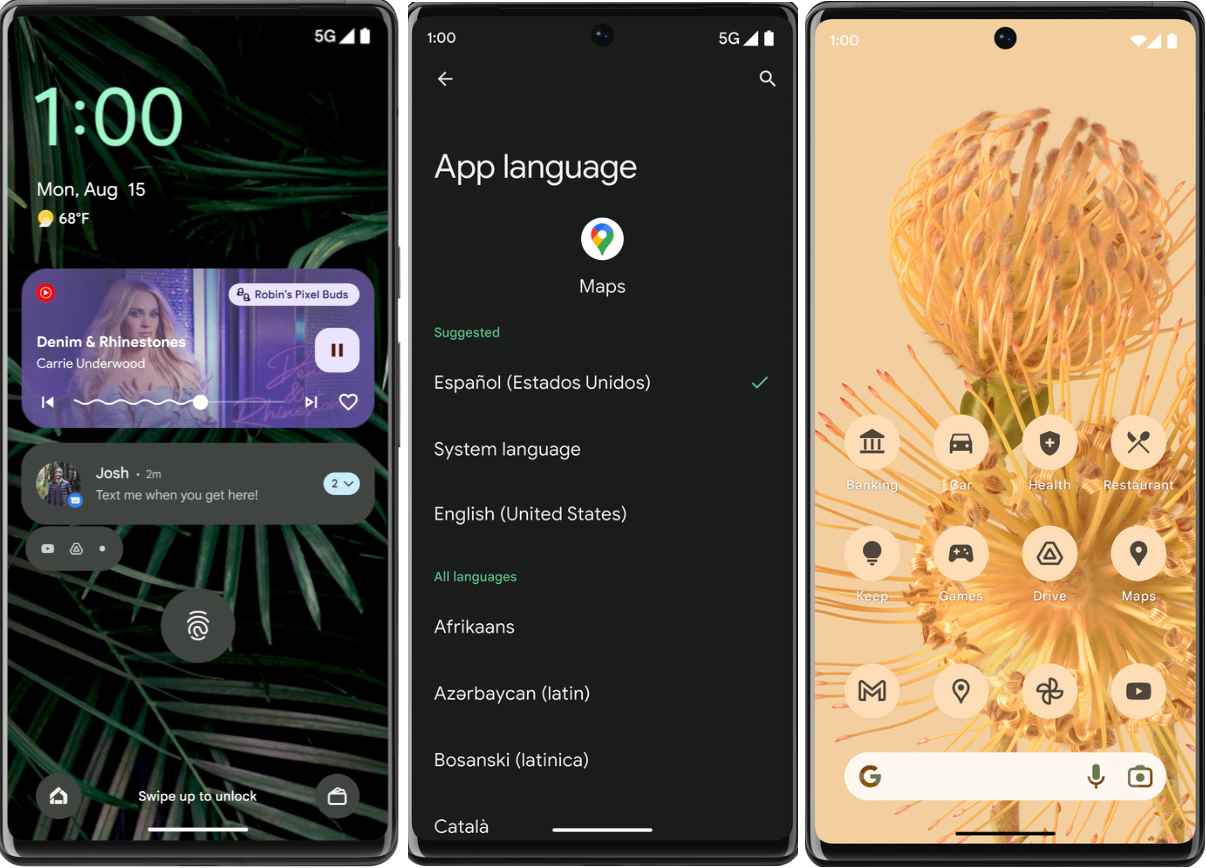
[ Updated with a new workaround on 6th February 2025 ] In this guide, we will show you the steps to fix the issue of missing Allow Restricted Settings options from sideloaded apps on your Android 13 device. The latest OS build has bought in a slew of noteworthy and intriguing features. These include the likes of expansion of the Material You theme from 4 to 16, per-app language change, QR code scanner in the Quick Settings, and ability to edit the clipboard, among others.
Credits: Google
However, there has been another silent change that might have slightly gone under the radar. Android 13 has now further tightened the screws on the third-party apps by preventing them from accessing system-level notification and accessibility API. This has been done to prevent the sideloaded apps from abusing administrative-level APIs and exploiting the OS. Moreover, this rule applies to all those apps that come with a non-session-based package installer.
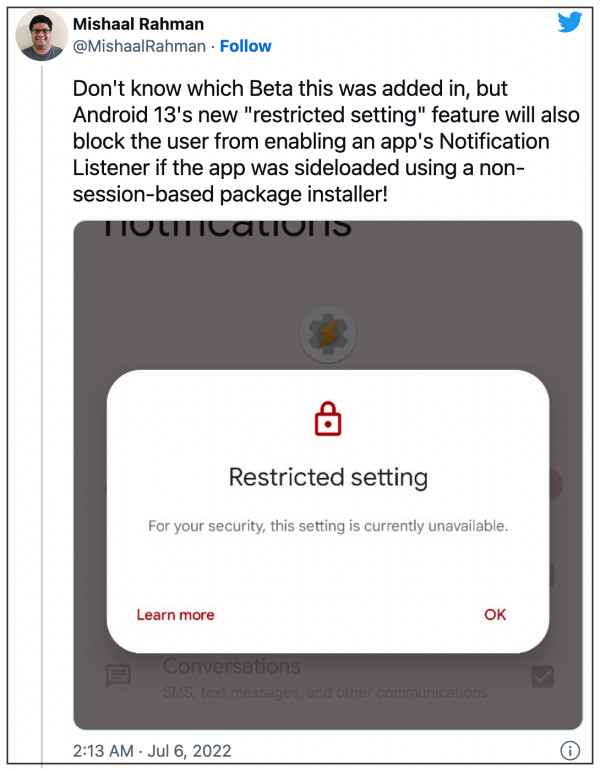
Unfortunately, that is near about every app that you downloaded from outside the Play Store. So while this new privacy feature does this job quite well, but there could be another side to this story. What if a user tries to sideload a legitimate app that he or she has downloaded from a trusted source? Well, by default, even those apps wouldn’t be allowed to access the APIs. But Google has still given users an option to let the app of their choice bypass this restriction.
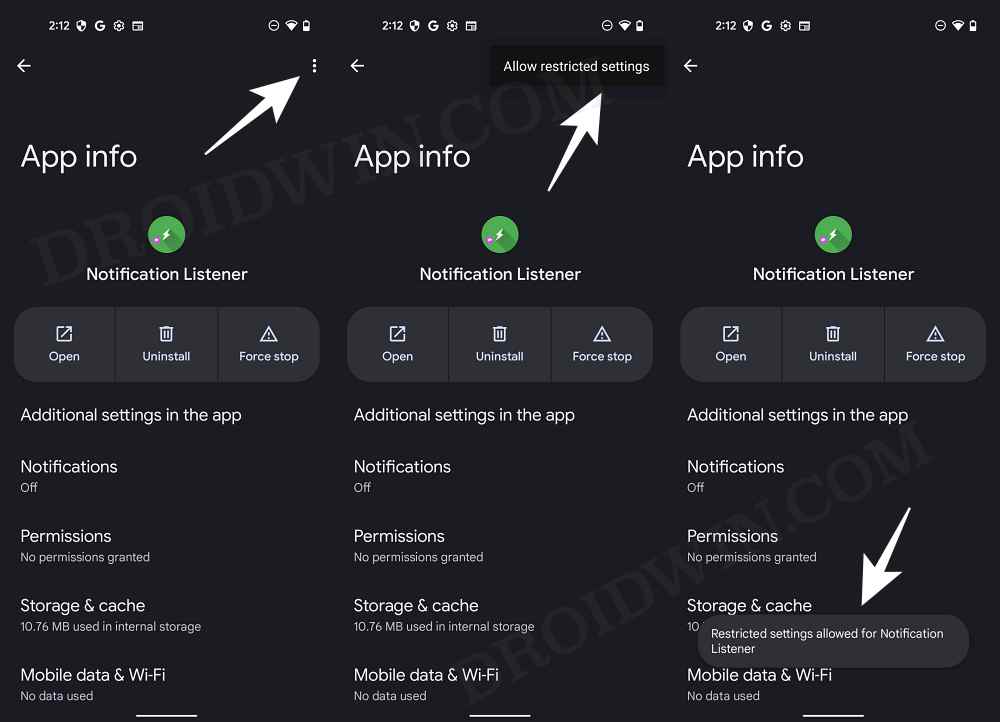
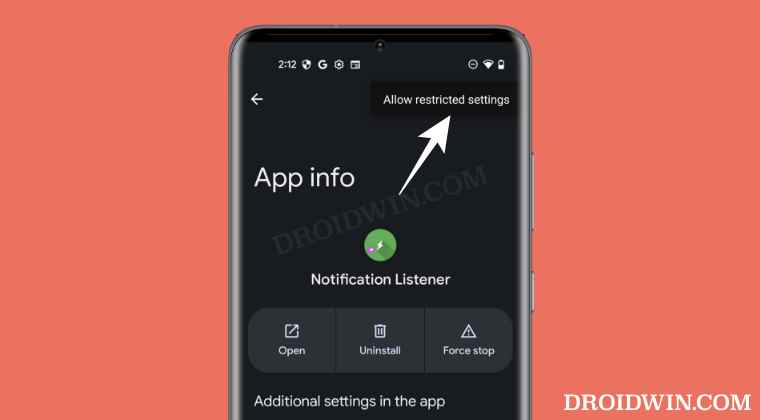
All that you need to do is just head over to the desired app’s info page, tap on the overflow icon situated at the top right, and select Allow Restricted Settings. However, this is proving to be easier said than done. Many users have voiced their concern over the fact that this Allow Restricted Settings option is missing from the sideloaded apps on their Android 13 devices. If you are also in the same boat and wish to know why this is happening, then follow along.
Why is Allow Restricted Settings missing from Sideloaded Apps in Android 13?
First and foremost, this is not a bug. Rather the availability of this feature depends on the functionality of the app. You will only get this option in those apps that request access for the Notification and/or Accessibility permission.
If an app doesn’t require any of these permissions, then the Allow Restricted Settings option will be missing from your Android 13 device for that app. It doesn’t matter from which source you grab the APK or the version of the app, what matters is where it needs access to the aforementioned APIs.
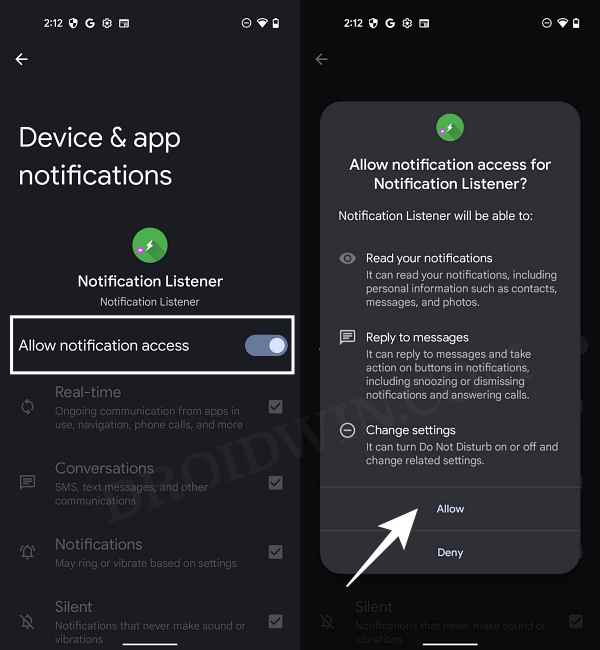
UPDATE: A New Workaround Is Available!

If the Allow Restricted Settings option is still missing from your preferred sideloaded apps on your Android 13 device, then fret not. A rather surprising and easy workaround is now available that will help you address this concern once. All that you need to do is install the desired app via Split APK Installer [SAI] and then you can easily access the Allow Restricted Settings toggle of that app from its App Info page. So do give it a try using the below-listed steps and check out the results.
- Download and install Split APK Installer [SAI] from the Play Store.
- Then launch it, tap on Select File, and grant it the storage access.
- Now tap on System File Picker, select the desired APK, and hit Install.
- Once installed, go to its App Info page > tap the overflow icon and select Allow restricted settings.
- Android 13 Restricted Settings for Sideloaded Apps: How to Bypass
- Fix: Restricted Mobile Data But Still Receiving Notifications
- How to Fix Cannot Turn Off Restricted Mode in YouTube
- How to Take Screenshots in Restricted Apps on Android

- leon li 2 years ago Reply the Honor health app is notavailablein the US. this is super helpful to enable the band integration. Thank you so much!
- Mohan 2 years ago Reply There are three sideloaded apps for which I wish to enable accessibility permissions, but I am not able to get the three dot menu at the top right corner to ‘allow unrestricted settings’ after which I can enable accessibility permission. Even after installing from Play Store, ‘allow unrestricted settings’ is missing. I want to allow accessibility permission for True Phone to record calls using the system app without doing anything more in the system app, Nova Launcher to enable double tap for screen off and Screen Master for taking long screenshots with proper stitching.
- Eddie 3 years ago Reply Infinix Hot 30..no 3 dots in app info,How on earth am i going to fix this restrictions issue?
- AADEESH 3 years ago Reply my motorola edge 20 pro has the same issue in camera. now showing “Device camera is blocked”. I can’t use the camera after this. Is there any option to change the block? All camera Notification is still in off mode. cannot change to On.
- ritsard 3 years ago Reply this is also one of my problem in HiOs 12.6 allow restricted setting is missing unlike on the other android.
- spinoza23 3 years ago Reply this don’t work Sadique Hassan 3 years ago Reply Hi spinoza23, could you please further explain your query, if possible. Most importantly, for which app it didn’t work?
(Cancel Reply)
Δ
