Always On Display AOD not working on Android 14: How to Fix
In this guide, we will show you various methods to fix the issue of Always On Display/AOD not working on Android 14. As is evident by its name, this functionality keeps your display in an always-on position so that you can get hold of information such as date, time, weather, and app notifications icon. However, with the fourteenth iteration of the OS, the feature seems to have hit a rough patch.
Numerous users have voiced their concern that Always on Display/AOD is not working along the expected lines on their devices running the latest Android 14. For some, the screen is completely black whereas for others, it just shows the fingerprint scanner without any other information. If you are also facing any of these issues, then this guide will help you out. Follow along for the fixes.
- Fix Always On Display AOD not working on Android 14 FIX 1: Disable Battery Saver FIX 2: Enable Always Show Time FIX 3: Enable Tap to Check Phone FIX 4: Enable Lift to Check Phone
Fix Always On Display AOD not working on Android 14
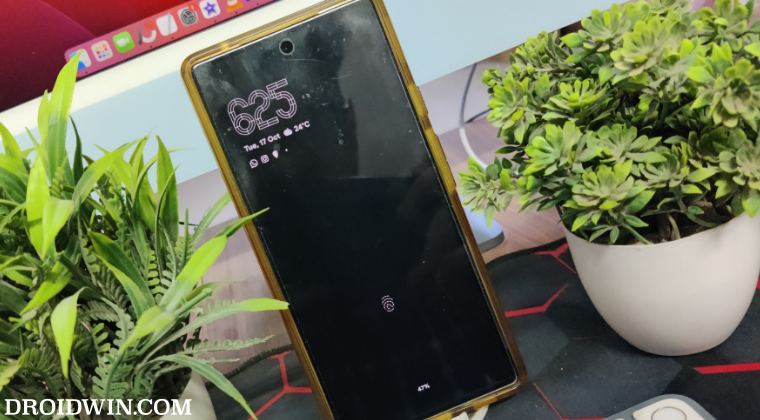
It is recommended that you try out each of the below-mentioned workarounds and then see which one spells out success. So with that in mind, let’s get started.
FIX 1: Disable Battery Saver
If you have enabled any battery restrictive measures, then you should consider disabling it right away as it might conflict with the proper functioning of the AOD. Here’s how it could be done:
- Head over to Settings > Battery> Battery Saver.
- Then disable the toggle next to Use Battery Saver.
- Check if Always On Display is working on Android 14.
FIX 2: Enable Always Show Time
- Head over to Settings > Display > Lock Screen.
- Then enable Always Show Time and Info.
- Now check if AOD is working on Android 14.
FIX 3: Enable Tap to Check Phone
- Head over to Settings > Display > Lock Screen.
- Then enable the Tap to Check Phone feature.
- Now check if AOD is working on Android 14.
FIX 4: Enable Lift to Check Phone
- Head over to Settings > Display > Lock Screen.
- Then enable the Lift to Check Phone feature.
- Now check if AOD is working on Android 14.
- Navigation Swipe Gesture not working on Android 14: How to Fix
- Fix Google Home Lock Screen Shortcuts not working on Android 14
- Android Auto not working on Android 14: How to Fix
- Fix Android 14 Photo Picker Permission dialog box not appearing

(Cancel Reply)
Δ
