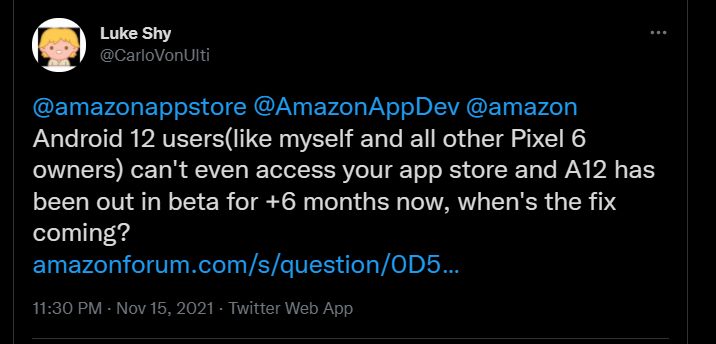
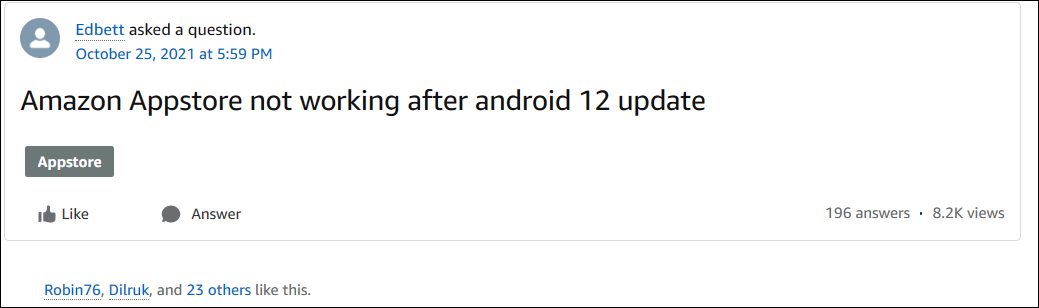
- How to Fix Amazon App Store not working in Android 12 FIX 1: Force Stop Amazon App Store FIX 2: Delete Cache of Amazon App Store FIX 3: Update Amazon App Store FIX 4: Remove Battery Restriction from Amazon App Store FIX 5: Delete Data of Amazon App Store FIX 6: Reinstall Amazon App Store FIX 7: Downgrade Amazon App Store an Older Build
Do note that there’s no universal fix as such. You will have to try out each of the below-mentioned workarounds and see which one works best in your favor. So with that in mind, let’s get started.
To begin with, you should consider restarting the app. Doing so will refresh all its underlying processes and it will give it a fresh instance to work upon. And this in turn might rectify the underlying issue as well. So refer to the below steps to try it out:
- To begin with, head over to the Settings menu on your device.
- Then go to Apps > See All Apps and select the Amazon App Store from the list.
- Now tap on Force Stop followed by OK in the confirmation dialog box.
- Check if it fixes the Amazon App Store not working issue in Android 12.
If a lot of temporary data get accrued over the due course of time, then it could conflict with the proper functioning of the app. Therefore, you should consider deleting these apps at regular intervals, and now could be the perfect time to do so. So refer to the below steps to try it out:
- Head over to the Settings menu on your device.
- Then go to Apps > See All Apps and select the Amazon App Store from the list.
- After that, go to the Storage section and tap on Clear Cache.
- Now verify if it fixes the Amazon App Store not working issue in Android 12.
If you have put any battery restrictions in place, then it is recommended to remove them for the time being. This is because these restrictive measures might prevent the app’s background processes from functioning along the expected lines. Therefore, refer to the below steps and remove these limitations:
- First off, head over to the Settings > Battery section.
- Then go to Battery Saver and disable it, if it is enabled.
- After that, go to Apps > All Apps and select Amazon App Store from the list.
- Then go to its Battery section and select Unrestricted.
- Now check if it fixes the Amazon App Store not working issue on your Android device.
If the app’s data gets corrupted, then you would have to delete all those data and let the app repopulate it from scratch. Here’s how it could be done:
- Head over to the Settings menu on your device.
- Then go to Apps > See All Apps and select the Amazon App Store from the list.
- After that, go to the Storage section and tap on Clear Data.
- Then tap OK in the confirmation dialog box that appears.
- Now launch the app and sign in with your credentials.
- Verify if it fixes the Amazon App Store not working issue in Android 12.
If the app’s configuration and settings file get corrupted, then simply deleting the app’s data and cache might not be enough. In such cases, you will have to completely remove the app from your device and reinstall its fresh build. Here’s how:
- Head over to the Settings menu on your device.
- Then go to Apps > See All Apps and select the Amazon App Store from the list.
- After that, tap on Uninstall followed by OK in the confirmation dialog box.
- Now go to the app’s official listing page and download and install its latest version.
- Launch the app, sign in with your credentials and set it up.
- This should have fixed the Amazon App Store not working on Android 12.
In some instances, the latest build of the app might be buggy or unstable and this could be the reason behind the app’s not working along the expected lines. Therefore, you should consider downgrading the app to an earlier version.
- Start by uninstalling the current version of the Amazon App Store from your device (see FIX 6).
- Then head over to a trusted site and download an old version of the Amazon App Store.
- Now launch the app and sign in with your Amazon account.
- That’s it, the underlying issue should now have been resolved.
- How to Sideload Android Apps on Windows 11 [Without Amazon App Store]
- YouTube videos on Amazon Fire TV Stick stuck on thumbnail [Fixed]
- How to Fix Amazon Prime Video Error 7235 on Chromebook
- How to Remove Bloatware from Amazon Fire 7/8/10 Tablets

(Cancel Reply)
Δ
