- Fix Amazon App Store: This app will not work on your device STEP 1: Enable Hyper V in Windows 11 STEP 2: Manually Install Amazon App Store
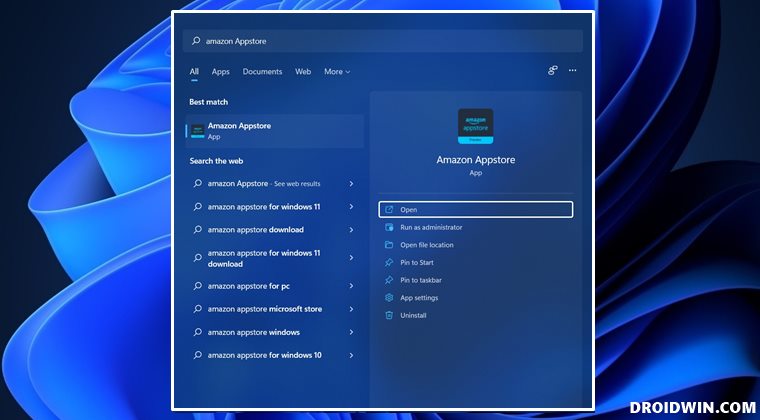
The below instructions are listed under separate sections for ease of understanding. Make sure to follow in the exact same sequence as mentioned.
STEP 1: Enable Hyper V in Windows 11
Head over to the Start Menu, search Turn Windows Features on or off and open it.
Then, checkmark Hyper-V and click OK.
That’s it. Hyper V is now enabled on your Windows 11 PC.
To begin with, head over to the Microsoft Store website and search Amazon App Store.
Then copy that page’s URL. It will be something along the lines of: https://www.microsoft.com/en-us/p/amazon-appstore/9njhk44ttksx
Now go to rg-adguard website (https://store.rg-adguard.net/) and paste the URL in the space provided.
After that select Slow from the drop-down menu and click on the checkmark icon.
It will now bring up a list of numerous Amazon App Store packages. Click on the one that ends with msixbundle, something like: Amazon.comServicesLLC.AmazonAppstore_0.0.2.0_neutral_~_bvztej1py64t8.msixbundle
The package will now be downloaded. Double click to launch it and then proceed with the on-screen instructions to install it.
Once the installation is complete, you could access the Amazon App Store from the Start Menu and use it as per the need.
- How to Install and Run Android Apps on Windows 11
- How to Sideload Android Apps on Windows 11 [Without Amazon App Store]
- Unable to start Windows Subsystem for Android: How to Fix
- How to Root Windows Subsystem for Android via Magisk

(Cancel Reply)
Δ
