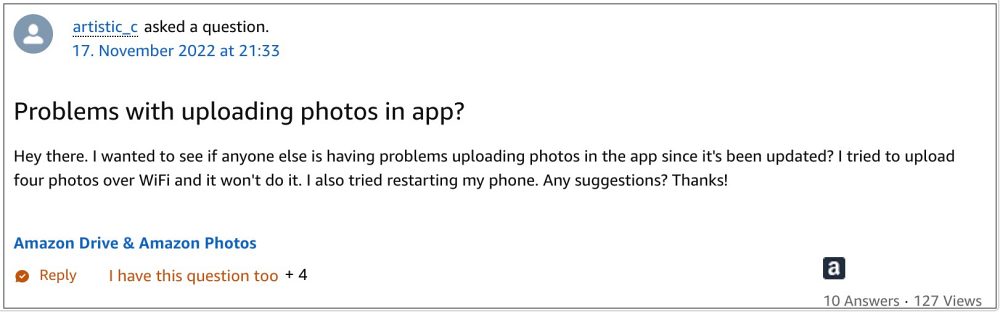
- Fix Amazon Photos not working FIX 1: Reinstall Amazon Photos FIX 2: Manually Upload Photos FIX 3: Downgrade Photos App

- Head over to Settings > Apps > select Amazon Photos.
- Then tap Uninstall > OK in the confirmation prompt.
- Now install it from App Store [iOS] / Play Store [Android].
- Launch it and check if Amazon Photos is working now or not.
FIX 2: Manually Upload Photos
- Launch the Amazon Photos app and tap on the smiley icon present at the top left.
- Then tap on the settings icon present at the top right and select Upload photos manually.
- Now select the desired photos and videos and hit Upload in the top-right corner.
- Check if it fixes the issue of Amazon Photos not working.
FIX 3: Downgrade Photos App
- Head over to Settings > Apps > select Amazon Photos.
- Then tap Uninstall > OK in the confirmation prompt.
- Now download and install its older version from here.
- After that, go to Play Store and search Amazon Photos.
- Then tap on the overflow icon situated at the top right.
- Now, uncheck Enable Auto Update and test out the app.
- Bypass New Google Restriction: Get Free Unlimited Photos Storage
- How to Hide Images and Videos in Google Photos
- Adobe Photoshop Liquify Zoom Slow/Not Working [Fix]
- Cannot Import Photos via iTunes: iOS 16 and macOS Mojave

(Cancel Reply)
Δ
