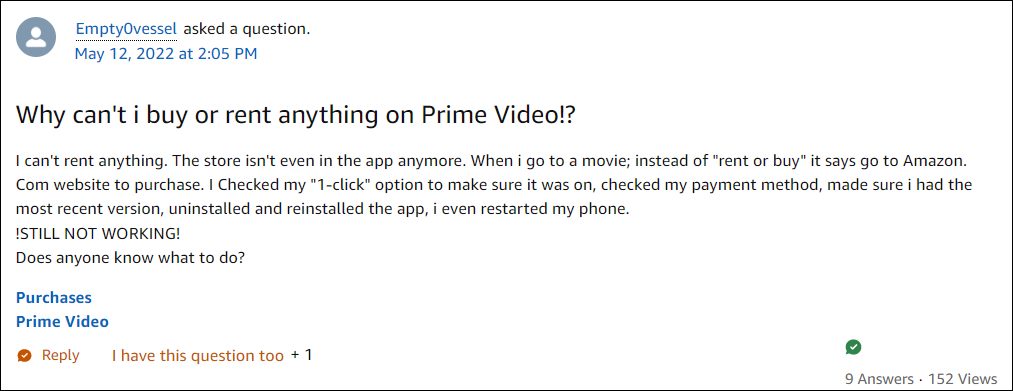
- Why are Rent and Buy options missing in Amazon Prime Video App
- How to Rent and Buy Shows in Amazon Prime Video App on Android FIX 1: Purchase via Amazon Website FIX 2: Use Non-Play Store Prime Video App FIX 3: Use Non-Android Devices
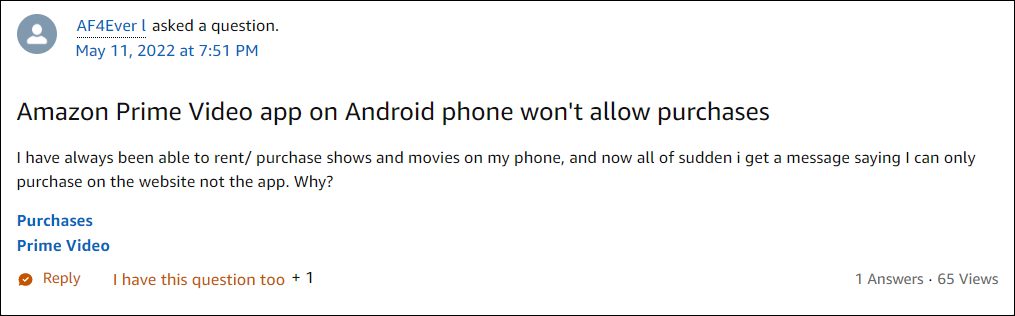
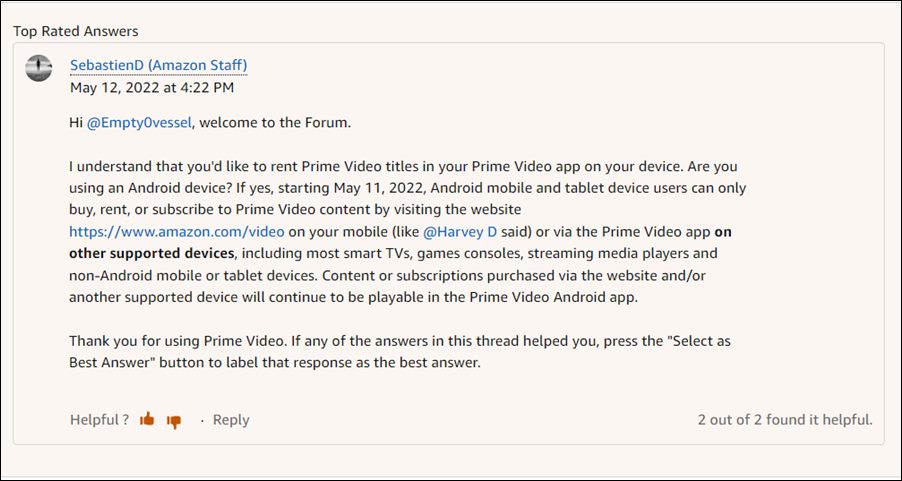
It is recommended that you try out each of the below-mentioned workarounds and then see which one is most suitable for you in the long run. So with that in mind, let’s get started.
The easiest of fixes, it involves purchasing the desired content via the website and then syncing it with the app. The only drawback is that you will have to switch between your browser and the Prime Video app before every purchase.
- Open any browser on your device and head over to the Amazon Prime website .
- Then log into your account and purchase/rent the desired content.
- Once done, launch the Prime Video app and sign in via the same account through which you have made the purchase.
- You should now see all your purchased/rented contents in the app.
FIX 2: Use Non-Play Store Prime Video App
- To begin with, uninstall the Prime Video app that you have installed from the Play Store.
- Then go to the Amazon App website and download the Prime Video app.
- Now install it and enable Installation from Unknown Sources, if asked.
- Finally, sign in via your account and may now carry out the desired purchases from the app.
FIX 3: Use Non-Android Devices
- Amazon Prime Video Internet Connectivity Problem on Apple TV [Fix]
- How to Fix Amazon Prime Video Error 7235 on Chromebook
- Amazon App Store not working in Android 12: How to Fix
- Cannot Download Amazon Music Purchased Songs: How to Fix

(Cancel Reply)
Δ
