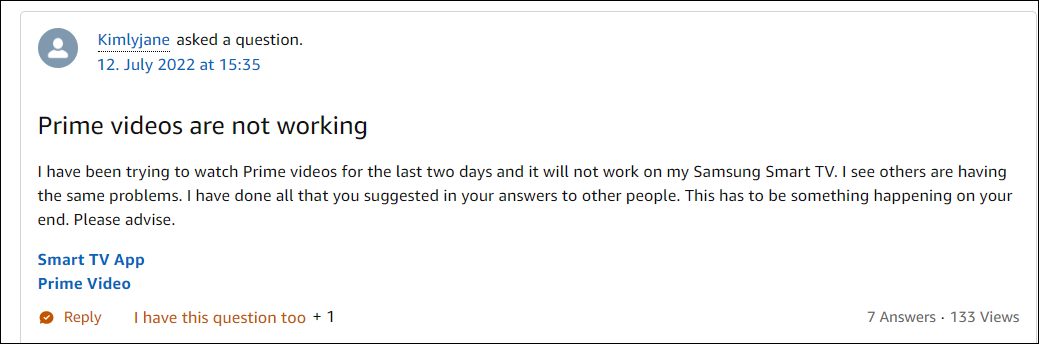
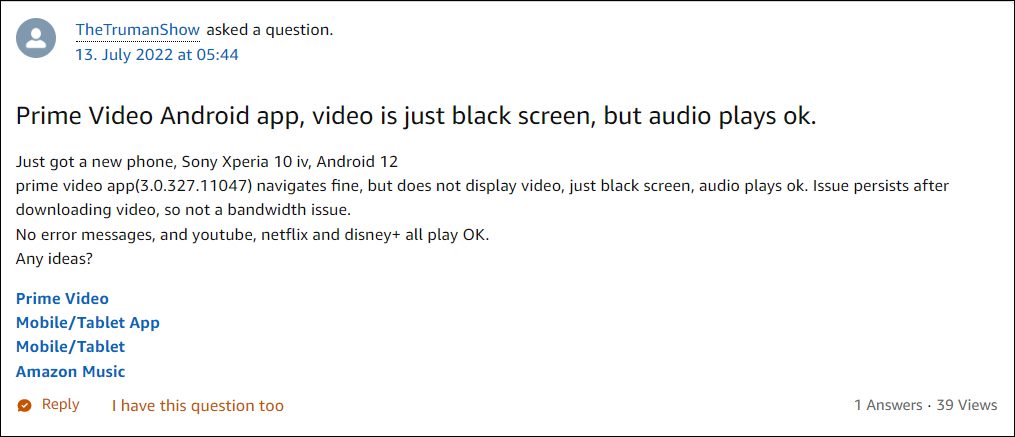
They have even tried downloading the video, but the issue persists in the offline mode as well. Furthermore, the bug has affected both the smartphone and TV versions of the app. With that said, there does exist a few nifty workarounds that shall help you fix the underlying issue. So without further ado, let’s check them out.
- Fix Amazon Prime Video Black Screen with Audio in Background FIX 1: Restart TV and App FIX 2: Log out from other devices FIX 3: Restart Router FIX 4: Check HDMI Compatibility FIX 5: Disable VPN FIX 6: Disable Proxy

It is recommended that you try out each of the below-mentioned workarounds and then see which one spells out success for you. So with that in mind, let’s get started.
FIX 1: Restart TV and App
Your first course of action should be to restart both the TV as well as the app. Here’s how it could be done:
- Close the Prime Video app and turn off your TV.
- Likewise, unplug it from the socket and keep it in that state for around 30 seconds.
- Then plug it back in and turn on your TV. Now launch the app.
- Check if it fixes the Amazon Prime Video black screen issue with audio playing in the background.
FIX 2: Log out from other devices
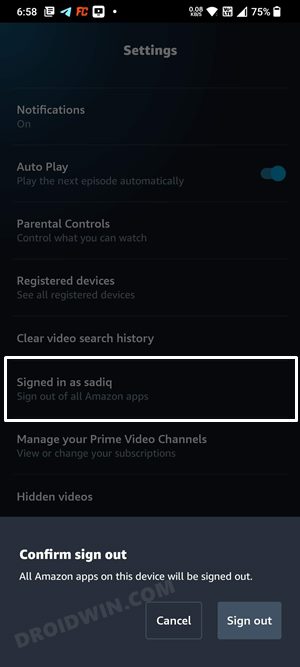
Next up, make sure that you are not using the same Prime account on more than 2 devices. If that is the case, then log out from the rest of the devices and then retry logging into your primary device.
FIX 3: Restart Router
Talking about network-related tweaks, you should ensure that the network is running well and good without any interruptions. Likewise, we would also advise you to restart your router- either remotely or by pressing its power button.
FIX 4: Check HDMI Compatibility
FIX 5: Disable VPN
If you have opted for a Virtual Private Network to view geo-restricted content, then it might result in a few issues. This is because the data is now being transferred from a disguised location, as a result of which, the actual data packets released from the source might not reach the intended destination. To rectify this issue, you will have to disable the VPN service, as instructed below [these steps are for Windows PC].
- Bring up the Settings menu via Windows+I shortcut keys.
- Then go to Network and Internet from the left menu bar and select VPN.
- After that, select your VPN and click Disconnect.
- Check if it Amazon Prime Video black screen issue with audio playing in the background.
FIX 6: Disable Proxy
Apart from hiding your actual IP Address and giving you the ability to access geo-restricted contents, a proxy server also acts as a firewall and web filter. However, in some instances, the data packets might not be able to get past these many network layers and instead are lost midway during the exchange process. So to avoid that from happening, you should disable proxy, using the instructions given below [the steps are for Windows PC].
- Bring up the Settings menu vis Windows+I shortcut keys.
- Then select Network and Internet from the left menu bar and go to Proxy.
- After that, click on Use a Proxy Server.
- Now turn off the toggle next to it and check if the underlying issue has been resolved or not.
- Amazon Prime Video Internet Connectivity Problem on Apple TV [Fix]
- How to Fix Amazon Prime Video Error 7235 on Chromebook
- Amazon Prime Video App: Rent and Buy options missing [Fixed]
- Nvidia Shield TV version 9.1 update: Netflix, Prime Video not working [Fix]

(Cancel Reply)
Δ
