Amphetamine doesn’t start at login/boot up on Ventura [Fixed]
In this guide, we will show you a couple of methods to fix the issue of Amphetamine not starting at boot up or login in Ventura. When it comes to keeping your Mac awake for a designated time frame, then there couldn’t be a better option than Amphetamine. Using just a single on/off switch or through triggers that could be configured in just a few clicks, it will prevent your Mac from sleeping just the way you wanted.
Unfortunately, it isn’t correctly working along the expected lines in the latest macOS build. Numerous Ventura users have voiced their concern that Amphetamine does not seem to auto start at boot up or login. As a result of this, they have to manually launch the app every time they boot up their Mac. If you are also in the same boat, then this guide will make you aware of a couple of nifty workarounds to address this issue.
- Fix Amphetamine doesn’t start at login/boot up on Ventura FIX 1: Re-Add Amphetamine to Login Items FIX 2: Using Automator
Fix Amphetamine doesn’t start at login/boot up on Ventura

It is recommended that you try out each of the below-mentioned workarounds and then see which one spells out success for you. So with that in mind, let’s get started.
FIX 1: Re-Add Amphetamine to Login Items
Your first course of action should be to remove and then re-add Amphetamine to Mac’s Open at login items. This will refresh its underlying settings and could well rectify the issue that we are currently dealing with. So give it a try using the below-listed steps and then check out the results.
- Launch System Settings and go to General > Login Items.
- Then select Amphetamine and hit the minus sign to remove it.
- Now click on the plus, select the Amphetamine app, and hit Add.
- No restart your Mac and check if the app starts at boot up or not.
FIX 2: Using Automator
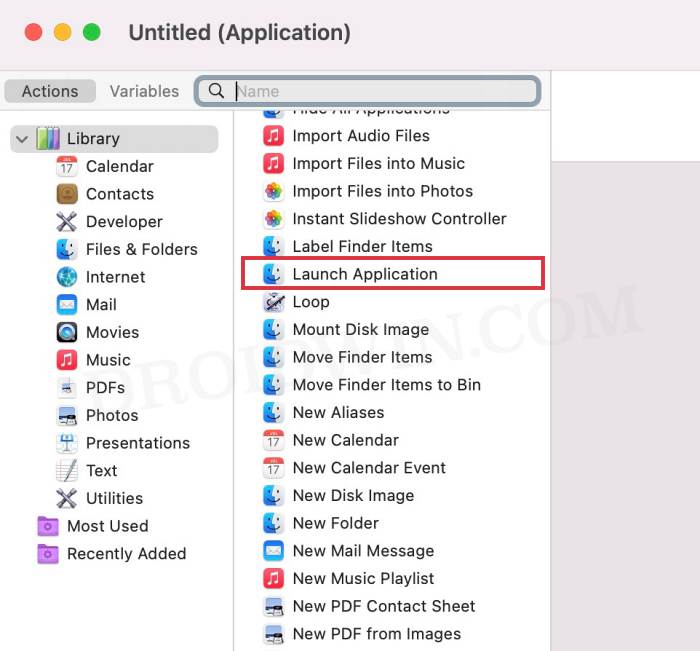
You could create an app using Automator that pauses (for 10-15 seconds) and then starts Amphetamine. After that, just add the app loader you created to the Login Items in System Settings. As far as the Automator commands are required, the Pause and Launch Application commands should do the job. So try it out and then check if it spells out success for you or not.
- Login Items are no longer hidden on Ventura: How to Fix
- Remove Deleted Apps from Background Login Items in Ventura
- Schedule Shutdown missing in macOS Ventura: How to Fix
- Cannot login to OpenAI ChatGPT: Internal Server Error [Fix]

(Cancel Reply)
Δ
