An attempt was made to reference a token that does not exist [Fix]
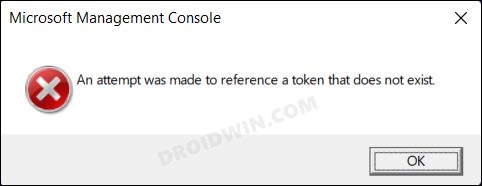
In this guide, we will show you various methods to fix the “An attempt was made to reference a token that does not exist” error in Windows. So recently I carried out a task that involved changing the name of the User folder that is present in the C drive. While that was successfully carried out, but the real problem arose after I restarted the PC.
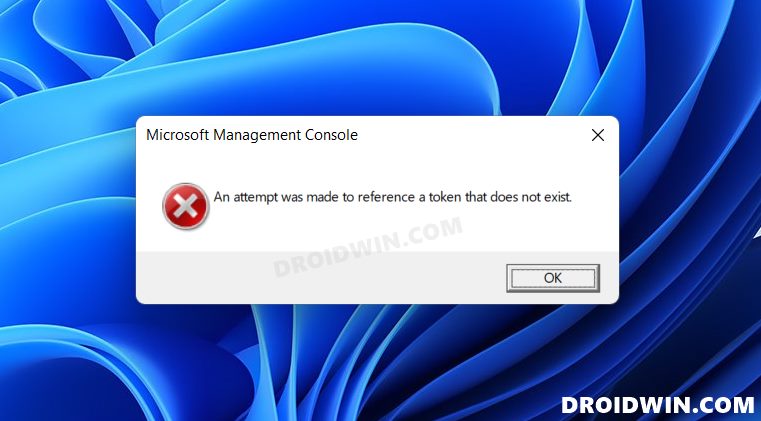
All the tweaks that I enabled from the Windows Professional Build over to the Home edition refused to open. Apart from that, some system apps also had to face this wrath. So whenever I tried launching the apps like Group Policy Editor or Security Policy, or system apps like Visual Studio, then they all gave the same error- “An attempt was made to reference a token that does not exist”.
So I did some further investigation and found out the root cause of this issue [explained in the first fix]. This then made my job easier to get hold of the fix, which upon implementation did manage to rectify the underlying issue. So I decided to write down the fix in this guide as it may help out others as well who are in the same boat as I was a few moments back. Without any further ado, let’s get started.
- Fix An attempt was made to reference a token that does not exist FIX 1: Re-Register DLL Files FIX 2: Use SFC and DISM Commands
Fix An attempt was made to reference a token that does not exist
It is recommended that you try out each of the below-mentioned workarounds and then see which one spells out success for you. So with that in mind, let’s get started.
FIX 1: Re-Register DLL Files
The single biggest reason why you are facing this error is that some or all of your DLL files have been unregistered. As a result of this, the system is unable to identify those files. To resolve this issue, you will have to re-register those DLL files, as explained below-
- Launch Command Prompt as an administrator from the Start Menu.
- Then execute the below command to register all the DLL files for /f %s in (‘dir /b *.dll’) do regsvr32 /s %s
- Wait for the process to complete. Once done, restart your PC.
- This should fix “An attempt was made to reference a token that does not exist”.
FIX 2: Use SFC and DISM Commands
System File Checker and Deployment Image Servicing and Management are two command-line utility tools that scan for corrupt Windows files and then replace them with their working counterpart. The major difference between the two is whereas the SFC replaces the corrupt files with the working ones from the cached directory on your PC, DISM does so by downloading the working files from the online Microsoft servers. And as of now, we would be making use of both these tools to fix the underlying issue.
- To begin with, launch CMD as an administrator from the Start Menu.
- Then execute the below command to open the SFC Tool: sfc /scannow
- Once the SFC Scanning is complete, it’s time to use the DISM Tool. So copy-paste the below command: DISM /Online /Cleanup-Image /RestoreHealth
- Now restart your PC and it should fix the underlying issue.
- DLL File is Missing from your Windows 11 Computer: How to Fix
- “It looks like you don’t have permission to save changes to this file” [Fixed]
- Where are the Windows 11 Default Icon Files Located
- Activation64.dll is missing Error in Windows 11: How to Fix

- bb 3 years ago Reply pothead
(Cancel Reply)
Δ
