Android 14 QPR3 Beta 2 Bricked Pixel: How to Fix
In this guide, we will show you the steps to fix the issue of Android 14 QPR3 Beta 2 update bricking Pixel devices. The Silicon Valley giant has recently rolled out the second Beta of its Quarterly Platform Release and with that, there are quite a few under-the-hood fixes. However, your device might not even be able to welcome abode these fixes in the first place! This is because right after installing the said update, many users have reported that their device ended up in a bootloop or softbrick state, or to be more specific, stuck on the Google logo with no way out.
However, there is an important point worth keeping in mind- this is only happening if you sideload this update. If you install it the normal way, i.e. from the Settings menu, then your device won’t have to face the wrath of Google! Moreover, it also further cements the fact that one should always exercise caution when dealing with these testing builds as issues such as the one we are dealing with are always around the corner. With that said, if your Pixel is also currently stuck in this bricked state right after installing the Android 14 QPR3 Beta 2 update, then this guide will help you out. Follow along for the fix.
Fix Android 14 QPR3 Beta 2 Bricked Pixel

- First off, press and hold down the power button until your device powers off.
- Now press and hold the Power and Volume Down key to boot to Fastboot Mode.
- Then use the Volume key to bring up Recovery Mode and press the Power key to confirm. Your device will now boot to the stock recovery.
- So use the Volume keys to highlight Apply Update from ADB and press the power key to confirm. Then connect your device to PC via USB.
- Now download and extract Android SDK Platform Tools on your PC.
- Then download the Beta 1 OTA from below, rename it to rom.zip, and transfer it to the platform-tools folder.
- Finally, type in the below command to start the sideload process: adb sideload rom.zip
- Once done, your device should boot to the OS on the Beta 1 release.
- Cannot Stop Alarm on Android 14 QPR3 Beta [Fixed]
- Fix Android 14 QPR3 Beta 1 apps crashing in work profile
- How to Fix Blank Wallpaper in Android 14 QPR2 Beta 2
- Fix Fingerprint Sensor not working on Pixel Android 14 QPR Beta 2

(Cancel Reply)
Δ
Fix Fingerprint Sensor not working on Pixel Android 14 QPR Beta 2
In this guide, we will show you the steps to fix the fingerprint sensor not working issue on Pixel after installing the latest Android 14 QPR Beta 2. Apart from the usual security patch updates releases, the Silicon Valley giant also releases Feature Drops as well as Quarterly Platform Releases. If you are part of the beta testing group of the latter, then you are among the first in line to get blessed with new updates, much quicker than your stable counterparts.
However, this is just one side of the coin. Being a beta update, it goes along the expected lines that they will have a few bugs and issues. And that has indeed been the case this time around as well. Numerous users have voiced their concern that the fingerprint sensor is not working issue on their Pixel after installing the latest Android 14 QPR Beta 2 update.
This issue is mostly prominent on the Pixel 7 Pro and users are constantly getting a prompt/toast message to contact Google customer support to rectify this issue. If you are also in the same boat, then this guide will make you aware of the steps to rectify this issue once and for all. Follow along.
Fix Fingerprint Sensor not working on Pixel Android 14 QPR Beta 2
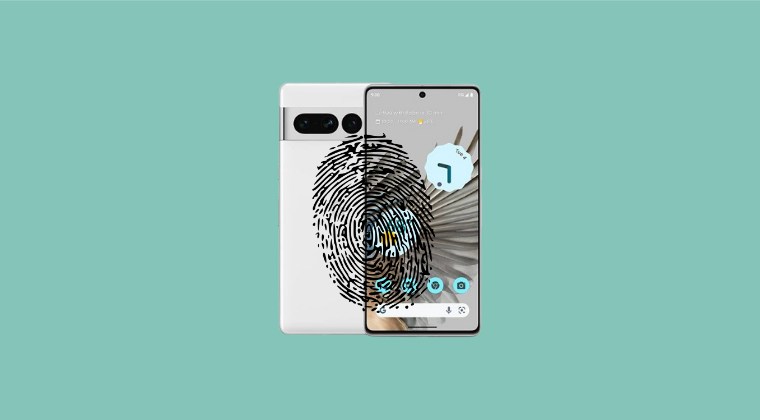
In order to resolve this bug, you just need to recalibrate the sensors from the official Pixel Repair website. Here’s how it could be done:
- To begin with, power off your device.
- Then press and hold the Power and Volume Down buttons
- Release the keys once the device boots to the Fastboot Mode.
- Now connect your device to the PC via a USB cable.
- Then go to the Pixel Software Repair page and click Connect Device.
- Now proceed with the on-screen instructions to re-calibrate the sensors.
- Google Pixel fingerprint scanner disabled by Family Link [Fixed]
- Google Pixel 7A Fingerprint Not Working: How to Fix
- Pixel 7/Pro Fingerprint not working: How to Fix
- Pixel 6/Pro Device was locked manually: Enter PIN instead of Fingerprint
(Cancel Reply)
Δ
