Android Data Backup: A Great Titanium Backup Alternative
Back in the day, when we talked about Android data backup and restore, Titanium Backup was the go-to choice for the masses. However, since its unofficial departure from the scene, it has left a huge void in this domain. Fortunately, over the past few years, we have been witnessing some impressive apps popping up in this segment, with the likes of Neo Backup, Migrate, and Swift Backup taking away most of the limelight.
However, recently I came across Android Data Backup, and it has since become my go-to choice. Not only is it free and open source, but it is also able to take a snapshot of the app’s current state, so that when you restore it, you’ll be back to the exact same spot where you were just before taking its backup. Apart from that, it holds a slew of intriguing features that deserve your attention. So let’s first have a look at them, after which, we will show you the usage instructions of this app.
Features of Android Data Backup
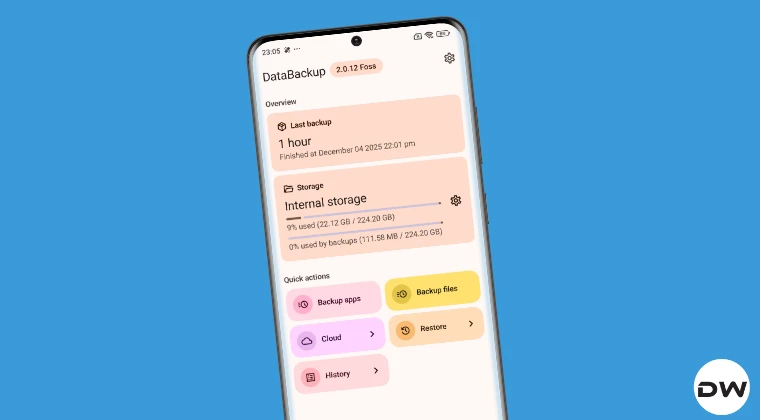
Here are some of the noteworthy features of this app:
- Easy backup and restore-just requires a couple of clicks.
- You can choose a custom backup directory.
- Easily back up system apps, apart from third-party ones.
- You can also take a backup of files and folders like Download, Pictures, Music, etc.
- Transfer and upload the backup to the cloud so that in case your device is reset, you can still download it from the cloud and restore it.
How to Use Android Data Backup

- To begin with, root your device via Magisk / KernelSU / APatch .
- Then download and install Android Data Backup from GitHub .
- Then launch it, tap on Root Permission, and grant it the SU request.
- Choose the backup directory and hit Finish
- Now select the desired app > Continue > tweak the settings, if required > hit Continue > Continue > Finish.
- The app and its settings are now backed up to the designated location.
- To restore it, go to Restore > choose the app > Continue > tweak the settings, if required > hit Continue > Continue > Finish.
- You may back up and restore other apps, files, and folders in a similar manner.
- It is also recommended that you upload the backup to the cloud, either using this app or manually.
- How to Create TWRP Nandroid Backup Directly On PC via ADB
- What is a Nandroid Backup? How to Create and Restore it Via TWRP
- How to Backup Android Data Folder
- Google Backup not working on Android: How to Fix

(Cancel Reply)
Δ
