App not installed as package conflicts with an existing package [Fix]
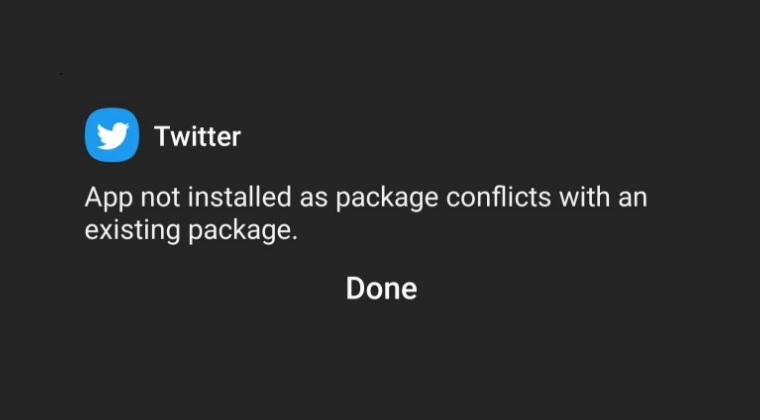
In this guide, we will show you the steps to fix the “App not installed as package conflicts with an existing package” error. Another similar issue along the same lines is “Could not install app as the package name is in use”. As is evident by its name, this problem happens if you have a different build number or version number of the same app already installed, and you are trying to install a different version of the same app.

So if you are getting bugged by any of these issues, then this guide will make you aware of a nifty workaround that should help you rectify this problem. So without any further ado, let’s get started.
Fix App not installed as package conflicts with an existing package
To rectify this issue, you’ll have to uninstall the app via ADB Commands and then install it the normal way [or via ADB, which is shown below]. We cannot uninstall the app from the Settings menu and had to instead opt for ADB because the latter removes each and every bit of the file from your device, which might not be the case with the former. So with that in mind, let’s get started.
- To begin with, download and extract Android SDK Platform Tools . Now enable USB Debugging and connect your device to PC via USB. Next up, find the package name of the app that you want to install. Open Command Prompt inside the platform-tools folder and type: adb shell Now type the below command to uninstall the app from your device pm uninstall –user 0 package-name [replace package-name with your app package-name] Transfer the app that you want to install to platform-tools and type: adb shell cmd package install-existing package-name [replace package-name with your app’s package-name]
- How to Force Enable Themed Icons for Unsupported Apps
- Guide to Get 6×6 App Grid on Home Screen on OnePlus
- How to Fix ‘App Was Denied Access’ Permission Issue on Android
- How to Build an App/APK from GitHub using Android Studio

(Cancel Reply)
Δ
