Apple could not verify ‘file’ is free of malware [Fixed]
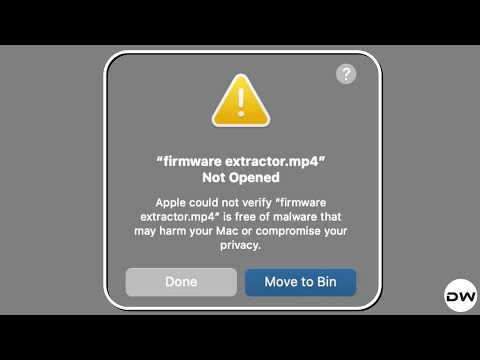
In this guide, we will show you various methods to fix the “Apple could not verify ‘filename.extension’ is free of malware that may harm your Mac or compromise your privacy” error. While having a privacy-enriched OS is welcomed any day of the week, but it tends to become quite infuriating when the system starts enforcing unnecessary restrictions upon the users.

The perfect example of the same is when macOS Sequoia tends to prevent users from opening certain files because it believes that they might contain malware. What rubbish ideology is that! While there is always a chance that some file might be a malicious one, but taking all of them in the same category and straightaway stopping users from accessing them is pure right non-sensical in nature.
This error usually appears when you are trying to either change the default app for opening a file or using an Open With option to open a file.
At the very least, they could have given us the option to open the file, alongside the warning message. But that’s far from what’s happening, you would instead get the options to either simply close this warning or send the file to the trash. So, how can a user open this file? Well, there are a couple of handy workarounds that will help you address this infuriating problem. So without further ado, let’s check them out.
- Fix Apple could not verify ‘file’ is free of malware FIX 1: Via Privacy & Security FIX 2: Via Right Click Menu FIX 3: Via Terminal
Fix Apple could not verify ‘file’ is free of malware
It is recommended that you try out each of the below-mentioned workarounds and then see which one spells out success. So with that in mind, let’s get started.
FIX 1: Via Privacy & Security
The straightforward way of addressing this issue is by instructing the OS to allow the file to be opened by the app. Here’s how it can be done:
- Head over to System Settings > Privacy & Security.
- Scroll to the Security section and you’ll see a prompt: File was blocked to protect your Mac.
- Just click on Open Anyway and the file will be opened.
The biggest issue with this workaround is that you’ll have to manually click on Open Anyway for each and every file that you want to open, which obviously takes quite a lot of time and effort. So let’s keep this fix aside and have a look at some of the other ones that are free from this problem.
FIX 2: Via Right Click Menu
- Right-click on the file that you want to open and select Get Info.
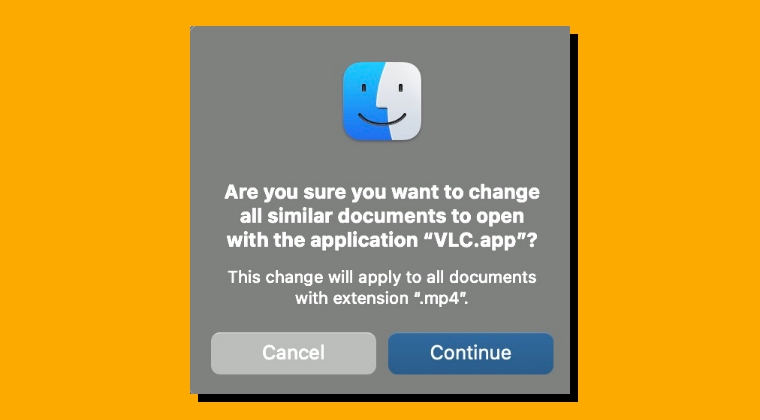
- Then click Open With and choose the desired app that you want to assign to all files of that extension [such as VLC to all MP4 files].
- Finally, click on Change All and the issue stands rectified.
FIX 3: Via Terminal
- Open Launchpad > Others > Terminal.
- Then type in the below command in it: xattr -d com.apple.quarantine path_to_app
- Make sure to change path_to_app above.
- Fix OneNote Sync Issue on macOS [0xE000006C cig68 30115]
- Fix Cannot Preview Canon CR3 CR2 Nikon NEF Files on macOS 15.4
- Cannot Install macOS 15.4 on MDM Mac? Here’s the Fix!
- How to Change the Red Text of Delete Button on Mac

(Cancel Reply)
Δ
