Apple Mail Rules not working: How to Fix
In this guide, we will show you a couple of nifty workarounds to fix the issue of Rules not working in Apple Mail. The built-in email app in the Cupertino giant ecosystem beholds a slew of intriguing features, including the ever-so-popular and useful Rules. As is evident from its name, it allows you to create custom criteria based on which a certain email should be sent.
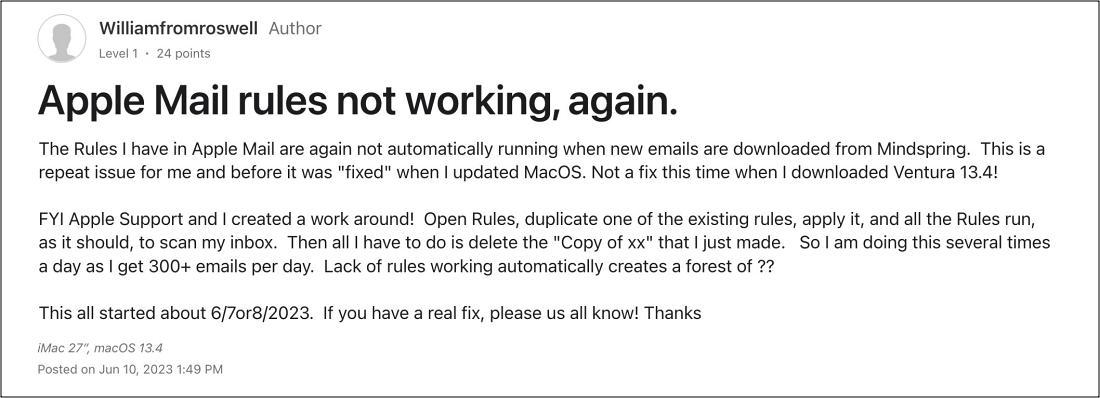
This usually comes in handy in large organizations which have to deal with hundreds of emails every day. However, as of late, it is giving quite a tough time to the end users. Numerous users have voiced their concern that Rules are not working in the Apple Mail app. For some, the Rules have disappeared whereas, for others, their new rules have been replaced with the older ones.
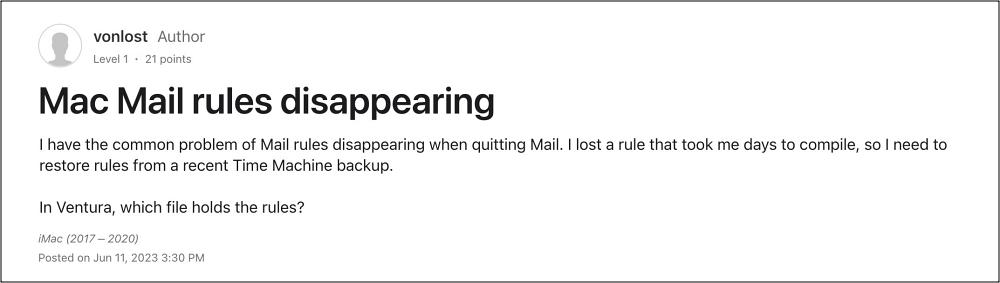
All in all, users are now having to manually filter out the emails, which is resulting in unnecessary time and energy consumption. With that said, there does exist a couple of methods that could help you rectify this bug. So without further ado, let’s check it out.
- Fix Apple Mail Rules not working FIX 1: Reindex Database FIX 2: Reset Apple Mail preferences
Fix Apple Mail Rules not working
It is recommended that you try out each of the below-mentioned workarounds and then see which one spells out success. So with that in mind, let’s get started.
FIX 1: Reindex Database
Your first course of action should be to rebuild and reindex the affected mailbox database. Here’s how it could be done:
- Launch the Mail app and select the affected mailbox from the sidebar.
- Then select Mailbox > Rebuild and wait for the process to complete.
- Check if Rules are now working in Apple Mail or not.
FIX 2: Reset Apple Mail preferences
Next up, you should consider resetting Apple Mail preferences to their default. This will remove all the corrupt preferences files and could well rectify the issue that we are currently dealing with. So do give it a try using the below-listed steps and check out the results.
- Open Finder and select Go > Go to Folder.
- Then head over to the below location: ~/Library/Containers/com.apple.mail/Data/Library/Preferences
- Now move the “com.apple.mail.plist” file to any other location.
- Then restart Apple Mail, and it will create a new preferences file.
- Apple Mail Smart Mailbox not working on macOS Ventura [Fixed]
- How to Disable Inline Attachments on Apple Mail
- Did you mean to add a recipient prompt in Apple Mail [Fix]
- Ads in Apple Weather Apps on iPhone? It Depends!

(Cancel Reply)
Δ
