Apple TV: Accept iCloud Terms & Conditions on Windows/Android
In this guide, we will show you a nifty workaround to accept the Apple TV iCloud Terms & Conditions on your Windows/Android platform. When it comes to cloud storage services, then it’s the offering from the Cupertino giant that is usually the go-to choice for Apple users. But if you are not a part of the Apple ecosystem and still own a device from Apple, then it might give you a harrowing time interacting with certain iCloud elements.
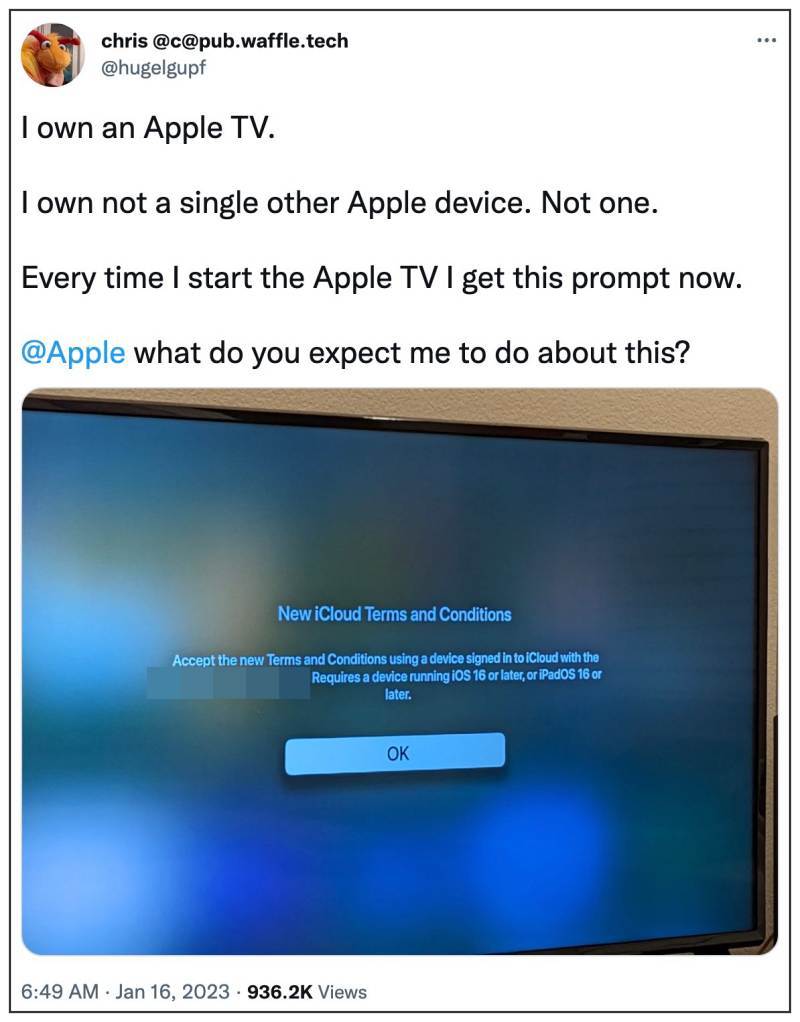
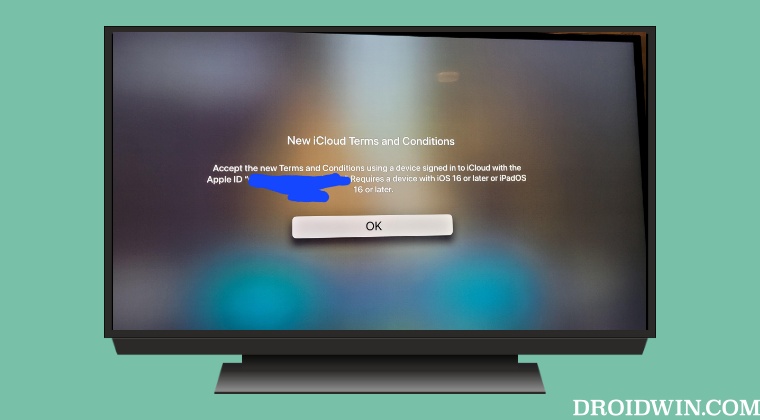
The perfect example of the same is the inability of Android/Windows users to accept the Apple TV iCloud Terms & Conditions. For the unaware, Apple has recently updated its policies which you need to agree to continue using its service. However, this pop-up would only pop up if you have an iPhone or iPad. So for Apple TV users who don’t own either of these two devices, then they are unable to agree to these terms.
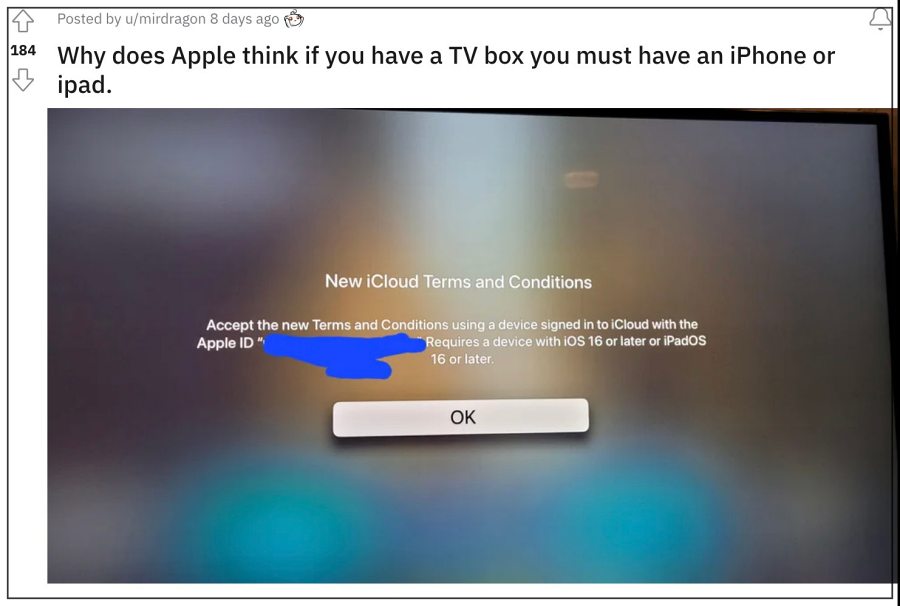
Apple should seriously reconsider the fact that if a person owns its TV then it doesn’t necessarily mean that he or she will own an iPhone as well. It’s time it recognizes that there exist other players in the market as well. It will only be for their own good as users are only going to other platforms just to accept Apple’s new terms and hence continue using their products only.
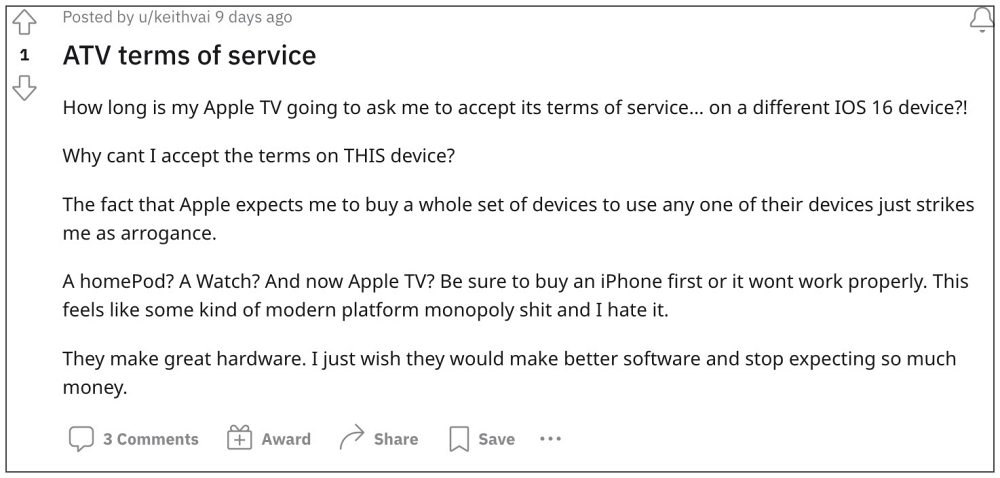
Anyways, while it might be a hard time in making the tech behemoth understand this logic, we could make you aware of a nifty workaround through which you could easily accept the iCloud Terms & Conditions on your Windows/Android platform. Follow along.
Apple TV: Accept iCloud Terms & Conditions on Windows/Android
- Download and install the Apple Music app on your Android device or iTunes on your Windows PC.
- Then launch the app and sign in using the same account that is currently logged into your Apple TV.
- You should then get a prompt that you need to agree upon.
- Do so and the changes will be synced across all the devices in which you are logged in via this account.
- Apple tvOS 16.2 new Up Next layout is terrible: Here’s how to fix it
- Scroll not working on YouTube TV ‘Live Guide’ on Apple TV [Fix]
- Plex Audio Sync Issue on Apple TV: How to Fix
- Plex Live TV streaming not working on Apple TV: How to Fix

(Cancel Reply)
Δ
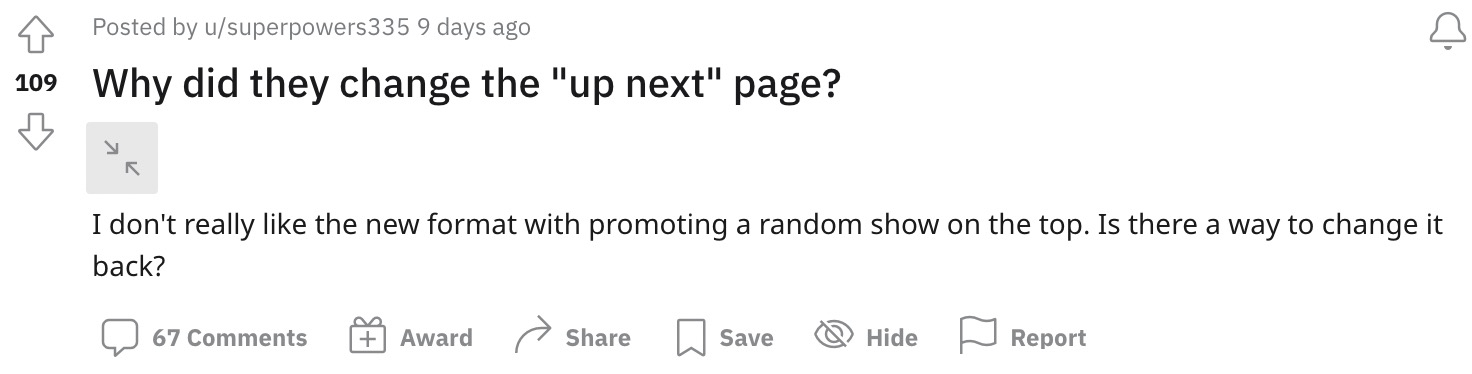
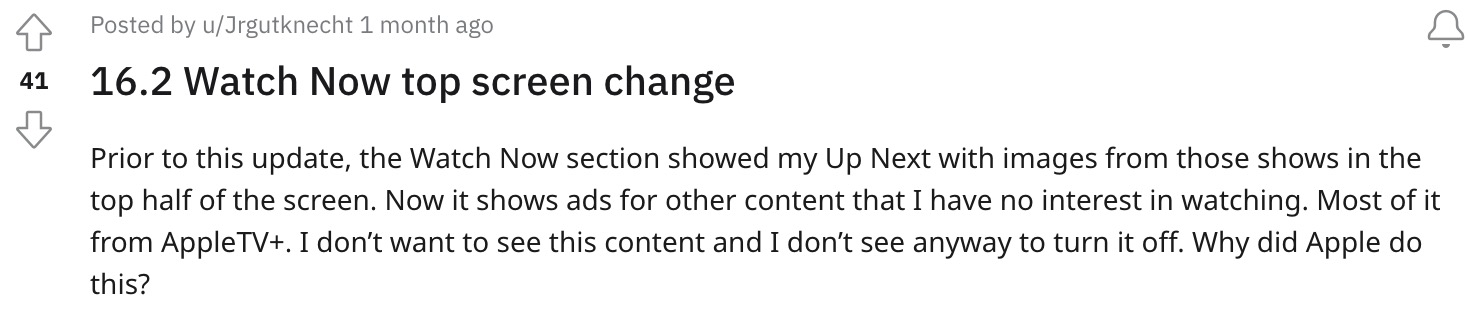
Not to mention the fact that all these ads have auto-playing audio so as to guarantee the worst experience. But wait, there’s more. The top section is now filled with random recommendations , most of which might never be in sync with your watch history. All in all, this update has been nothing short of a disaster for the end users. With that said, there does exist a few handy tips that should help you mitigate these issues up to an extent. So without further ado, let’s check them out.
- Apple tvOS 16.2 new ‘Up Next’ layout is terrible: Here’s how to ‘fix’ it FIX 1: Disable AutoPlay Previews FIX 2: Tweak the Controls FIX 3: Enable Restrictions FIX 4: Make your voices heard!
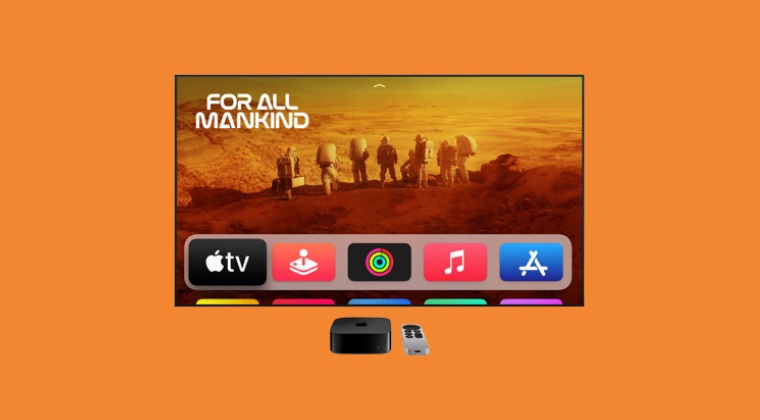
It is recommended that you try out each of the below-mentioned workarounds and then see which one spells out success for you. So with that in mind, let’s get started.
FIX 1: Disable AutoPlay Previews
First off, you should consider disabling the autoplay preview feature of Apple TV so as to make the top section “slightly less annoying”. So head over to Accessibility > Motion > Settings and turn off that feature right away.
FIX 2: Tweak the Controls
FIX 3: Enable Restrictions
FIX 4: Make your voices heard!
It is highly recommended that you file a bug report on the Apple TV hardware form and the Apple TV App form and make the Cupertino giant aware of the dreadful UI/UX tweaks that they have carried out. Likewise, request them to reconsider this change and instead revert to the older interface [how about the subject line: Dear Apple: if it ain’t broke, don’t fix it!].
- Plex Audio Sync Issue on Apple TV: How to Fix
- Plex for Apple TV Frame Drops in 4K [Fix]
- Apple TV Siri Remote not working: How to Fix
- Apple TV Remote shortcut not working on iPhone iOS 16 [Fix]
(Cancel Reply)
Δ
