aShell You: Run ADB, Root, Shell Commands without PC!
There are quite a few ADB apps out there, but aShell You can claim to be right there at the top. It beholds quite a few noteworthy features that make the command execution a breeze, the biggest of which is the ability to run ADB, Root, and Shell commands- all without a PC. Moreover, you can also connect it to another device, via wireless [on the same network] or wired [USB OTG], and then run the desired commands there.
To help you out, it comes built-in with tons of ADB Shell commands and their usage too. All this is packed in the Material Design 3 UI, thereby giving you the best of both worlds- UI and functionality. So without any further delay, let’s make you aware of all the features of this app, which will be followed by its usage instructions.
- Features of aShell You Multiple Modes Execute Commands on Different Devices Continuous Commands Built-In Commands Search in Command Output Share Output Themes
- How to Use aShell You App: Run ADB, Root, Shell commands without PC! Important Point to Keep in Mind Prerequisites Via Local Mode Via Wireless Debugging Via USB OTG
Features of aShell You
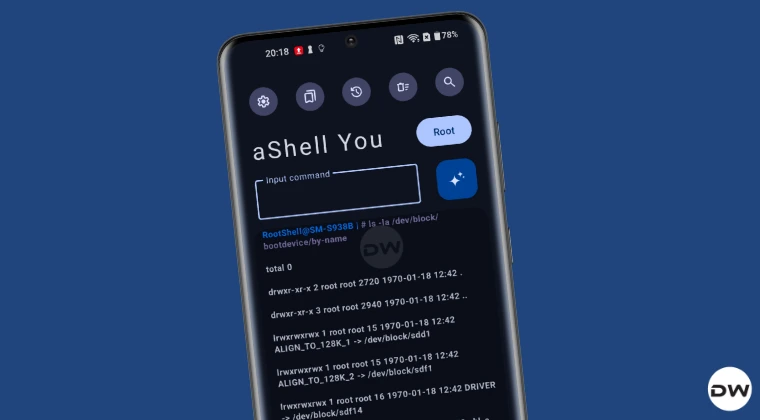
Here are some of the most noteworthy features of this app.
Multiple Modes
The app supports various modes: Local ADB [Shizuku and Root], Wireless Debugging, and OTG. You can choose the mode of your choice and execute the desired command. The Local ADB Mode allows for command execution on your device locally. If you want to run nornal Shell command, then the Shizuku mode will suffice. However, for SU commands, you’ll have to use the Root Mode within Local.
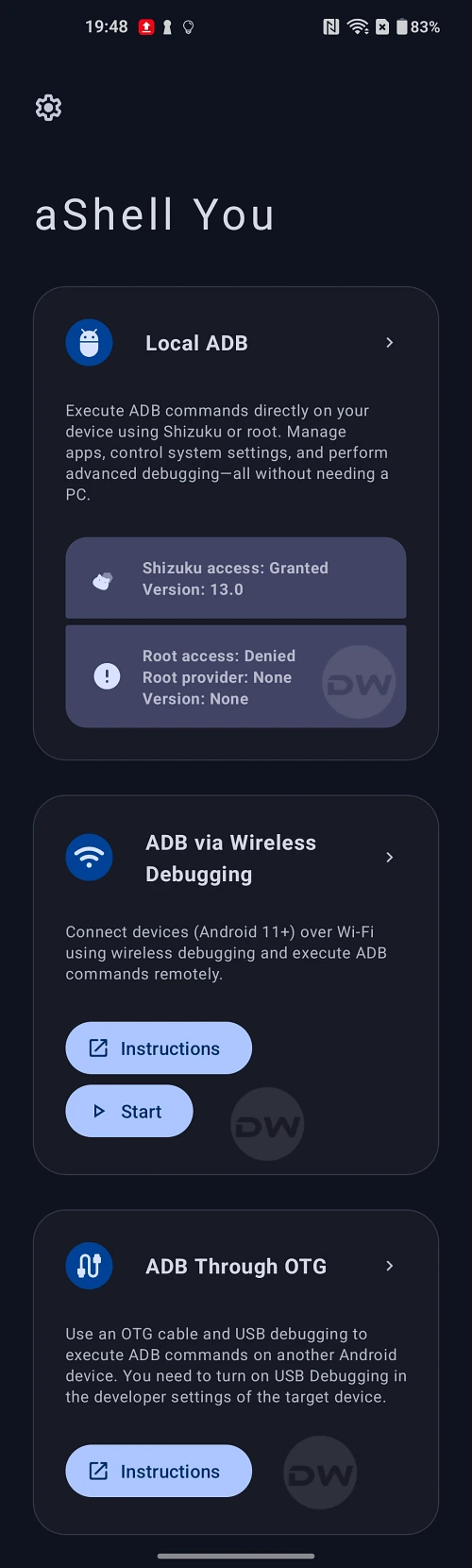
Execute Commands on Different Devices
You can also run commands on a secondary device with your primary device acting as the PC. This in turn could be done via two ways- Wireless Debugging and Wired [USB OTG]. For example, you can type in the adb reboot bootloader command on your main device and your secondary device, which is connected via Wireless Debugging or OTG, will reboot to the Fastboot Mode.
Continuous Commands
You can seamlessly run long or continuous shell commands like logcat , top , or watch and view live updates without interruptions.
Built-In Commands
It comes with the cheat-sheet of a long list of ABD Commands spread across numerous domains. Along with each command, its usage is also listed, thereby making it extremely easy to understand the use-case scenario of each of these commands.
Search in Command Output
Quickly find what you’re looking for in the output of your last command using the integrated search functionality.
Share Output
You can easily share your output to other apps like Notes, Gmail, or Telegram in just a single tap.
Themes
Comes with support for the latest Material Design 3 UI. Moreover, it also includes a sleek dark mode designed to save battery [not to mention the fact that look great on AMOLED screens].
So these were some of the most useful functionalities of aShell You. Let’s now shed some light on its usage instructions.
How to Use aShell You App: Run ADB, Root, Shell commands without PC!

Before starting, please take a complete device backup, just to be on the safe side.
Important Point to Keep in Mind
- If you want to run commands on the same device locally, then you’ll need the Shizuku app or root access, depending on the commands that you are using. On the other hand, Shizuku/Root is not required when executing ADB commands on other devices using OTG or Wireless Debugging.
- Since you are already working in the ADB Shell window, there’s no need to type in adb shell before every command. So if you want to list out all installed packages, type in pm list packages instead of adb shell pm list packages.
- Moreover, the primary device is the one where the aShell app is installed, whereas the secondary device is the one that is going to get the output of the executed commands. In my case, my primary device is the OnePlus 11, having the aShell app. The output of all the commands that I will be executing will be displayed on my secondary device, Nothing Phone 2. To understand it better, I’ll be entering the adb reboot bootloader command on my primary OnePlus device, and its output- the device booting to Fastboot Mode- will happen on my secondary device. Nothing.
Prerequisites
- To begin with, download and install the aShell You app from GitHub .
- Next, download, install, and set up the Shizuku app onto your device.
- Finally, launch aShell You and choose the usage mode of your choice.
- Let’s have a look at each of them in depth- Local, Wireless, and OTG.
Via Local Mode
Within the Local Mode, you get two additional modes- Shizuku and Root. Use Shizuku for normal shell commands and root for SU/administrative-level commands . For rooting, you can use any of these three- Magisk / KernelSU / APatch , [their fork will also work, such as Magisk Alpha, SukiSU Ultra, etc].

Via Wireless Debugging
- Launch aShell and tap Start under Wireless Debugging.
- Then tap on Connect a new device > Connect other device.
- Now, enable Wireless Debugging on your secondary device.
- Then tap on Wireless Debugging > Pair device with Pairing Code.
- Now type in the IP Address, Port, and Pairing Code in the app and hit Pair.
- Then check out the Port Number on your secondary device under IP address and Port, and enter the same in the app [this Port number will be the one which is in the IP Address and Port number section and is different from the one that you get under Pairing Code ].
- Now hit Connect and choose your device from the list [in the form of IP Address], and that’s it.
- The command has now been established between the two devices. You can now execute the desired command.
Via USB OTG
- First off, enable USB Debugging on your secondary device.
- Then connect the USB OTG to your primary device where the aShell app is installed.
- Then insert the Type A of the USB into the OTG and the Type C of the USB into the secondary device.
- As soon as the connection is established, you’ll get a few prompts across both devices. Make sure to tap Allow/OK across all the prompts on both devices.
- After that, tap on ADB through OTG, and you’ll be inside the command execution window. Tap on OTG and verify your device is shown there.
- If that’s all well and good, then congrats! You can now run the commands of your choice.
- How to Install TWRP Recovery without PC
- ADB Sideload Without PC: Flash Firmware/OTA/Custom Rom
- How to Unlock Xiaomi Bootloader without PC or Mi Unlock Tool!
- Flash Samsung Stock Firmware without PC via Eros Flasher
- How to Unlock Bootloader on any Android without PC [Video]

- Antonis Kaloidis 2 months ago Reply can you list some commands that can be run Via Local Mode (root) ??
(Cancel Reply)
Δ
