Assassin’s Creed Valhalla White Screen Bug: How to Fix
In this guide, we will show you the steps to fix the white screen bug in the Assassin’s Creed Valhalla game. This action role-playing video game from Ubisoft is the twelfth iteration in this lineup and the successor of Odyssey. Playing as the Viking raider, you will find yourself stuck in a conflict between the Assassin Brotherhood and the Templar Order.
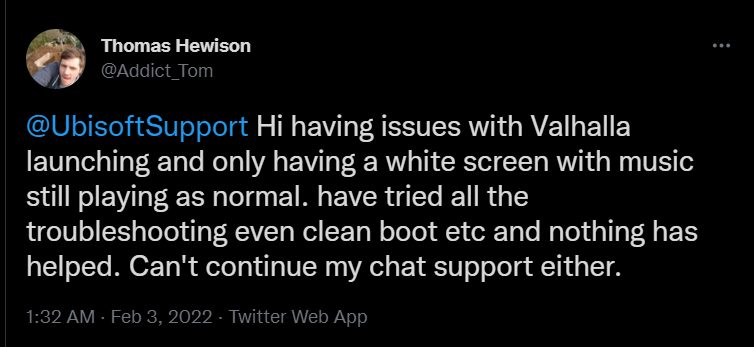
While you may still get out of this conflict, but there now seems to be another major situation, getting out of which is proving to be a tough nut to crack. Many users have voiced their concern that as soon as they launch the game, they are straightaway greeted with a white screen with no progression forward. They could still hear the audio in the background, meaning the game is still running, however, in the front, it’s all white.
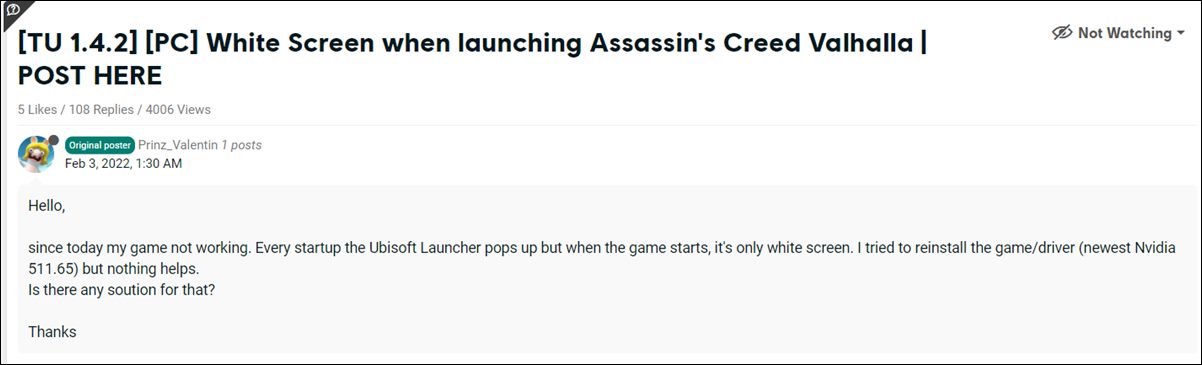
Even the Ubisoft and Nvidia overlays are working fine, but the front is all stone white. If you are also getting bugged with this, then this tutorial will help you out. In this guide, we will show you the steps to fix the white screen bug in Assassin’s Creed Valhalla. Likewise, we will also make you aware of the plausible reason for this issue. So without any further ado, let’s get started.
How to Fix Assassin’s Creed Valhalla White Screen Bug
Nvidia recently released its new driver, version 511.65. And this is the root cause of this issue. So to rectify it, you will have to downgrade it to an earlier version. In this regard, version 472.12 (released in September 2021) is working well and good,m and has infact resolved the underlying bug. So do check out our comprehensive guide on How to Downgrade/Rollback Nvidia GPU Drivers on Windows 11 to fix this white screen issue. The shorter instruction is given below.
- To begin with, get hold of your driver’s name and type from the Nvidia Control Panel .
- Then go to the Nvidia Rollback Drivers page and select the information corresponding to your GPU driver.
- Then hit Search and click on version 472.12 from the search results.
- After that, click on the Download button.
- Again hit the Download button and wait for the file to be downloaded.
- Once done, launch it and proceed with the on-screen instructions to install the rollback drivers.
- How to Fix Facebook Messenger White Screen Bug
- Fix: Dark Mode switching white to black and vice versa in Apps
- How to Change the Red Color 1 in OnePlus Clock [Lock Screen]
- Install Nvidia Shield TV ADB Fastboot Drivers in Windows 10/11

- Harshit 3 years ago Reply i have nvedia gtx 1650 and i am unable to install the older version even after uninstalling the current driver it says that program is not compatible with your version of windows my windows is windows 11
(Cancel Reply)
Δ
