Automatic Apple Watch Transfer not working in iOS 16 [Fixed]
In this guide, we will show you the steps to fix the issue of Automatic Apple Watch Transfer not working in iOS 16. The latest iteration of the OS has bought quite a few noteworthy features to the fore. In this regard, the lock screen, new notification style, iMessage, Focus Mode, and Live text feature have managed to grab the attention of the masses, for better or worse.
Credits: Apple
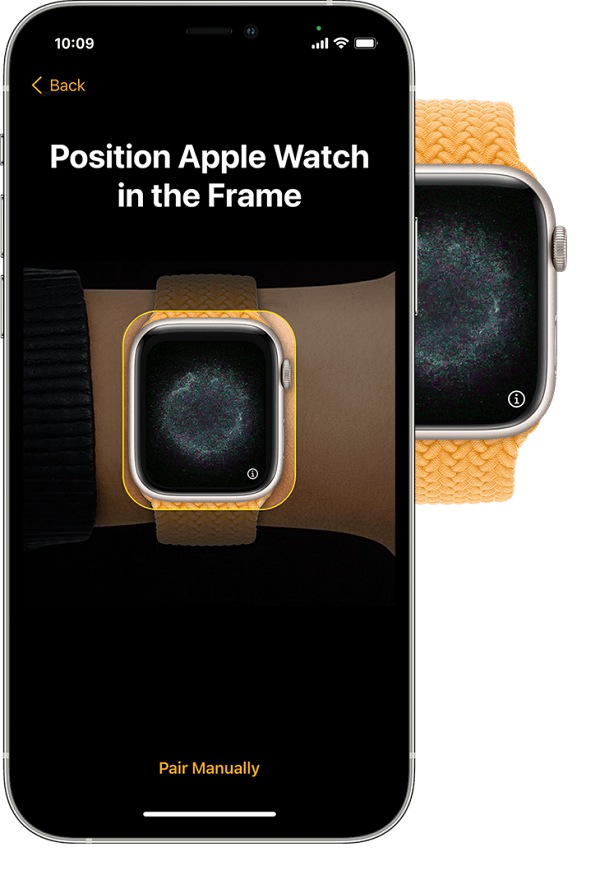
However, one feature that went silently under the radar is the new seamless method to pair your Apple Watch with your iPhone. If your watch is on your wrist and your new iPhone is set up, then you will straightway get a prompt on your watch to “ Pair Watch with new iPhone? “. And after that, the entire process is just a breeze. However, many users aren’t able to make full use of this functionality.
Credits: Apple
Many of them have voiced their concern that the Automatic Apple Watch Transfer is not working in iOS 16. Irrespective of the watch or the watchOS version, they are unable to carry out the pairing process on their iPhone 14/Pro running iOS 16 [though most of the complaints revolve around watch 6 and 7 series running watchOS 9].
Fix Automatic Apple Watch Transfer not working in iOS 16
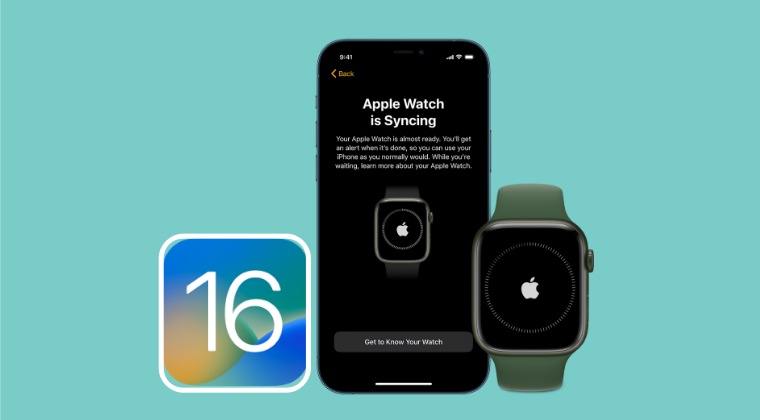
As of now, the only workaround that seems to be spelling out success for the users involves resetting the Apple Watch and then trying out the automatic transfer process. If that is too much of a hassle, then you could always go for the tried and tested method to pair your watch with your new iPhone via the Watch App & and the pairing sphere code. But if you are still willing to give Automatic Transfer a try, then here’s how you could reset your watch [backup your data beforehand]:
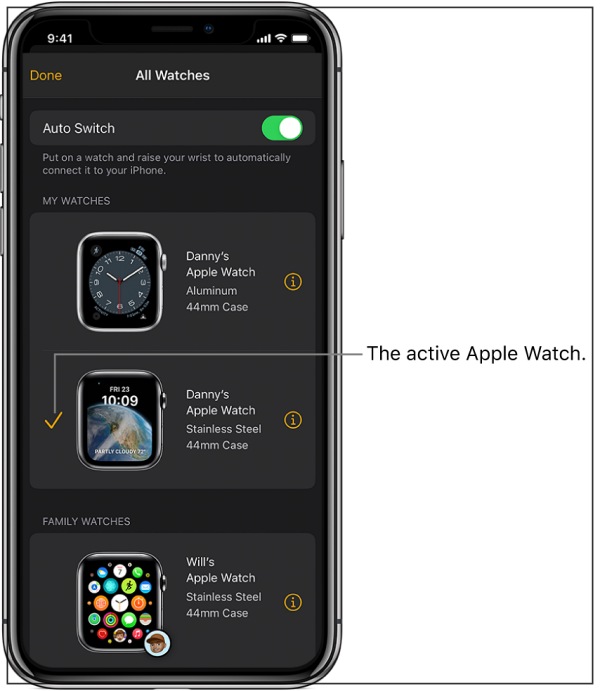
- Launch the Watch app on your iPhone and go to the My Watches tab.
- Then go to All Watches and tap on the information icon present next to your watch. Credits: Apple
- Now, tap on Unpair Apple Watch > Unpair in the confirmation prompt. Credits: Apple
- Once the watch has been unpaired, try to pair it again via Automatic Transfer.
- Apple Watch Walkie-Talkie not working: How to Fix
- Apple Watch Swipe Up Gesture to open Control Center not working [Fixed]
- iOS 16 Lock Screen: An extra swipe to view notifications? Just Apple things!
- Cannot Add Cards to Apple Wallet in iPhone 14: How to Fix

(Cancel Reply)
Δ
