Banking Apps not working due to Frequently used info & passwords
It is no hidden secret that banking and payment apps do not work due to root or unlocked bootloader [all thanks to Play Integrity, though it can be fixed]. However, for the past few days, a weird issue is plauging OnePlus users. Many of them have voiced their concern that their banking app is categorizing the system app/accessibility service “Frequently used info & passwords” as an unknown screen reader and hence blocking OTP input, thereby invalidating their transaction.

Even if they try to force-stop the app, it tends to restart itself. Located at Settings > Accessibility & Convenience > Accessibility > Downloaded Apps > Frequently used info & passwords, it is giving quite a tough time to various OnePlus users. So what can be done? Well, there does exist a nifty workaround that will help you rectify this issue once and for all. So without any further ado, let’s check it out.
- Fix Banking Apps not working due to “Frequently used info & passwords” What is the use of “Frequently used info & passwords” Rerpercussions of Disabling/Uninstalling This Service Disable “Frequently used info & passwords” Uninstall “Frequently used info & passwords”
- How to Re-Enable or Re-Install “Frequently used info & passwords” Re-Enable Re-Install
Fix Banking Apps not working due to “Frequently used info & passwords”
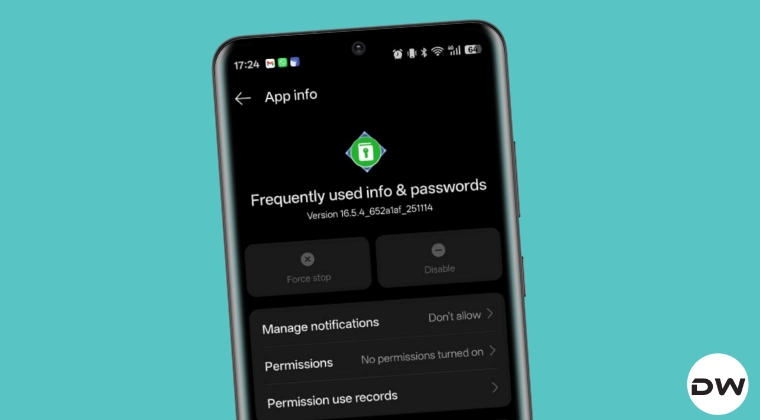
You have two options: either disable this app or permanently delete it from your device. However, both of these tweaks will [obviously] stop this service, which will in turn will lead to a few problems with password autofills [see below]. That’s a small cost you’ll have to consider, which, for me, wasn’t as big as the current problem at hand. If you echo the same sentiments, then refer to the below steps and put an end to this problem right away!
What is the use of “Frequently used info & passwords”
This system app/accessibility service is mainly used for:
- System Autofill
- Saved passwords & personal info
- Login suggestions in apps & browsers
Rerpercussions of Disabling/Uninstalling This Service
Upon disabling this service, the aforementioned functionalities will no longer function on your device. In other words, it will break:
- Autofill will no longer work
- All your saved credentials might be deleted.
- It might cause crashes in the login screens
So if you are ready to bid adieu to these features in lie for your banking app to work, then let’s get started.
Disable “Frequently used info & passwords”
This is the recommended approach as you can easily re-enable it as and when required.
- To begin with, download and extract Android SDK Platform Tools on your PC.
- Next up, enable USB Debugging and connect your device to the PC using USB.
- Now type in the below command to disable Frequently used info & passwords:
- Next, check the app package name for “Frequently used info & passwords” using the below command adb shell pm list packages | grep password
- It will be either of the three [in our case, it was the first one] com.oplus.passwordmanager com.oneplus.passwordmanager com.oplus.autofill
- Once you have got the app package name, use any one of the three commands below to disable it [use the one that corresponds to your app package name, in our case, it is com.oplus.passwordmanager] pm disable-user –user 0 com.oplus.passwordmanager pm disable-user –user 0 com.oneplus.passwordmanager pm disable-user –user 0 com.oplus.autofill
Uninstall “Frequently used info & passwords”
Reinstalling this service, if needed, might prove to be a tough task, so it is recommended you disable it instead. Still, if you wish to uninstall it, then here's what you need to do
- To begin with, download and extract Android SDK Platform Tools on your PC.
- Next up, enable USB Debugging and connect your device to the PC using USB.
- Now type in the below command to disable Frequently used info & passwords:
- Next, check the app package name for “Frequently used info & passwords” using the below command adb shell pm list packages | grep password
- It will be either of the three [in our case, it was the first one] com.oplus.passwordmanager com.oneplus.passwordmanager com.oplus.autofill
- Once you have got the app package name, use any one of the three commands below to disable it [use the one that corresponds to your app package name, in our case, it is com.oplus.passwordmanager] adb shell pm uninstall –user 0 com.oplus.passwordmanager adb shell pm uninstall –user 0 com.oneplus.passwordmanager adb shell pm uninstall –user 0 com.oplus.autofill
How to Re-Enable or Re-Install “Frequently used info & passwords”
If, for some reason, you wish to re-enable the service or reinstall the app, then here’s what needs to be done:
Re-Enable
Carry out all the prerequisites as before. Then type in one of three below commands, depending on the app package name:
adb shell pm enable -–user 0 com.oplus.passwordmanager

adb shell pm enable -–user 0 com.oneplus.passwordmanager

adb shell pm enable -–user 0 com.oplus.autofill
Re-Install
Carry out all the prerequisites as before. Then type in one of three below commands, depending on the app package name:
adb shell cmd package install-existing com.oplus.passwordmanager

adb shell cmd package install-existing com.oneplus.passwordmanager

adb shell cmd package install-existing user 0 com.oplus.autofill
- Universal Android Debloater: The Perfect Bloatware Removal Tool
- How to Uninstall System Apps Without Root
- Remove/Uninstall Bloatware Apps from Android via ADB
- Stop Windows 11 from Automatically Installing Bloatware Apps

(Cancel Reply)
Δ
