Battery Information missing from Android 14/15: Is there a fix?
In this guide, we will be discussing a method to fix the Battery Information missing issue on your device running Android 14/15. Back in September last year, Google rolled out the Android 14 QPR1 update which introduced us to a new section pertaining to battery. Accessed via the Settings > About Phone > Battery information section, it had information regarding the manufacturing date of your device and the Cycle Count of its battery.
However, with the latest Android 14 March Feature as well as Android 15 Developer Preview 1 builds, the feature is nowhere to be found. One interesting thing to note is that when the QPR2 beta build was in the testing stage [around 4 months back], the feature was missing at that point in time as well. However, many thought that this was just one of the many bugs that we usually come across in the beta builds.
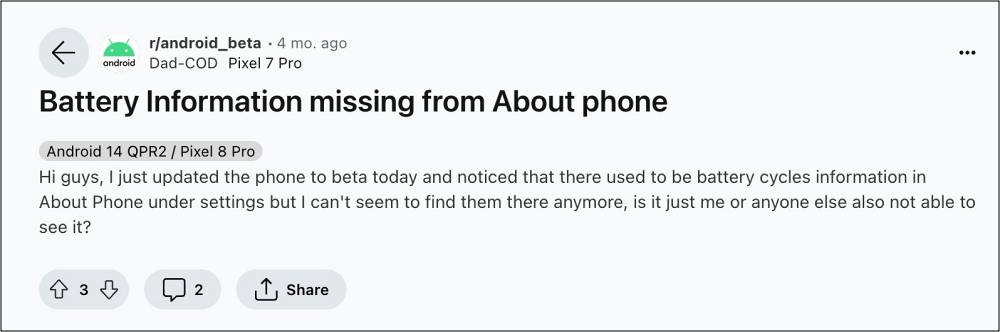
But now it seems that the assumption was way off the charts as this seems to be an intentional move from Google rather than a bug. So this then begs the all-important question- is there a way to bring back this functionality? Well, there does exist a workaround that would help you welcome abode this feature, but it’s better not to! Here’s why.
Fix Battery Information missing from Android 14/15
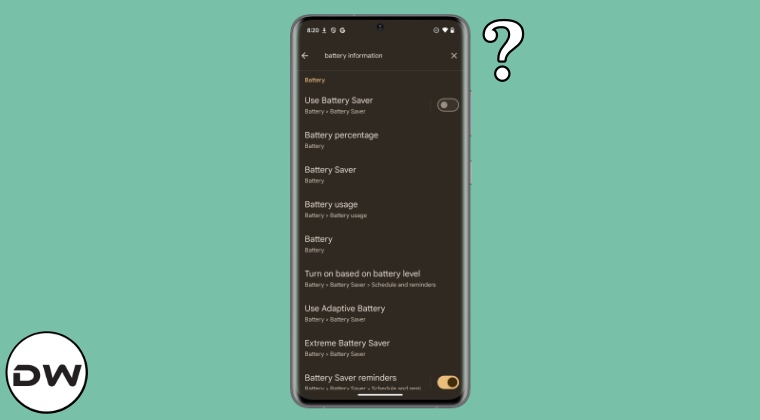
As of now, the only way to rectify this issue is to downgrade your device to the February update. However, do note that doing so will wipe off all the data from your device and it might make the warranty null and void. All of this is asking too much of a trouble just in return to get back a couple of battery-related details. But if you are ready to take the plunge, then take a backup of all the data on your device, and then let’s get started.
- To begin with, unlock the bootloader on your device.
- Then download and extract the Android SDK Platform Tools on your PC.
- Now enable USB Debugging and connect your device to your PC via USB.
- After that, open the Command Prompt inside the platform-tools folder.
- Now type in the below command to boot your device to Fastboot Mode: adb reboot bootloader
- Then download and extract the February Factory Image for your Pixel device.
- Now double-click to launch the flash-all.bat file. The flashing will now start.
- Once done, your device will boot to the February update, and the issue will be fixed.
That’s it. These were the steps to fix the Battery Information missing issue on your device running Android 14/15. As far as the official stance on this matter is concerned, the developers are yet to acknowledge this issue [if it is one], let alone give out any ETA for the rollout of a fix. As and when any of these two things happen, we will update this guide accordingly. In the meantime, the aforementioned workaround is your best bet.
- Pixel Fingerprint Vibration bug after March Update [Fix]
- Android 14 QPR3 Beta 2 Bricked Pixel: How to Fix
- SIM Settings greyed out on Pixel: How to Fix
- Download GCam and Config XML for Pixel Fold

(Cancel Reply)
Δ
Pixel Fingerprint Vibration bug after March Update [Fix]
In this guide, we will show you a nifty workaround that might help you fix the fingerprint vibration bug on Pixel devices after installing the latest March update. Similar to other Android devices, Pixel also has this feature wherein you’ll feel a vibration whenever you interact with the fingerprint on the lock screen. You could easily enable or disable it as and when required by tweaking the “Vibrations and haptics” options present in the Settings menu. Well, not anymore!
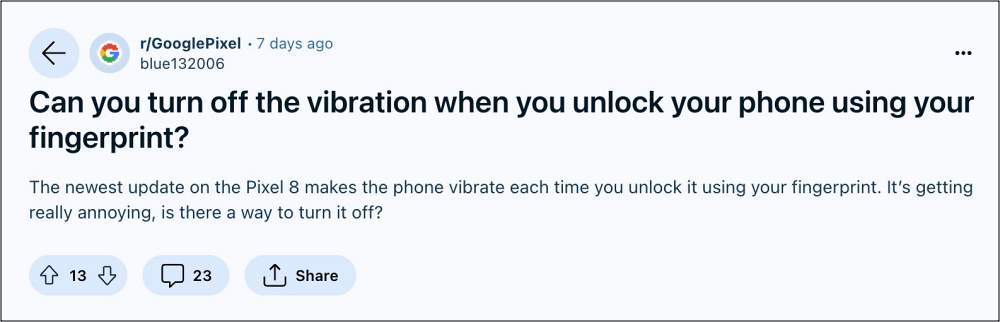
Right after installing the latest March update, numerous Pixel users have voiced their concern that they can no longer control the behavior of the fingerprint vibration. It has suddenly been disabled for those users who had it enabled and has been enabled for the ones who have kept it disabled, thereby giving quite an infuriating usage experience to both the impacted parties. With that said, there does exist a nifty workaround that might help you resolve this issue. So without further ado, let’s check it out.
Fix Pixel Fingerprint Vibration bug after March Update

As of now, the only workaround that will help you rectify this issue is to downgrade to the older security patch update. However, do note that doing so requires an unlocked bootloader which in turn will wipe off all the data and could nullify the device’s warranty as well. So if you could, it’s still better to wait for Google to roll out the patch that will fix this issue because carrying out this technical fix just to fix a vibration bug might be a hard pill to swallow for some.
But if that isn’t the case with you and you are ready to proceed ahead, then take a complete device backup, and let’s get started. Droidwin and its members wouldn’t be held responsible in case of a thermonuclear war, your alarm doesn’t wake you up, or if anything happens to your device and data by performing the below steps.
- Download and extract the Android SDK Platform Tools on your PC.
- Then enable USB Debugging and connect your device to PC via USB.
- Now unlock the bootloader on your device.
- Then open Command Prompt inside the platform-tools folder.
- Now type in the below command to boot your device to Fastboot Mode: adb reboot bootloader
- Then download and extract the February Factory Image for your Pixel device.
- Now double-click to launch the flash-all.bat file. The flashing will now start.
- Once done, your device will boot to the February update, and the issue stands fixed.
That’s it. These were the steps to fix the fingerprint vibration bug on Pixel devices after installing the latest March update. As far as the official stance on this matter is concerned, the developers are aware of this issue, but they haven’t given out any ETA for the rollout of a fix. As and when that happens, we will update this guide accordingly. In the meantime, the aforementioned workarounds are your best bet.
- Google Pixel fingerprint scanner disabled by Family Link [Fixed]
- Fix Fingerprint Sensor not working on Pixel Android 14 QPR Beta 2
- Google Pixel 7A Fingerprint Not Working: How to Fix
- Pixel 7/Pro Fingerprint not working: How to Fix
(Cancel Reply)
Δ
