Bypass MediaTek SP Flash Tool SLA DAA Authentication
In this guide, we will show you the steps to bypass MediaTek’s SP Flash Tool SLA and DAA Authentication. Xiaomi devices are among the most active devices when it comes to custom development. Be it flashing custom ROMs, or installing TWRP , the possibilities stand endless. However, as of late, things aren’t looking great for these device owners, especially if they are among the tech enthusiasts. Recently the OEM decided to block the EDL mode.
Generally, it is quite easy to restore the device to working condition by flashing stock firmware via Fastboot Commands. However, that isn’t the case when the device gets soft-bricked. For the unawares, flashing firmware only works in soft brick or bootloop devices when you are able to access the Fastboot Mode. In hard bricked, the only way out is to let your device be able to communicate with a specific tool in Emergency Download Mode.
However, with each passing day, developers are coming forward with new ways to bypass this limitation. While we haven’t yet reached the endpoint, but we are definitely reaching there. As of now, if you own a MediaTek powered device from any company, then you are in for a piece of good news. You could now easily bypass MediaTek’s SP Flash Tool SLA and DAA Authentication. This will make it possible to flash the firmware onto the bricked device without requiring authorization of any kind! Let’s check out how this could be achieved.
How to Root any MediaTek Device Using SP Flash Tool
How to Unbrick any MediaTek Phone using SP Flash Tool
What is SP Flash Tool’s SLA and DAA Authentication For MediaTek?
How to Bypass MediaTek SP Flash Tool SLA DAA Authentication Supported MediaTek Chipsets STEP 1: Install Python STEP 2: Install Python Dependencies STEP 3: Install libusb-win32 STEP 4: Download MTK Bypass Utility Tool STEP 5: Boot MediaTek Device to BROM Mode STEP 6: Install SP Flash Tool STEP 7: Bypassing SP Flash Tool SLA DAA Authentication
Cannot run python main.py: No Module named src.exploit
What is SP Flash Tool’s SLA and DAA Authentication For MediaTek?
Similar to Qualcomm device’s EDL mode, MediaTek devices have the Download Mode. This mode is used by service center employees to force-flash the firmware onto bricked devices. This flashing was carried out via the SP Flash Tool, a popular name in this MTK domain. In earlier times, if any user bricked their MediaTek device, then they could easily flash the firmware via SP Flash Tool by booting their device to Download Mode.
But to prevent the users from carrying out this process, the OEMs began putting “Serial Link Authentication (SLA)” and “Download Agent Authentication (DAA)” in place. As a result, only the people who have the authorized Download Agent or Serial Link programs could carry out this flashing. So who were these people? Well, they are the authorized service center personnel. Hence if you ever bricked your device, you would have no option but to take your device to these centers.
But you could now keep all these issues to rest. Thanks to an exploit, it is now possible to keep both these SLA and DAA flags to false. As a result of which, the tool wouldn’t even check for either of these flags. Hence you will be able to straightway bypass this restriction and flash the firmware on your MTK device booted to Download Mode. And in this guide, we will help you with just that. Given here are the steps to bypass MediaTek SP Flash Tool SLA and DAA Authentication. Follow along.
- How to Bypass Xiaomi Account Verification via Mi Unlock Tool
- Unbrick Redmi Note 7 | Note 8 | Note 9 Series: The Fix?
- Fix Mi Account Authorization | Unbrick Xiaomi | EDL Mode ?
- Download Patched Firehose File (prog_emmc_firehose.mbn) for 600+ Android Devices
How to Bypass MediaTek SP Flash Tool SLA DAA Authentication
The below instructions are listed under separate sections for ease of understanding. Make sure to follow in the exact same sequence as mentioned below. With that said, the entire credits for these tweaks go to XDA developers Dinolek and k4y0z . Furthermore, make sure to check the supported chipset section below. Only proceed with the instructions if your device falls under that bracket.
More chipsets might be added in the near future, so make sure to check this page after regular intervals. Droidwin and its members wouldn’t be held responsible in case of a thermonuclear war, your alarm doesn’t wake you up, or if anything happens to your device and data by performing the below steps.
Supported MediaTek Chipsets
mt6261

mt6572

mt6580

mt6582

mt6735

mt6737

mt6739

mt6755

mt6757

mt6761

mt6763

mt6765

mt6768

mt6771

mt6785

mt6799

mt6873

mt8127

mt8163

mt8173

mt8695
STEP 1: Install Python
- First and foremost, you will have to install Python on your PC. So download it from its official site.
- Then double click on its EXE file to launch the setup.
- Click on the Add Python to Path option situated at the bottom of the menu.
- Then select the Install Now option if you wish to install it in the default location (recommended). Or select a different directory via the Customize Install option.
- If you proceed with the default directory then the installation location will be: C:\Users\UserName\AppData\Local\Programs\Python\Python37-32
- Remember this location as it will be used throughout the guide to bypass MediaTek SP Flash Tool SLA and DAA Authentication.
STEP 2: Install Python Dependencies
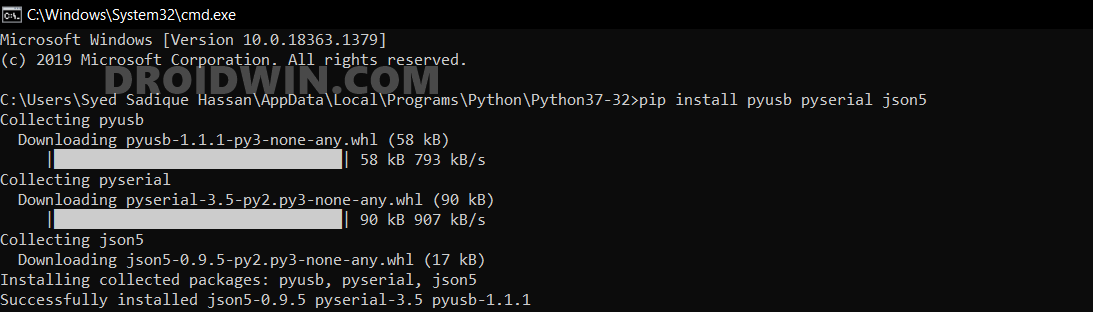
- Head over to the installation directory, type in CMD in its address bar, and hit Enter.
- This shall launch the Command Prompt window.
- Copy-paste the below command in the CMD window and hit Enter: pip install pyusb pyserial json5
- With this, we have installed the required dependencies via the PIP command.
STEP 3: Install libusb-win32
This library allows the user-space applications to access many USB devices on your Windows PC. This is actually the port of libusb-0.1 under Windows.
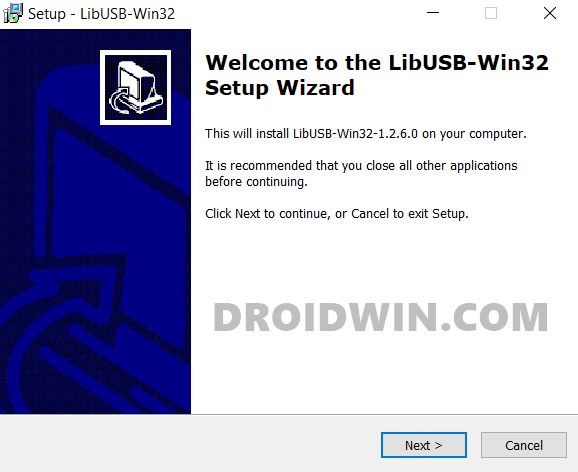
- So download the libusb-win32 onto your PC.
- Then double click on the libusb-win32-devel-filter-1.2.6.0 file to launch the setup.
- Now, follow the onscreen instructions to complete the installation.
STEP 4: Download MTK Bypass Utility Tool
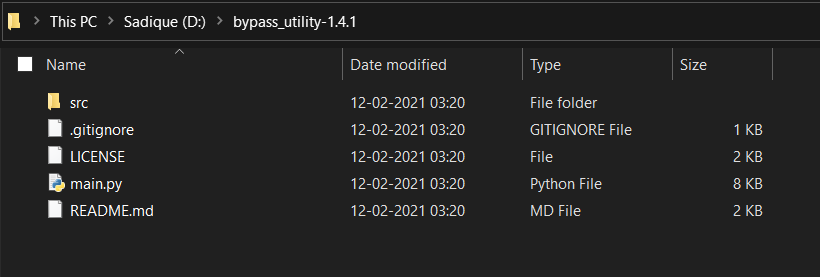
- Download the MTK Bypass Utility software from GitHub.
- Then extract its content to any convenient location on your PC.
- Now transfer all these files to the Python installation directory [extremely important].
STEP 5: Boot MediaTek Device to BROM Mode
The next step to bypass MediaTek SP Flash Tool SLA and DAA Authentication requires your device to be booted to BROM Mode. Here’s how it could be done:
- To begin with, power off your device.
- Now press and hold the Volume Up and Volume Down buttons.
- Keeping the button pressed, plug in your device to the PC via USB cable.
- That’s it. Your device shall now be booted to the BROM Mode.
STEP 6: Install SP Flash Tool
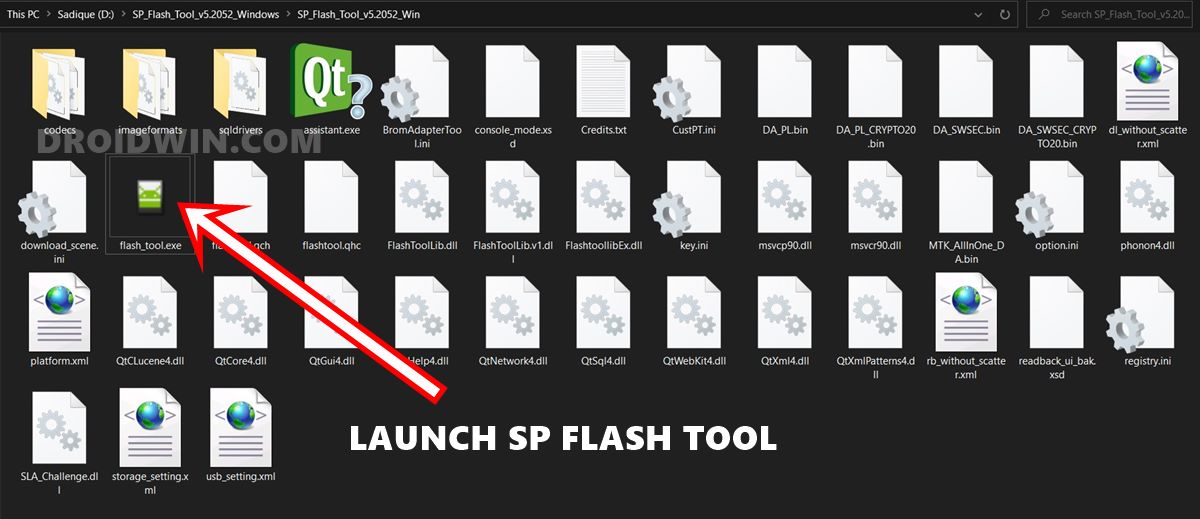
If you haven’t installed the SP Flash Tool onto your PC, then now is probably the best time to do so. Hence download the SP_Flash_Tool_v5.2052_Windows.zip and extract its content to any convenient location on your PC.
STEP 7: Bypassing SP Flash Tool SLA DAA Authentication
Make sure that your device is connected to the PC via USB cable and is booted to Download Mode. Likewise, you should have transferred the contents of the MTK Bypass Tool to the Python installation directory. If that’s all well and good, then proceed with the below steps to bypass MediaTek SP Flash Tool SLA and DAA Authentication.
- Type in CMD in Python’s address bar and hit Enter. This shall launch Command Prompt inside the Python installation directory.
- Now type in the below command to run the main.py Python file: python main.py //See Note below if you cannot run this command
- As soon as it’s done, you should get “Protection Disabled, Press any key to continue”.
- Now launch the SP Flash Tool (double click on the flash_tool.exe file).
- Then go to the Options section and select Connection from the left menu bar (see below image).
- Now select UART under the Connection Settings menu. Also, change Baud Rate to 921600.
- You may now flash the desired firmware without the need to authenticate Serial Link Authentication and Download Agent Authentication.
Cannot run python main.py: No Module named src.exploit
When I initially tried to run the python main.py command, I was greeted with the “No Module named src.exploit” error, even though the exploit.py file was already there in the src folder. So if you are also facing this same issue, then create a new file in the src folder and name it init.py. Then try to run the command again and this time, you wouldn’t face any issues.

- How to Download and Install SP Flash Tool | Flash Firmware Guide
- How to Install TWRP on MediaTek using SP Flash Tool
- Download and Install MediaTek Fastboot Drivers
- How to Pass Magisk SafetyNet on Rooted Android 11
- Root Android 11 via Magisk Patched boot.img (without TWRP)
- Fix Magisk patched boot.img issue while Rooting Android 11
- Disable DM-Verity or Android Verified Boot without TWRP

- Gnuvvi 3 years ago Reply Huge respects for a very detailed procedure. For me, progress with this tryout is impeded by failure to access the libusb64 for my 64bit win10 OS. There seems to be no .EXE file available on the library website for download. I do hope there’s an alternative solution as the would greatly help my situation. Best,
- Sahil Nandal 3 years ago Reply My phone got bootloop and I can’t access neither to fastboot nor to recovery mode. Just poco logo appears and restart again again…. Please help me sir
- Mingma 4 years ago Reply i got error : status_ram_exception while flashing the rom in redmi note 8 pro. HELP Sayan 3 years ago Reply Same problem for me too.. Please help.. I am using redmi 10 2022
- Raghul 5 years ago Reply Thank you
- Tarek 5 years ago Reply Error hardware code not found in main.py Sadique Hassan 5 years ago Reply Hi Tarek could you please let me know at what stage did you got this error message? Was it after executing the python main.py command?
(Cancel Reply)
Δ
