Can I Delete iMovie Library [library.imovielibrary]?
Recently I started my YouTube channel and most of the things are being taken care of by iMovie, and it has done its job quite impressively well, to say the least. However, over the past couple of months, I started noticing that my Mac storage space was being consumed at an alarming rate. While the exported videos did play a part in that, but the maths wasn’t still adding up. So there were a few additional files that were definitely playing their part in this fiasco.
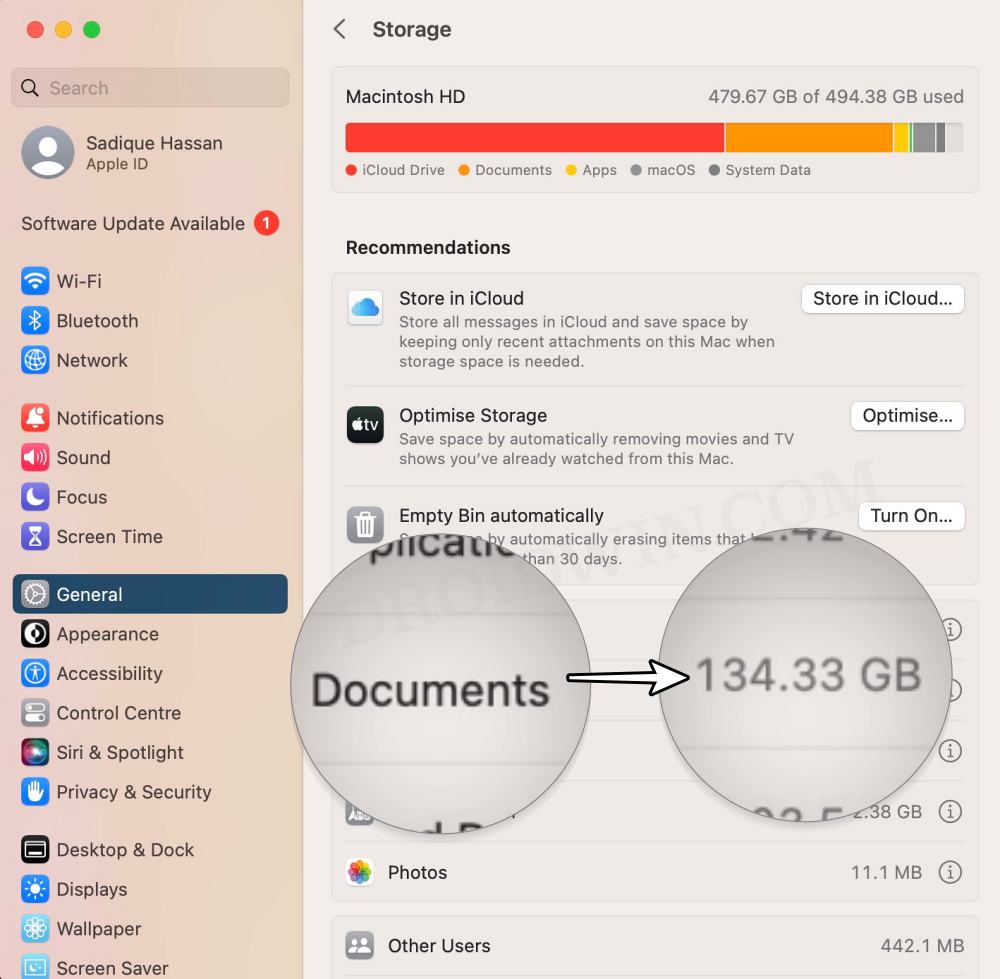
So I went to System Settings > General > Storage and found out that the Documents folders were consuming more than 1/4th of the entire storage space of my Mac. Since I usually keep this folder empty, so the fact that it had taken over 130GB definitely raised a few eyebrows. So I clicked on the info icon next to it and found out that iMovie had this entire 130GB under its arsenal.

The action that needed to be done to gain this storage space was a no-brainer- simply delete this Library file. But I was left asking the same question over and over again- is it safe to delete iMovie Library [library.imovielibrary]? The best way to find it out was to give it a shot and test out the result. The biggest risk that this action possessed was the fact that I could end up losing all my exported videos.
Can I Delete iMovie Library [library.imovielibrary]?

So I took a backup of all those videos to an external hard disk, selected iMovie Library.imovielibrary and hit the Delete button. The end result? Well, after deleting the iMovie Library, all my exported videos were still intact and safe, however, the iMovie app was reset to its default settings, which was along the expected lines.

So once you have deleted the library and then relaunch iMovie, you will get a blank screen. Just click on Create New, select Movie/Trailer, choose the library, and hit OK. That’s it. You are now back to the earlier iMovie setting and also gained a substantial amount of storage space after deleting iMovie Library.

NOTE: The above experience and viewpoints are the author’s own. It is advised to exercise caution and take a backup of all the data before carrying out any of the aforementioned steps. Droidwin and its members wouldn’t be held responsible in case of a thermonuclear war, your alarm doesn’t wake you up, or if anything happens to your Mac and data by performing the below steps.
- macOS 14 Sonoma Bugs, Issues, and Their Fixes
- How to Downgrade macOS 14 Sonoma to macOS 13 Ventura
- Safari Browser Profiles not working on macOS Sonoma: How to Fix
- Cannot Install macOS Sonoma in External Disk: How to Fix

(Cancel Reply)
Δ
