Can You Decrypt Data in TWRP without Format Data?
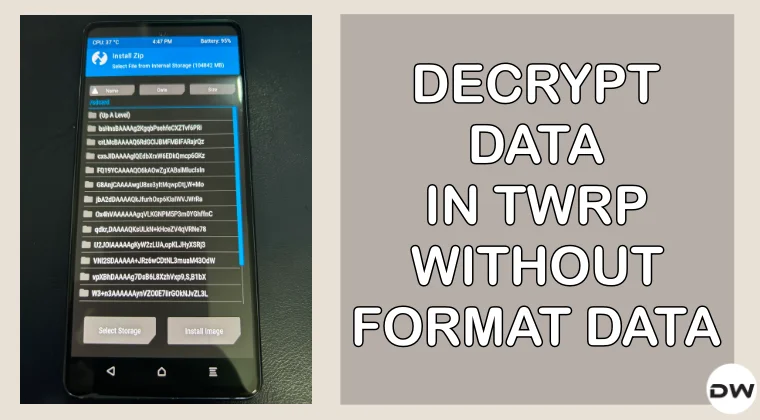
In this guide, we will be having a look at whether you can decrypt data in TWRP without doing a format data. Data Encryption is quite a common problem across numerous Android devices. And the fix for that is relatively simple- just do a format data. While this will remove all the data from your device, however, from the subsequent time onwards, none of the files will be named in alphanumeric characters.
As a result of this, you can easily identify them and flash them as per the need. However, this doesn’t seem to be the case always. In some cases, even if you do a format data and the next time you reboot to recovery, the data will again be encrypted. Apart from that, some users don’t want to format their devices because setting up the device from scratch takes quite a lot of time.
So in all these cases, formatting the device isn’t the most viable option. Hence, your best is to decrypt data without doing a format data. But is that really possible? Let’s find out.
Can You Decrypt Data in TWRP without Format Data?

The short answer is no, you cannot decrypt data in TWRP without doing a format data. But there does exist a nifty workaround using which you can still read and flash the files without formatting your device. But how is that possible? Well, you need to transfer the desired file to the data directory instead of the sdcard.

This is because only the sdcard [Internal Memory] is encrypted, the rest all the directories are still decrypted and you can easily read and identify their file names. So, simply transfer the file to data, temp, or any other directory of your choice and then simply flash it. Here’s how it can be done:
INSTRUCTIONS
- To begin with, download and extract Android SDK Platform Tools .
- Next up, enable USB Debugging and connect your device to the PC.
- Then open the Command Prompt inside platform-tools and type in adb reboot recovery
- Your device will boot to TWRP. Now, transfer the desired file to the platform-tools folder.
- Also, rename it to something shorter so that it becomes easier to type in the CMD window.
- Then use the ADB Push command to transfer the file to the data directory, as shown below: adb push filename.zip /data NOTE: You can transfer any file type via ADB Push. We are using ZIP just as an example.
- Once transferred, go to Install, tap Up a Level, choose Data, select the file, and swipe to flash.
- How to Remove Data Encryption and Decrypt Data in TWRP
- How to Disable Force Encryption on Android via DFE and TWRP
- Install TWRP Recovery on Samsung [multidisabler/fbedisabler]
- How to Change File Permissions without Root [via TWRP]

- Dhananjay 9 months ago Reply Please make a video on how to use yono sbi app in custom rom
(Cancel Reply)
Δ
