Cannot Download December/January Update on Pixel Watch [Fix]
UPDATE 1: Many users have now reported that they are even unable to download the January update as well, with their Pixel Watch stuck on the “Preparing to Update” screen. With that said, the below-listed fixes are still able to resolve this issue.
In this guide, we will show you various methods to fix the issue of being unable to download the December update on your Pixel Watch. When it comes to the smartwatch domain, then the offering from the Silicon Valley giant is a relatively newer player in this domain, however, it has already become the go-to choice for many users. And to be fair, that was along the expected lines. What wasn’t was the fact that it might end up enumerating one of the most infuriating behaviors of its smartphone counterpart.
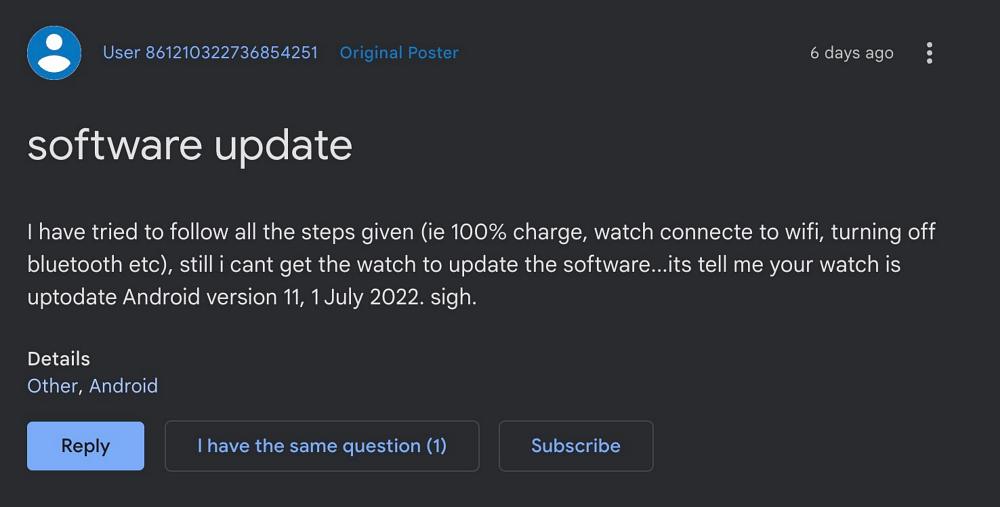
Yes, we are talking about a slew of bugs and issues that has already Pixel device users are already familiar with, and now, the smartwatch users should do the same, sooner than later. This is because, as of now, numerous users have voiced their concern that they are unable to download the December update on their Pixel Watch. Their watch still shows that it is on the ‘latest’ July update with no pending update.
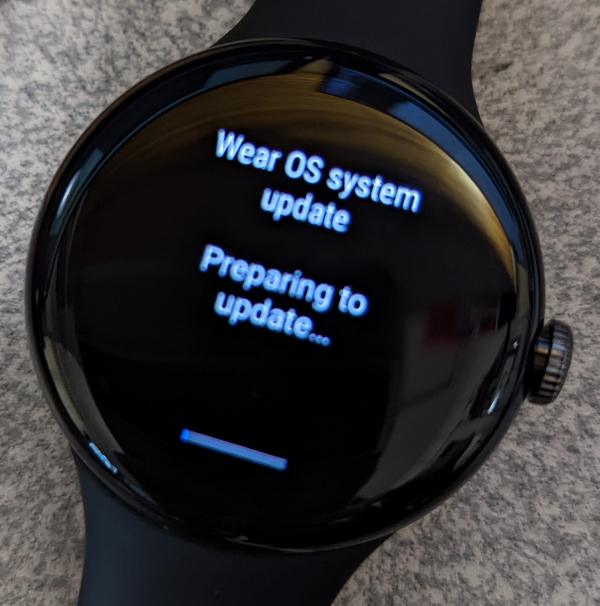
On the other hand, there are a few users who were lucky enough to get notified about the update on their Pixel Watch, but when they tried downloading it, they got stuck on the ‘Preparing to update’ screen. If you are facing any of these issues, then this guide will make you aware of a nifty workaround to rectify this bug. Follow along.
- Fix Cannot Download December Update on Pixel Watch FIX 1: Continous Tap on Checkmark FIX 2: Connect to Charger FIX 3: Hard Reboot
Fix Cannot Download December Update on Pixel Watch
It is recommended that you try out each of the below-mentioned workarounds and then see which one spells out success. So with that in mind, let’s get started.
FIX 1: Continous Tap on Checkmark
- P ress and hold both the crown and side buttons for around 3-4 seconds to restart your watch.
- Once it boots up, go to S ettings > System > System Update.
- Now tap on the checkmark for around 15-20 times(it looks like a watch icon with a check in it).
- It will force-trigger the update, which will subsequently be downloaded and installed on your watch.
FIX 2: Connect to Charger
Some users have said that they were able to initiate the update process on their watch simply by connecting it to the charger and then heading over to the System Update section. A pending update was available there which they were able to download and install right away. So do give it a try and then check out the results.
FIX 3: Hard Reboot
Hold the crown and the button just above the crown together until the watch reboots. Once it boots up, let go off the buttons and then retry the update process. This time you wouldn’t face any issues.
- Pixel Watch Google Maps: Cannot Set Home & Work Address Fix
- How to Sync Pixel Watch Alarm with any Android Phone
- WhatsApp Notifications not working with Pixel Watch: How to Fix
- Make Google Pay work on Pixel Watch when the Phone is rooted

(Cancel Reply)
Δ
