Cannot Move Desktop Icons in Windows 11: How to Fix
In this guide, we will make you aware of various methods to fix the inability to move the desktop icons in Windows 11. Recently a few users reported a rather unique issue- they were unable to move the app icons on their desktop from one location to another. At first, they thought that the display might have got frozen, but that wasn’t the case as they were able to interact with all the other display elements on their screen.
And yes, their mouse/trackpad was working well and good along the expected lines, so it wasn’t the case of any problems with the peripherals. In this regard, I got hold of a few tweaks that did manage to spell out success for most of the affected users. So if you are also currently facing this issue of being unable to move the desktop icons in Windows, then follow along for its various fixes.
- How to Fix: Cannot Move Desktop Icons in Windows 11 FIX 1: Press Esc Key Three Times FIX 2: Align Icons to Grids FIX 3: Change Icon Size FIX 4: Change Display Scaling FIX 5: Reset Folder Options FIX 6: Using Registry Editor Tweak
How to Fix: Cannot Move Desktop Icons in Windows 11
Do note that there’s no universal fix as such. You will have to try out each of the below-mentioned workarounds and see which one works best in your favor. So keeping that in mind, let’s get started.
FIX 1: Press Esc Key Three Times
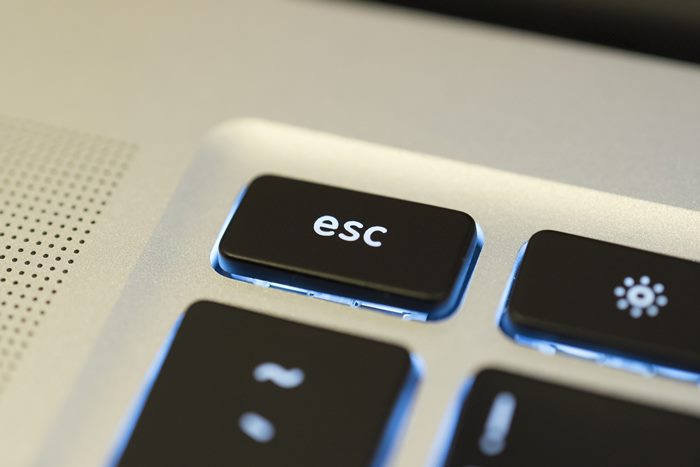
This is the simplest and easiest of fixes that come with the highest success rate. What you need to do is just hit the Esc key three times continuously and the issue should be resolved!
FIX 2: Align Icons to Grids
Next up, you should consider disabling the Auto-Align Icons feature and instead switch over to Align Icons to Grid. Here’s how it could be done:
- To begin with, right-click on an empty location on your desktop.
- Then select View and uncheck Auto arrange icons.
- After that check the Align icons to grid option.
- Now try moving icons anywhere on your Windows 11 Desktop and see if the issue has been fixed or not.
FIX 3: Change Icon Size
Another nifty workaround involves changing the icon size from its default value to either small or large and then try moving the icons. So right-click on an empty location on your desktop and go to View.
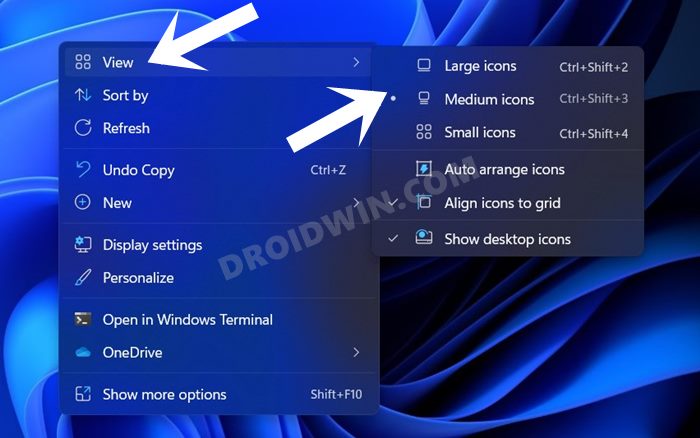
Then select either Small Icons or Large icons and check if you are able to move icons on your Windows 11 desktop or not. Whatever is the result, make sure to switch back to the default icon size once done with this tweak.
FIX 4: Change Display Scaling
You could also consider changing the style and layout of texts, apps, icons, and other display elements. Do note that doing so might temporarily the viewing experience and make the text unreadable. So we will only tweak the display scaling for a few seconds to check if it manages to rectify the underlying issue. Follow along.
- Use the Windows+I shortcut keys to open the Settings menu and go to the Display section.
- Then click on the drop-down menu next to Scale and select either 100% or 150%.
- Now minimize this settings page via the Windows+D shortcut and try moving the icons on your Windows 11 PC, check if the issue is fixed or not.
- Whatever is the outcome, use the Wndows+D shortcut to re-open the minimized settings menu and revert to the original 125% scaling.
FIX 5: Reset Folder Options
if you have made any changes to the folder’s UI or tweaked its settings, then you should consider resetting it back to the factory default state. Here’s how:
- To begin with, use the Windows+E shortcut keys to open the File Explorer.
- Then click on the three horizontal dots present at the top menu bar and select Options.
- After that, click on the Restore Defaults button under the Folder Options dialog box.
- Then go to the View tab and click on Reset Folder.
- Next up, click on the Restore Defaults option.
- Finally, click Apply > OK to save the changes.
- Check if you are now able to move icons on your Windows 11 desktop or not.
FIX 6: Using Registry Editor Tweak
In this method, we will be changing the Windows 11 icon spacing values via its registry entries. Follow along.
- Start off by opening the Registry Editor via the Start Menu.
- Then copy-paste the below location in the address bar: Computer\HKEY_CURRENT_USER\Control Panel\Desktop\WindowMetrics
- Now double click on the IconSpacing file present on the right-hand side.
- Input a numerical value between 480 and -2730 and hit OK.
- Now restart your PC and try moving icons, the issue should be rectified.
- How to Send or Move the Taskbar Icons to the Left in Windows 11
- Drag and Drop for Taskbar in Windows 11: Officially Removed?!
- How to Change Taskbar Size in Windows 11
- How to Remove Language Switcher from Taskbar in Windows 11

(Cancel Reply)
Δ
