Cannot Sideload Third-Party Apps in Pixel 7/Pro: How to Fix
In this guide, we will explain to you the reason why you cannot sideload third-party apps on your Pixel 7 Pro device. As soon as I finished setting up my Pixel 7 Pro, I straightaway download a few APK files, enabled Installation from Unknown Sources, and then proceeded with the installation of that app. However, I was straight away greeted with the following error: “You can’t install the app on your device”.
- Pixel 7 Pro Error: “You can’t install the app on your device”
- ADB Sideload Third-Party Apps on Pixel 7 Pro Won’t Work
- NO_MATCHING_ABIS: Pixel 7 Series Doesn’t Support 32-Bit Apps!
- So How to Install Third-Party Apps on Pixel 7/Pro?
- How to Check if an App is 32-bit or 64-Bit App
- NOTE: Restricted Settings for Sideloaded Apps in Android 13 is a different thing
Pixel 7 Pro Error:“You can’t install the app on your device”
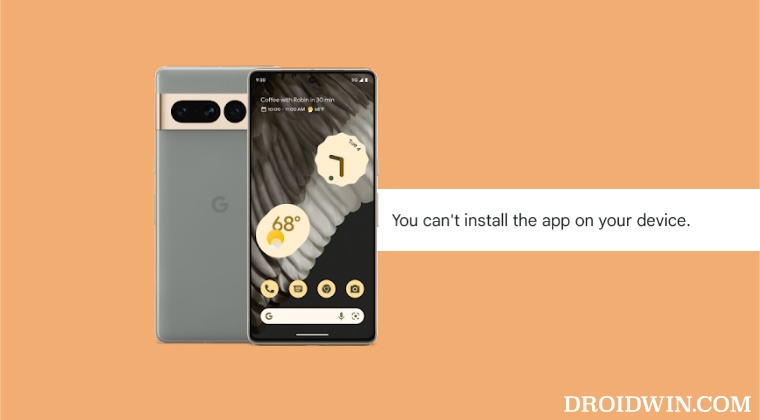
Initially, my first instinct was that there was something wrong with the APK, so I downloaded it from another source but was again greeted with the same error message. To double-check the APK, I tried installing it on your OnePlus 7T running Android 12, and it was straightaway installed. So my initial speculation was there’s a new restrictive measure has been put in place in the latest Android 13 update.
However, this speculation proved to be correct as I tried installing the same APK on Pixel 6 Pro running Android 13 and it was installed without any error. just for a re-confirmation, I tried sideloading a couple of other apps, all of which were installed on Pixel 6 Pro but not on 7 Pro, although both were running Android 13. So this made one thing clear- the culprit was the Pixel 7/Pro. So next up, I tried the AD Sideload process, and even that didn’t work out either.
ADB Sideload Third-Party Apps on Pixel 7 Pro Won’t Work
Yes, even the ADSB sideload process wasn’t able to install the third-party app. Upon tying it out, I was greeted with the following error message:
adb install /file-location/filename.apk

Performing Streamed Install

adb: failed to install /file-location/filename.apk: Failure [INSTALL_FAILED_NO_MATCHING_ABIS: INSTALL_FAILED_NO_MATCHING_ABIS: Failed to extract native libraries, res=-113]
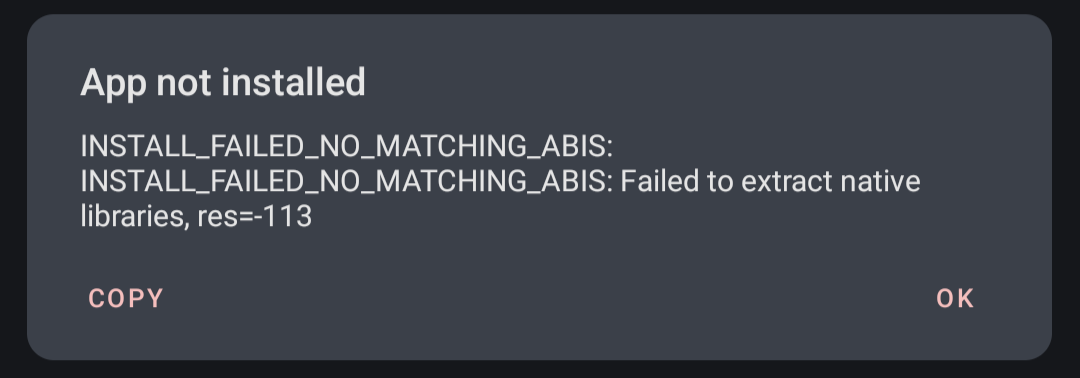
Just the words NO_MATCHING_ABIS in this error message made everything clear. Here’s what it means:
NO_MATCHING_ABIS: Pixel 7 Series Doesn’t Support 32-Bit Apps!
In simplest terms, the NO_MATCHING_ABIS means that the app version you are trying to install is not compatible with the current OS architecture. Upon further investigating this issue, I found this twee t from Mishaal Rahman stating that t he Pixel 7 series ships with a 64-bit only build of Android 13! This means that you wouldn’t be able to install the 32-bit apps on your Pixel 7/Pro.
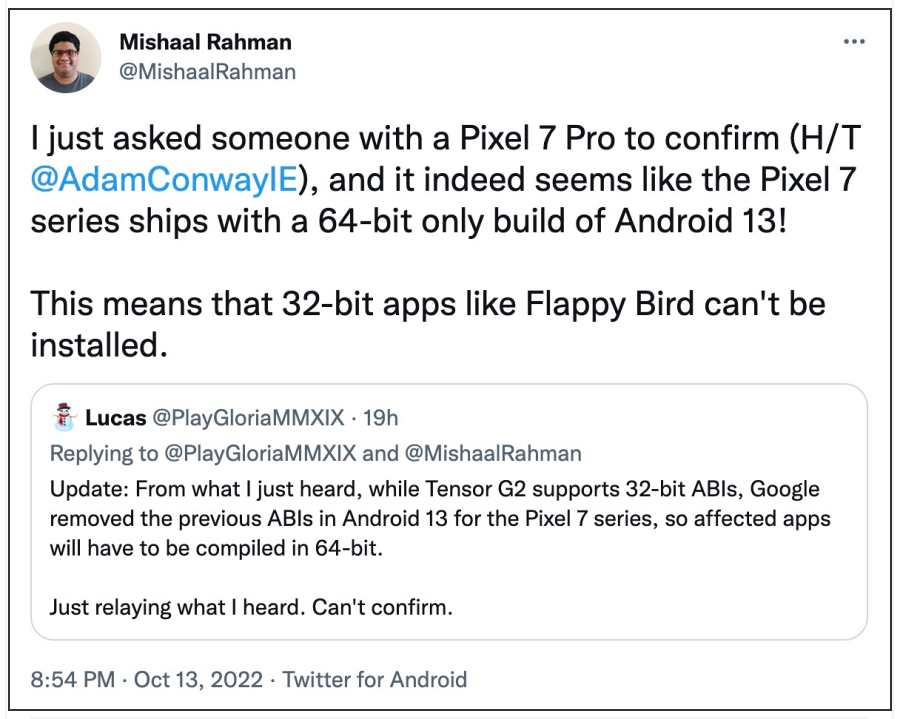
Do note that the underlying Tensor G2 chipset does supports the 32-bit ABIs, but has Google removed the previous ABIs in Android 13 for the Pixel 7 series. The same would be the case even with the Pixel Tablet as well because it is also expected to ship with a 64-bit-only version of Android!
So How to Install Third-Party Apps on Pixel 7/Pro?
let’s now address the elephant in the room- how could you bypass the “You can’t install the app on your device” error and sideload apps on your Pixel 7/Pro? Well, the only way to get this issue rectified is to get in touch with the developer o the concerned app and request they release the 64-bit version of that app. Considering Pixel devices are among the most popular players in the town, you might expect a positive response from the developers in this regard.
How to Check if an App is 32-bit or 64-Bit App
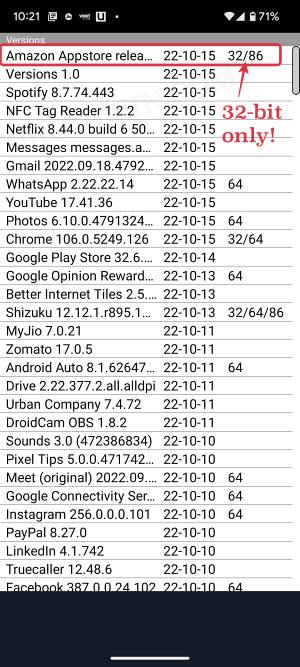
If you are planning to move over to Pixel 7/Pro, then wait for a few moments. First off check whether your desired apps are 32-bit or 64-bit via the instructions given in this guide: Pixel 7/Pro: How to Check if an app is 32-bit or 64-bit . If it is 32-bit only, then request the developer to release a 64-bit update for the same, and then you may mold your purchasing decision accordingly.
NOTE: Restricted Settings for Sideloaded Apps in Android 13 is a different thing
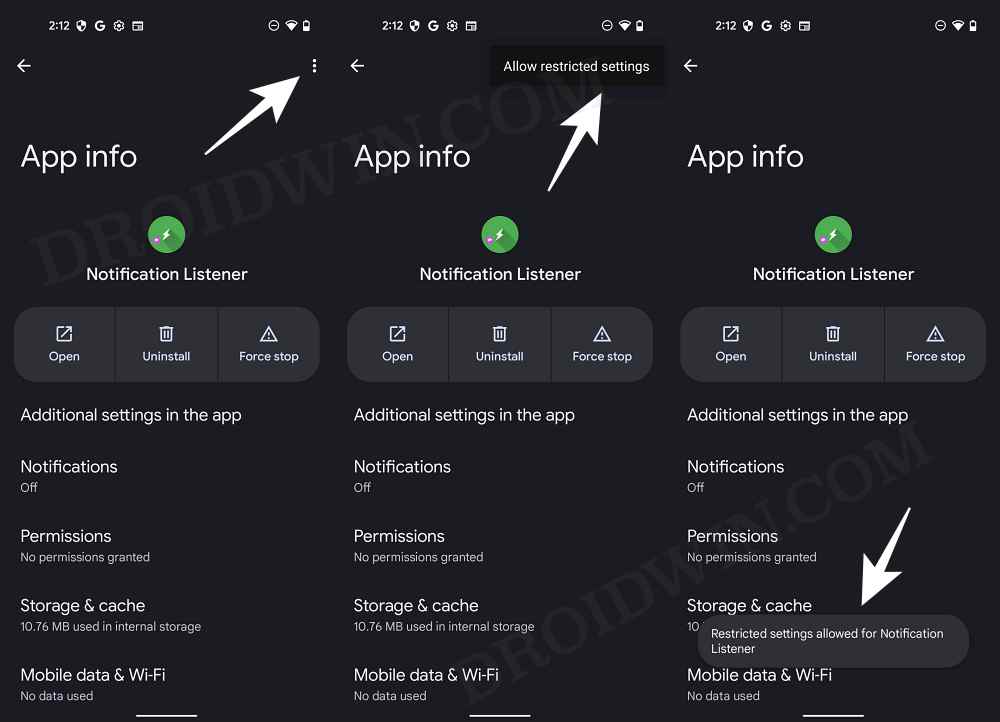
Just to clarify, the new Android 13 restricted settings for third-party apps are completely different from the current 64-bit issue. The restricted setting feature prevents third-party apps from accessing system-level notification and accessibility API, in order to provide a secure OS environment.
- Bring Back WiFi and Cellular Data Toggle in Quick Settings in Pixel 7/Pro
- How to Enable 5G in Google Pixel 7/Pro [2 Methods]
- Root Pixel 7/Pro via Magisk Patched Init_Boot
- Pass SafetyNet and Hide Root from Apps on Rooted Pixel 7/Pro

(Cancel Reply)
Δ
