Cannot Stop Alarm on Android 14 QPR3 Beta [Fixed]
In this guide, we will show you a nifty workaround to fix the issue of being unable to stop the alarm on the latest Android 14 QPR3 Beta. The latest beta build of the Quarterly Platform Release brings in a few noteworthy features. The appearance of the app icon when using the fingerprint, Scanning for deceptive apps, and Circle to Search for beta users [it was rolled out to stable users first, unintentionally!] are just some of the new features that it welcomes abode.
However, being a beta build, it is bound to have a few issues as well, and that has indeed been the case this time around, though it seems to have brought a rather interesting yet equally infuriating bug with itself. Many users have voiced their concern that they cannot turn off or stop their alarm ever since updating their device to the latest Android 14 QPR3 Beta build.
Even force-stopping the clock app does no good and they have to take the nuclear route of restarting their device, which isn’t the most viable or feasible way of addressing this issue. Well, we managed to get hold of a nifty workaround that should help you rectify this bug without the need to restart your device. So without further ado, let’s check it out.
Fix Cannot Stop Alarm on Android 14 QPR3 Beta

After going through numerous user reports, we found out that one thing stood out in common- they all were using a custom ringtone as their ‘wake up’ tone. And this tends to give rise to this issue. So to rectify it, you just need to choose from any one of the preset system tones. Here’s how it could be done:
- First off, launch the Clock app and go to the Alarm tab.
- Then expand your alarm and tap on the current tone.
- Finally, select any tone from the Device Sounds section.
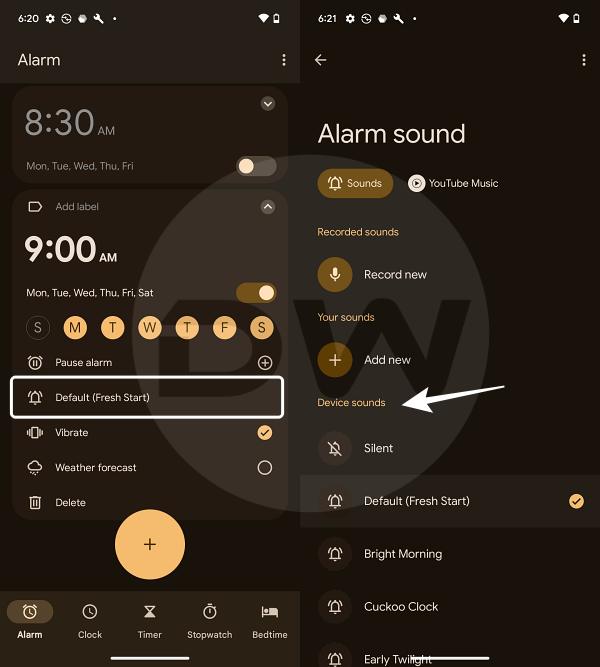
That’s it. This should fix the issue of being unable to stop the alarm on the latest Android 14 QPR3 Beta. As far as the official stance on this matter is concerned, the developers are yet to acknowledge this issue, let alone give out any ETA for the rollout of a fix. As and when any of these two things happen, we will update this guide accordingly. In the meantime, the aforementioned workarounds are your best bet.
- Cannot Opt Out/Leave Android 14 Beta: How to Fix
- Android 14 Beta 5 has removed a new Lockscreen clock!
- Android 14 Beta 4.1 Stuck in Recovery Mode: How to Fix
- Fix Fingerprint not working/missing on Android 14 Beta 3

(Cancel Reply)
Δ
Fix Fingerprint not working/missing on Android
In this guide, we will show you a couple of methods to fix the fingerprint not working/missing issue on your Android device. Out of all the lock screen methods, it’s the fingerprint that has been the most preferable one for the masses. Therefore, it is along the obvious lines that users are bound to have scary and infuriated feelings in equal measures when this lock type suddenly goes missing or stops functioning along the expected lines.
As far as the reasoning is concerned, it could either be a hardware failure [for instance if your device fell off then it could lead to internal damage] or a software bug. So we will first off perform a test to determine the root cause of this issue and then address it accordingly. Without any further ado, let’s get started.
- Fix Fingerprint not working/missing on Android FIX 1: Check for Hardware Failure FIX 2: Delete Fingerprint App Data
- UPDATE: Fingerprint not working on Android 14 Beta 3 How to Fix It? FIX 1: Recalibrate Fingerprint FIX 2: Downgrade OS
Fix Fingerprint not working/missing on Android

It is recommended that you try out each of the below-mentioned workarounds and then see which one spells out success. So with that in mind, let’s get started. Droidwin and its members wouldn’t be held responsible in case of a thermonuclear war, your alarm doesn’t wake you up, or if anything happens to your device and data by performing the below steps.
TIP: Make sure that you have a PIN/Pattern/Password set up beforehand or else the Fingerprint option will not be there on your device.
FIX 1: Check for Hardware Failure
First off, let’s verify whether it is a hardware issue or simply a software one. Here’s how it can be done [before starting, make sure to remove the lock screen password/PIN/pattern].
- Head over to Settings > About Phone > Tap on Kernel Version 7 times.
- This will open the CIT Test menu. Go to the Fingerprint Sensor Check.
- If you get All Success message, then hit Pass or else Fail and proceed to the next test.
- Once done, go to Fingerprint Input Test, hit Enrol, and tap anywhere on the screen.
- If it registers your taps, then the in-display fingerprint hardware is working fine.
- But if you are getting a Failed message in either of the two tests, then unfortunately, it points to a hardware failure and you’ll have to take your device to the service center and get it repaired. But before that, you can still give a shot at the below software fixes, maybe the stars are lined up in your favor and the issue might get rectified using the below tweak itself!
FIX 2: Delete Fingerprint App Data
The issue of fingerprint missing/not working on your Android device might also occur if the fingerprint system app’s data is corrupted. Therefore, you should delete the data and let the OS repopulate a fresh instance of the same from scratch. Here’s how it can be done:
- Go to Settings > Apps > All Apps > Tap on the overflow icon > Select Show System Apps.
- Then select the Fingerprint app from the list and head over to its Storage and Cache section.
- Now tap on Delete Data > Delete and restart your device. Check if the issue is fixed or not.
UPDATE: Fingerprint not working on Android 14 Beta 3
The Silicon Valley giant has just released the third iteration, which according to the rollout plan is the first performance stability stage. However, no matter how many stability-related keywords you end up adding to these builds, the fact that they are still in the beta stage should be enough to be tagged as a testing build.
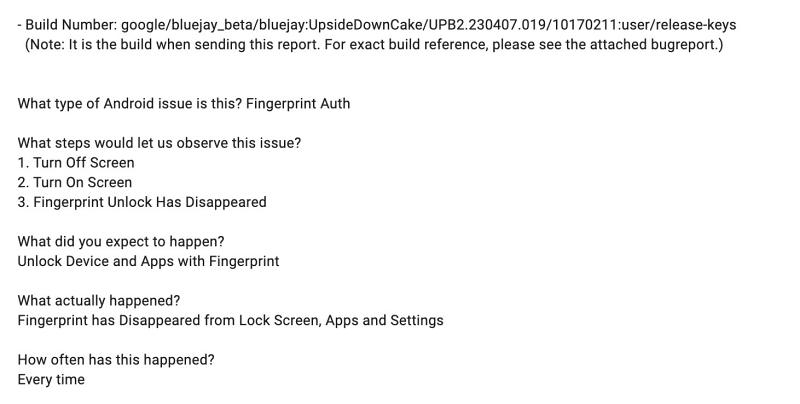
In other words, you will still come across a few bugs and issues. And that has indeed been the case. Numerous users who had installed the Android 14 Beta 3 have reported the fingerprint is either not working on their Pixel device or has completely gone missing. As far as the latter case is concerned, all the settings related to fingerprint are missing, leaving PIN/password/pattern as the only available option to unlock the device.
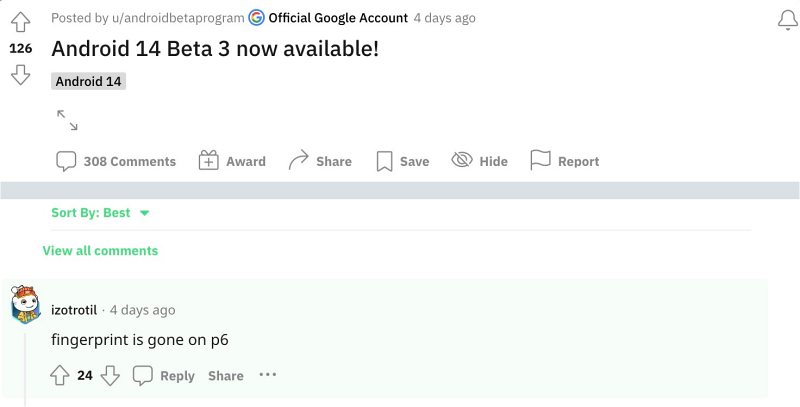
Moreover, the issue is only reported across the Pixel 6 series as the 7th series is free from this bug. If you are also getting bugged by this problem, then this guide will make you aware of a couple of nifty workarounds that should help you rectify this problem. Follow along.
How to Fix It?
It is recommended that you try out each of the below-mentioned workarounds and then see which one spells out success. So with that in mind, let’s get started.
FIX 1: Recalibrate Fingerprint
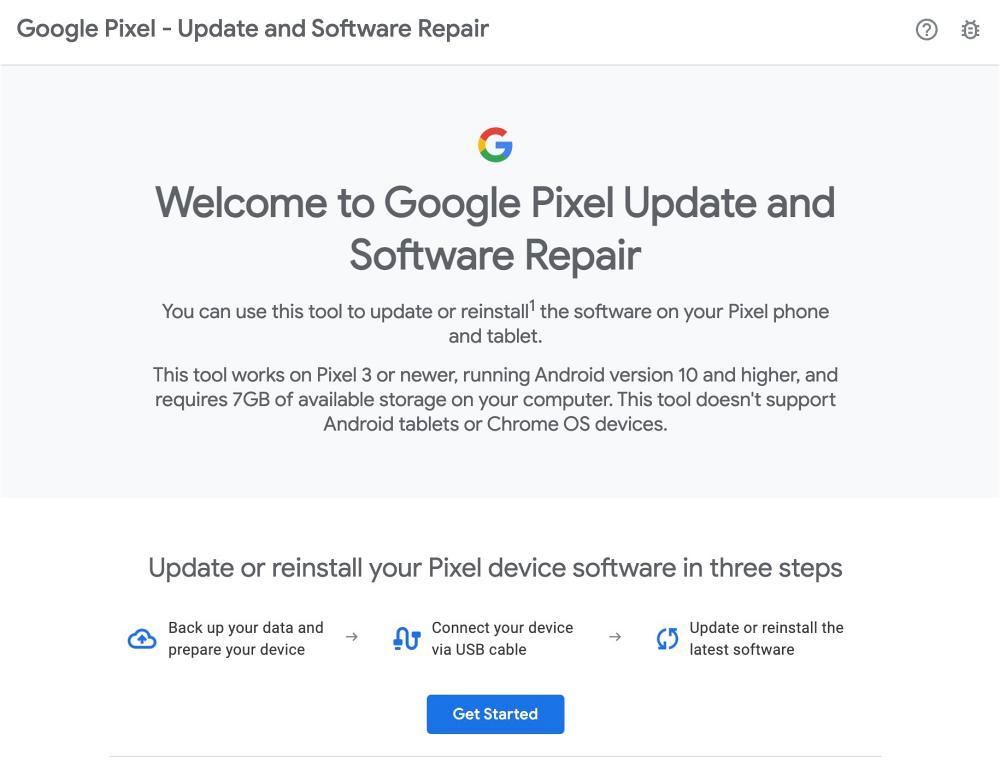
Your first course of action should be to install the fingerprint calibration software from pixelrepair.withgoogle.com . However, according to some users, this fix only lasts until the next reboot after which they have to reperform the calibration.
FIX 2: Downgrade OS
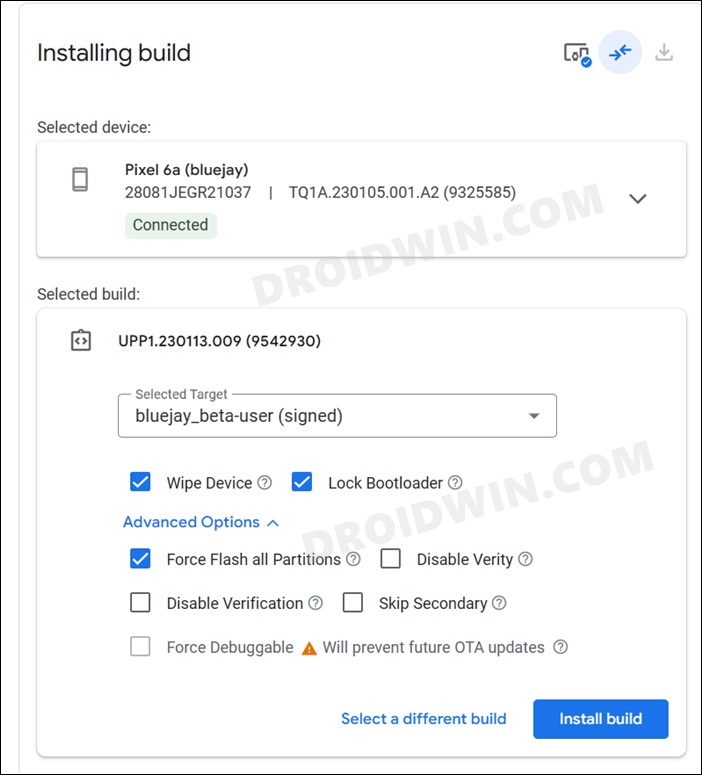
Next up, you should consider downgrading to the earlier stable Android 13 build. While this is a permanent fix, but it requires an unlocked bootloader and will wipe off all the data from your device. So if that’s well and good, then do check out our guide on Downgrade Pixel from Android 14 to Android 13 [2 Methods] [Video] .
That’s it. These were the two different methods that fix the fingerprint not working/missing issue on Android 14 Beta 3. As far as the official stance on this matter is concerned, the developers are aware of this issue, but they haven’t given out any ETA for the rollout of a fix. As and when that happens, we will update this guide accordingly. In the meantime, the aforementioned workarounds are your best bet.
- How to Enable New Lock Screen Clock Styles on Android 14 Beta 3
- Pixel Battery Charging Issue on Android 14: How to Fix
- How to Check Battery Health on Android 14
- Stuck on Copy Apps & Data after Downgrade from Android 14 [Fix]
(Cancel Reply)
Δ
