Cannot Upload Files via Chrome in macOS: How to Fix
In this guide, we will show you the various methods to fix the issue of being unable to upload files via Chrome in macOS. This browser from the Silicon Valley giants manages to checkmark most of the prerequisites that one could have asked for. More importantly, it is miles ahead in performance when compared with its Windows counterpart. However, that isn’t the only thing in which it outdoes its Windows build. In the last few months, there have been increasing bugs and issues with Chrome on the Mac platform.
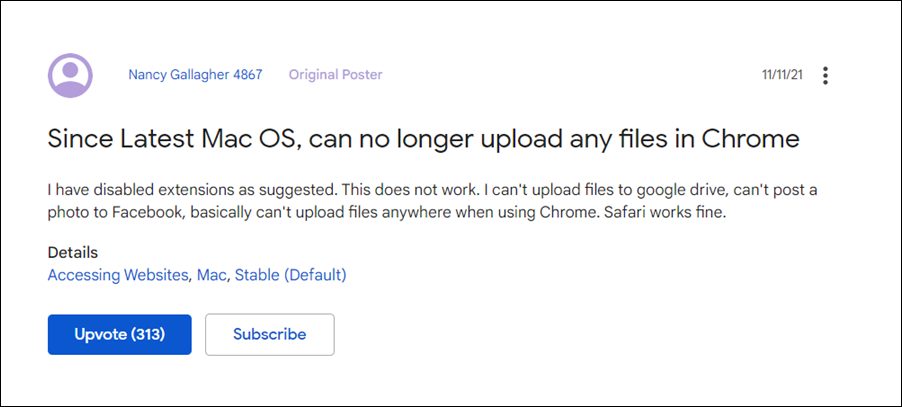
While the Zoom in shortcut issue is yet to be addressed, a new one has already made its way. As of now, various users have voiced their concern that they are unable to load any file type across any websites via Chrome on their Mac, in particular Mac M1. Literally, nothing happens when users click on the camera/paperclip/add file button. There’s no error message or browser crashing either, it’s just that the upload button has become unresponsive on Chrome.

All the other browsers including Safari and Edge aren’t facing this issue, so the problem is with the browser from Google itself. However, one strange thing to note is that the issue is only present in the M1 model, the rest of the variants seem to be free from this bug. So if you are also currently facing this error, then this guide shall help you out. In this tutorial, we will show you various methods to fix the issue of being unable to upload files via Chrome in macOS. Follow along.
- How to Fix Cannot Upload Files via Chrome in macOS FIX 1: Remove Chrome Permissions FIX 2: Add Chrome to Full Disk Access
How to Fix Cannot Upload Files via Chrome in macOS
There exist two different methods through which you could rectify this issue, and we have listed both of them below. Try them out and then see which one spells out success for you.
FIX 1: Remove Chrome Permissions
- Click on the Apple menu on your Mac and select System Preferences.
- Then select Security & Privacy and click on Privacy.
- After that, select Files and Folders from the left menu bar.
- Then scroll to Chrome and uncheck the Downloads folder permission.
- Now launch Chrome on your macOS and check if the issue of being unable to upload files has been fixed or not.
FIX 2: Add Chrome to Full Disk Access
- Click on the Apple menu on your Mac and select System Preferences.
- Then select Security & Privacy and click on Privacy.
- After that, click on the Lock icon at the bottom left.
- Then select Full Disk Access, click +, and select Applications.
- Finally, add Google Chrome to this list.
- Now launch the browser and truly upload files, the issue would have been rectified.
- Chrome zoom in shortcut not working in macOS: How to Fix
- Fix Chrome: Your connection is not private ERR_CERT_DATE_INVALID
- Google Drive Server connections interrupted Finder error on Mac [Fixed]
- Google Drive Local Search Indexing Not Working in Stream Mode [Fixed]

- Carsten 3 years ago Reply ‘Thanks, #2 worked
- Jase 3 years ago Reply Hi My Friend, I tried desperately to solve this and still no good… has there been any further who’ve not being able to use your tips but found a workaround?
- NICOLAS 3 years ago Reply F1 worked fine
- Nathalia 3 years ago Reply Neither worked for me. google chrome is not listed as an item/option in neither of them. Thanks anyway!
- Lucia 3 years ago Reply Hi, what do I do if chrome isn’t listed as an option in either?
- Henry 3 years ago Reply Neither of these work as Chrome does not show in the list for either of the two options. I do not know how to add it to the list so I can approve it. Any suggstions? .
- Peter 3 years ago Reply Thanks, option 2 worked.
- John 3 years ago Reply Thank you so very much. I was about to pull out what hair I had left. Solution 1 solved the problem. Sadique Hassan 3 years ago Reply Glad that it worked out for you John and thanks for the appreciation.
- Stacey 3 years ago Reply YES! Option 1 worked for me. Thanks so much. And thank you for making the instructions so easy to follow. 🙂 Sadique Hassan 3 years ago Reply Glad that it worked out for you Stacey and thanks for the appreciation.
- Rob 3 years ago Reply Fix 2 worked for me. Thanks for the tip! Sadique Hassan 3 years ago Reply You’re welcome Rob
- Thomas 3 years ago Reply For option 1, Chome was not in the list and I could not add it. Option 2 worked, however. Thanks! Sadique Hassan 3 years ago Reply Glad that it worked for you, Thomas.
- Lynne 3 years ago Reply None of these worked for me! When I go to files and folders I can’t click on anything, they are all gray, and option 2 is already done! What else can I try!? I’m so frustrated! Kellie 3 years ago Reply Same issue. Have yet to find a solution. Sadique Hassan 3 years ago Reply Hi Lynne, have you clicked on the lock icon present at the bottom left before trying out Fix 1? Heidi 3 years ago Reply I’ve tried this and nothing happens when I click on the lock (it doesn’t unlock).
- Sara 3 years ago Reply google chrome isn’t appearing in files/folders or full disk access. Any suggestions?
- Andrew 3 years ago Reply thanks! Opinion 2 helps me a lot. Sadique Hassan 3 years ago Reply Glad that it worked for you Andrew.
- Mohamed 3 years ago Reply Thanks option 1 worked for me
- Scott 3 years ago Reply Neither option worked for me. Thanks anyway.. Julia 3 years ago Reply Me, neither. The problem suddenly popped up for me about two months ago. It coincided with me updating Adobe, so initially I thought Adobe was to blame, until I was unable to upload Word documents too. Huge problem for me as my work requires me to routinely upload documents. Sadique Hassan 3 years ago Reply Hi Scot, sorry for the delayed response. Were you able to rectify this issue or are still facing it?
- Brendan 3 years ago Reply Hi, I followed these instructions, and after re-starting Chrome, the problem was temporarily solved, and then a few hours later it reappeared. The only solution that works for me is to restart Chrome and then a few hours later, restart Chrome, and so on. Appreciate you help though!
- Shobhit Dalal 4 years ago Reply Thanks, your instructions helped me fix this issue!
- Sue Kelley 4 years ago Reply Hallelujah! I thought I was going crazy. Thank you for this fix.
- Sujit 4 years ago Reply Thanks. Option 2 worked for me.
- Cait 4 years ago Reply Option 1 of unchecking “downloads” permission for Chrome under System Preferences > Security & Privacy > Files & Folders worked for me! Just had to shut down and re-launch chrome and could immediately upload again. Thank you so much!
(Cancel Reply)
Δ
