Capture Samsung One UI 5.0 Beta Update/OTA Download Link
In this guide, we will show you the steps to capture the Samsung One UI 5.0 Beta update/OTA file’s download link. The fifth iteration of the OS build has just been released by Samsung. Based on Android 13, it brings a slew of new and intriguing features to the fore. So the eagerness of the users to welcome this build onto their device is along the expected lines. In this regard, the most straightforward method is to get yourself enrolled as a beta tester via the Samsung Member’s App.
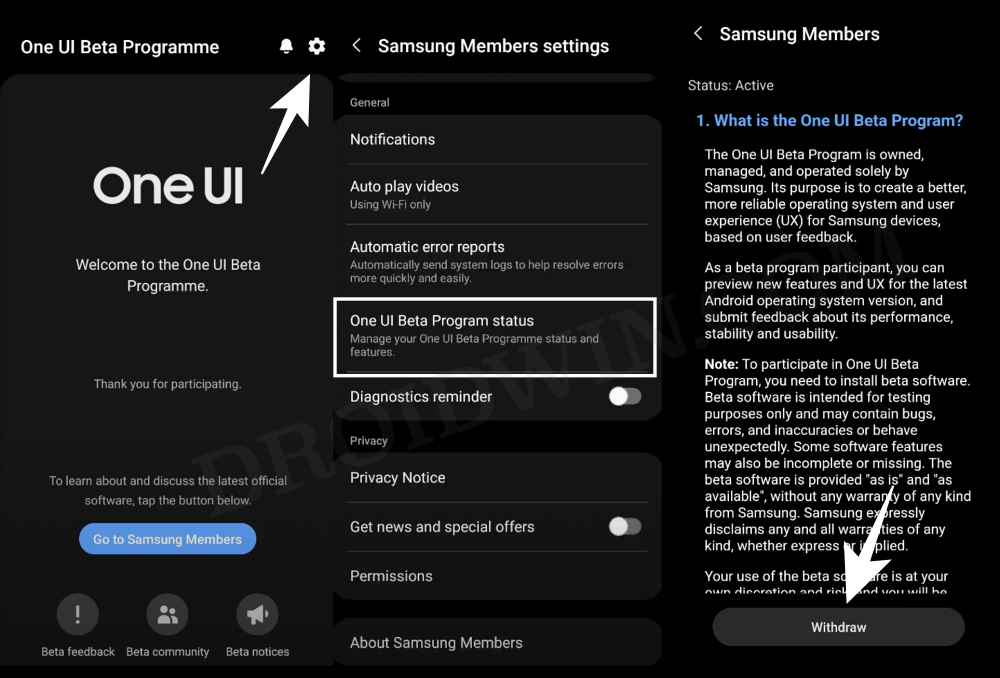
However, the threshold of the beta testers group is usually limited and it reaches the upper limit pretty quickly. As a result, there are many users who are left out there in the open without the latest One UI. While there also exists the option to sideload the update file via ADB commands or a third-party app like Alliance Shield , but you will need to have the update file in the first place.
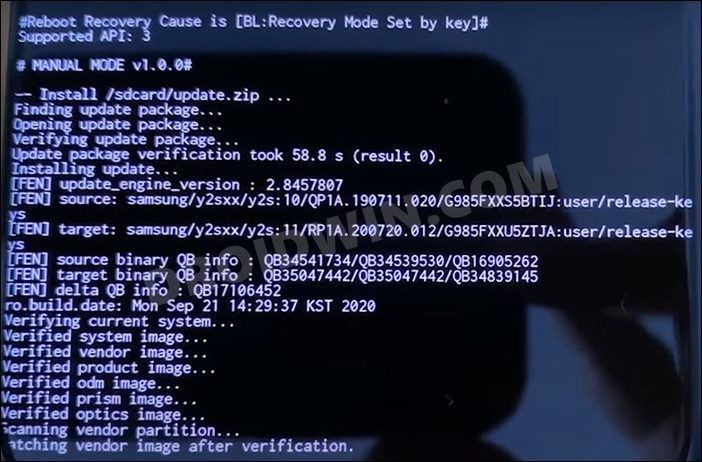
Installing One UI 5.0 via ADB Sideload
For that, there could be no better way than to ask your fellow companions who have enrolled as beta testers to share the link with you. Moroever, the entire process hardly takes around 2 minutes, so there isn’t any truckload of manual effort involved in carrying out this task. So fellow companions, pick up your device and start off with the steps to capture the Samsung One UI 5.0 Beta update/OTA file’s download link because it’s time to give one back to the community!
How to Capture Samsung One UI 5.0 Beta Update/OTA Download Link
- To begin with, download and install the HTTPCanary App on your device.
- Then launch the app and hit the Accept button to accept the terms.
- After that, tap on Configure > OK to set up the VPN.
- It will now ask you to install HTTP Canary Root Certificate.
- If you wish to proceed ahead, then tap Install > OK.
- Next up, it will ask to move the certificate to the system CA list, hit Skip at the top right.
- Now tap on the blue icon situated at the bottom right so that its color changes to green.
- Then go to the Software Update section present in the Settings menu and check for updates.
- As soon as the update starts downloading, come back to the HTTPCanary App.
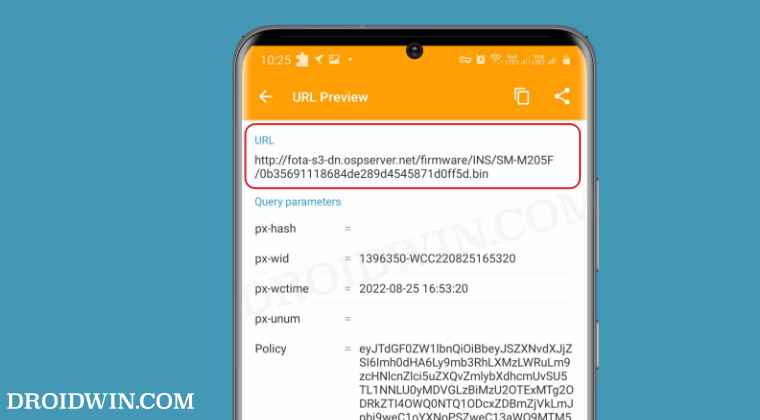
- You should now see the update download link under one of the sections. It would start with http://fota
- So long-press on that link and select Copy > Copy Link.
- The link will be copied to the clipboard and you may now share it with others.
- If you want to get more information about the link, then just tap on it.
- Downgrade Samsung One UI 5.0 to One UI 4.0: Android 13 to Android 12
- Why is Android System Intelligence not compatible on Samsung One UI 5.0
- Battery Drain issue in Samsung One UI 5.0: How to Fix
- Install Samsung One UI 5.0: Sideload with/without PC

(Cancel Reply)
Δ
