Change the Size [HeightWidth] of Scroll Bars in Windows 11
In this guide, we will show you the steps to change the size [height/width] of scroll bars on your Windows 11 PC. The latest iteration of the OS has bought in a slew of UI/UX tweaks with the former undergoing a major overhaul. Likewise, the Taskbar, Start menu, File Explorer, and Task Manager have also been blessed with intriguing features, but it seems a few corners have been cut to make room for an elegant UI, even if it comes at a cost of inconvenience.
The best way to justify this statement is by having a quick look at the scroll bars which have been condensed to a smaller form factor by decreasing their width. As a result, it sometimes becomes quite a challenging task in interacting with them. If you also echo the same thought, then this guide will make you aware of a nifty method to change the size [height/width] of scroll bars on your Windows 11 PC. Follow along.
Change the Size [Height/Width] of Scroll Bars in Windows 11
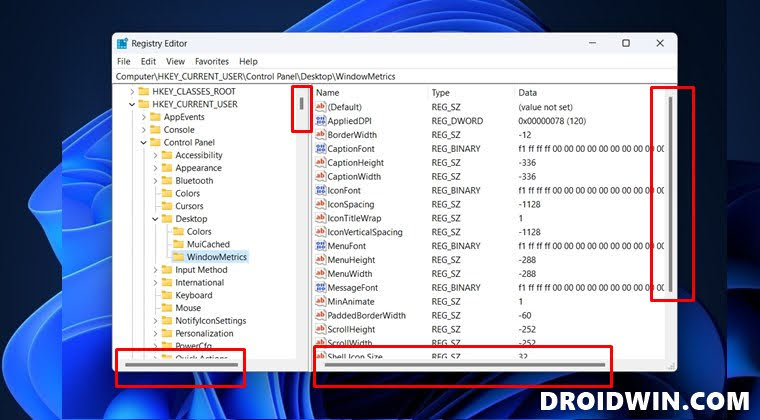
- Launch Registry Editor from the Start Menu and head over to the below location: HKEY_CURRENT_USER\Control Panel\Desktop\WindowMetrics
- Then go to the right-hand side and double-click on the ScrollWidth string value to open it.
- Now enter a value between -120 (thinner) to -1500 (thicker) and hit OK. -252 is the default value. The value uses the following formula: -15 x width in pixels For example: -15 x 16.8 = -252
- Furthermore, if you want to change the scrollbar height, then open the ScrollHeight string value.
- Then enter a value between -120 (smaller) to -1500 (larger) and hit OK. -252 is the default value. The value uses the following formula: -15 x height in pixels For example: -15 x 16.8 = -252
- Once done, restart your PC for the changes to be implemented.
- Cannot Install Apps outside of Microsoft Store in Windows 11 [Fix]
- Windows Facial Recognition not working: Something went wrong [Fix]
- How to Remove Clipchamp from Windows 11 Right Click menu
- How to Enable Screen Recording in Snipping Tool on Windows 11

(Cancel Reply)
Δ
