Change/Repair/Fix IMEI on Qualcomm Snapdragon Devices
In this guide, we will show you the steps to change, repair, or fix the IMEI on your Qualcomm Snapdragon device. It goes without saying that the devices that boast Qualcomm as their underlying chipset are probably the most active players in custom development. Be it for custom ROMs, a custom recovery like TWRP, or a plethora of flashable mods, the Snapdragon devices are right in the front of the priority queue to get blessed with these goodies. However, this is just one side of the coin.
Carrying out these tweaks could have some undesirable consequences on your device as well. In this regard, one of the most concerning and worrisome problems is the EFS/NVRAM/QCN partition getting corrupted. When that happens, you would have to bid adieu to your device’s unique International Mobile Equipment Identity. Fortunately, there now exists a handy tool through which you could change, repair, or fix the IMEI on your Qualcomm Snapdragon device. And in this guide, we will show you how to do just that. Follow along.
- Change/Repair/Fix IMEI on Qualcomm Snapdragon Devices STEP 1: Install Android SDK STEP 2: Enable USB Debugging and OEM Unlocking STEP 3: Unlock Bootloader STEP 4: Root your Device STEP 5: Install Qualcomm USB Drivers STEP 6: Boot Device to DIAG Mode STEP 7: Change/Repair/Fix IMEI on Qualcomm
Change/Repair/Fix IMEI on Qualcomm Snapdragon Devices
Do note that changing the IMEI number is illegal in some regions. So make sure to check your region’s law and only proceed with the below steps if it is legal in your region. Droidwin and its members wouldn’t be held responsible in case of a thermonuclear war, your alarm doesn’t wake you up, or if anything happens to your device and data by performing the below steps.
STEP 1: Install Android SDK
First and foremost, you will have to install the Android SDK Platform Tools on your PC. This is the official ADB and Fastboot binary provided by Google and is the only recommended one. So download it and then extract it to any convenient location on your PC. Doing so will give you the platform-tools folder, which will be used throughout this guide.

STEP 2: Enable USB Debugging and OEM Unlocking
Next up, you will have to enable USB Debugging and OEM Unlocking on your device. The former will make your device recognizable by the PC in ADB mode. This will then allow you to boot your device to Fastboot Mode. On the other hand, OEM Unlocking is required to carry out the bootloader unlocking process.
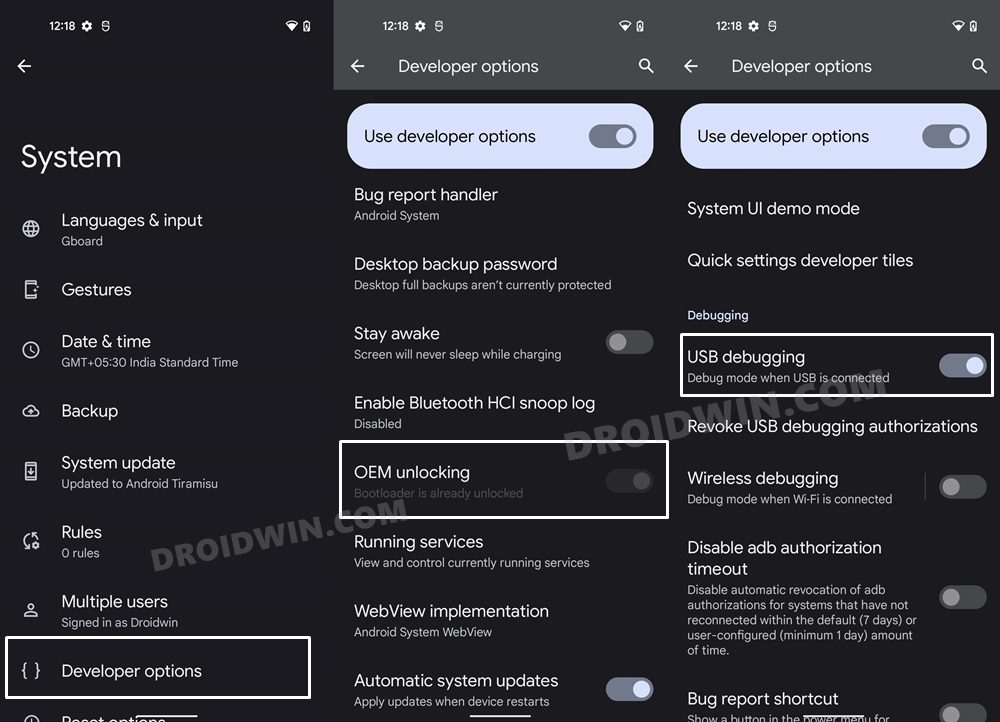
So head over to Settings > About Phone > Tap on Build Number 7 times > Go back to Settings > System > Advanced > Developer Options > Enable USB Debugging and OEM Unlocking.
STEP 3: Unlock Bootloader
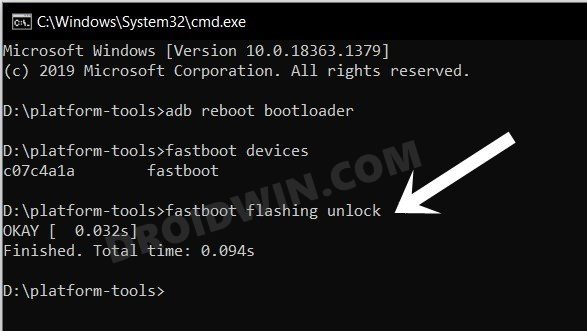
Next up, you will also have to unlock the device’s bootloader. Do keep in mind that doing so will wipe off all the data from your device and could nullify its warranty as well. So if that’s all well and good, then please refer to our detailed guide on How to Unlock Bootloader on any Android Device .
STEP 4: Root your Device
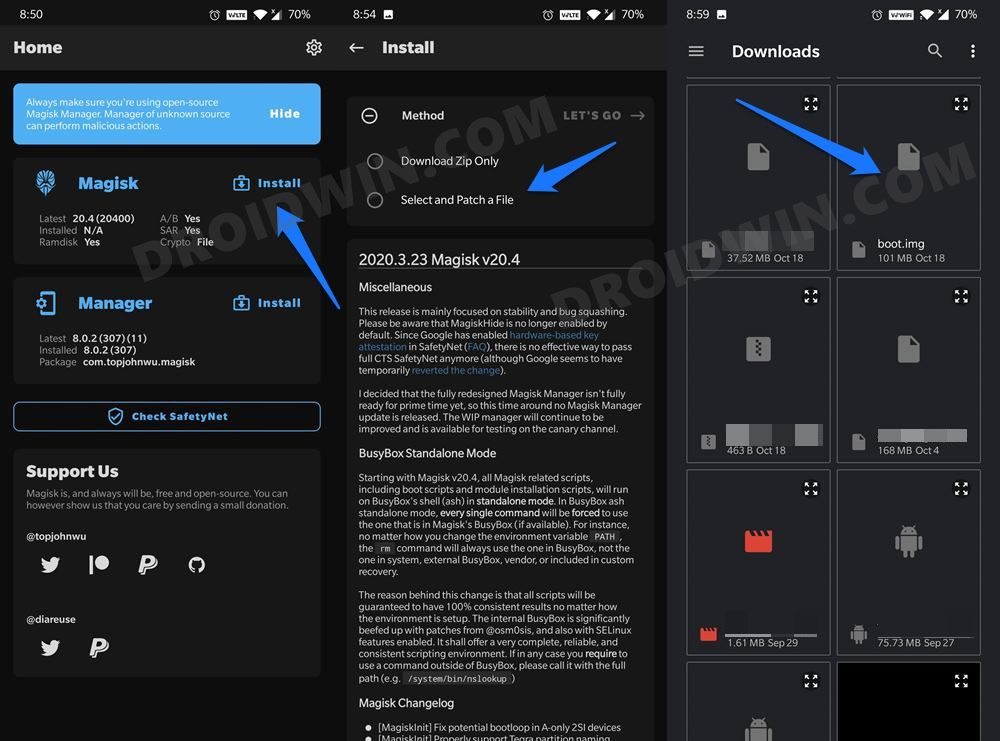
Your device also needs to be rooted. If you haven’t done so, then refer to our guide on How to Root Android 12 via Magisk patched boot.img (without TWRP) .
STEP 5: Install Qualcomm USB Drivers
Next up, download and install the Qualcomm HS USB Drivers so that your device is recognizable by your PC in DIAG Mode.
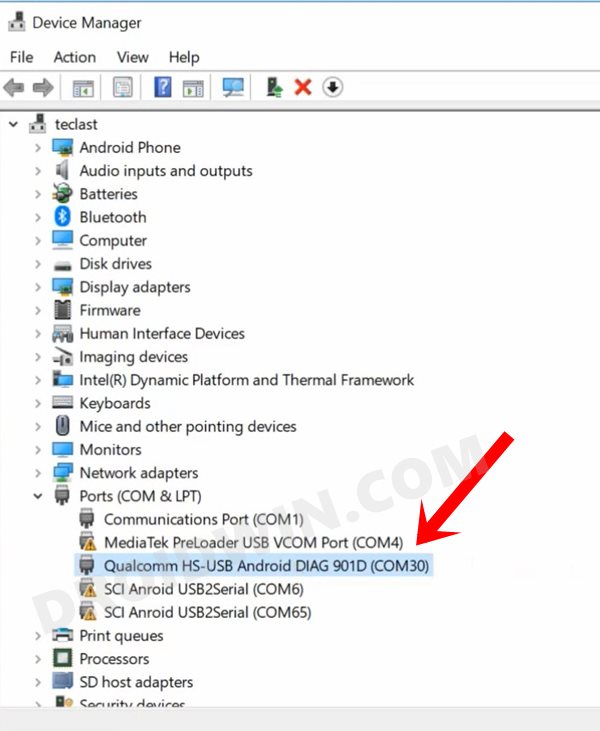
STEP 6: Boot Device to DIAG Mode
- To begin with, head over to the platform-tools folder, type in CMD in its address bar, and hit Enter. This shall launch the Command prompt window.
- Now type in the below command in that CMD window to open the shell environment: adb shell
- Then bring up the superuser request on your device via the below command su
- Tap Allow/Grant in the SU request that pops up on your device.
- Now execute the below command to boot your Qualcomm device to Diag mode setprop sys.usb.config diag,adb
STEP 7: Change/Repair/Fix IMEI on Qualcomm
- Download and extract the Qualcomm_Smartphone_Write_IMEI_Tool [Credit: XDA Member text1 ] to any convenient location on your PC.
- Then double-click on the Qualcomm_Smartphone_Write_IMEI.exe file to launch the tool.
- After that, click on Settings, type in ustest as password, and click OK.
- Then checkmark Write IMEI 1 [and also IMEI 2 if you wish to do so for both the SIMs].
- Now type in the desired IMEI under the space provided and select the COM port to which your device is connected.
- Finally, click on the Write1 button and wait for the process to complete. Once done, you should see the Pass message.
- Now reboot your device and then type in #06, you should see your new/repaired IMEI. That’s it.
- How to Fix Corrupt EFS/No IMEI/Network Issues [3 Methods]
- How to Backup and Restore IMEI on Qualcomm using QCN and QFIL
- Fix NULL/Invalid IMEI on MediaTek Devices using Modem Meta (Maui Meta)
- How to Fix Invalid IMEI on any MediaTek via ADB Commands

- Amir Raza 8 months ago Reply Sn. No. Error while connect diag. Com port & write imei 1. When in adb mode & run comm. Adb getvar all then both imei slot value null.
- Abdurrashid alkasim 1 year ago Reply Pls tell me password admin on Qualcomm
- umar 2 years ago Reply sir, this tool is not working i tried QFIL tool it works but change only one imei. 2nd imei remained the same. is there any method to change other imei also.
- hasan 3 years ago Reply hello, is it possible to repair imei on google pixel 7 pro devices?
- Awais 3 years ago Reply Hi, Thank you for writing these helpful blogs. However, I face “sn fail” error when clicking on write1. I’m sure I have followed every step correctly. Your help would be appreciated. Thanks
- Rwdz 3 years ago Reply Snapdragon 888 Samsung Galaxy S21 FE read SN fail! Any advice? Mark 3 years ago Reply Same thing here. Does not work on Snapdragon 888. Amy solutions?
- justin 3 years ago Reply when i put in the imei and selet write its says connection to phone timed out
- xxxx 3 years ago Reply Doesn’t work for snapdragon 888, driver is fully installed, even qpst detect it, does the backup but they put an anti-tampering script, i think.
(Cancel Reply)
Δ
