Chrome not working on iOS 15.2 | Stuck at Welcome to Chrome [Fixed]
In this guide, we will show you the steps to fix the Chrome not working issue on iOS 15.2 and being stuck at the Welcome to Chrome screen. This offering from the Silicon Valley giants manages to checkmark most of the prerequisites that one could have asked for from an app belonging to the browser domain. While its deep integration into the Google ecosystem makes it the preferred choice for Android users, it isn’t far behind in the pecking order for iPhone users either.
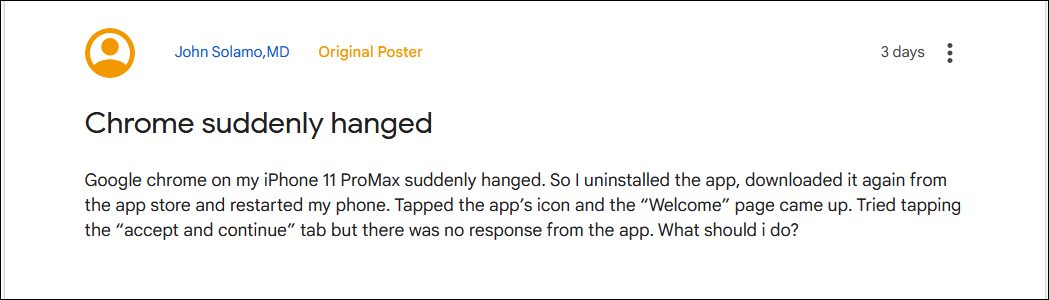
However, recently it seems to be giving a tough time to the users, so much so that users had no choice but to switch back to Safari. According to concerned users, the browser is constantly crashing , freezing, and not working along the expected lines after the latest iOS 15.2 update. The issue first came to light after iOS 15, but there were only a few traces of issues being reported back again.
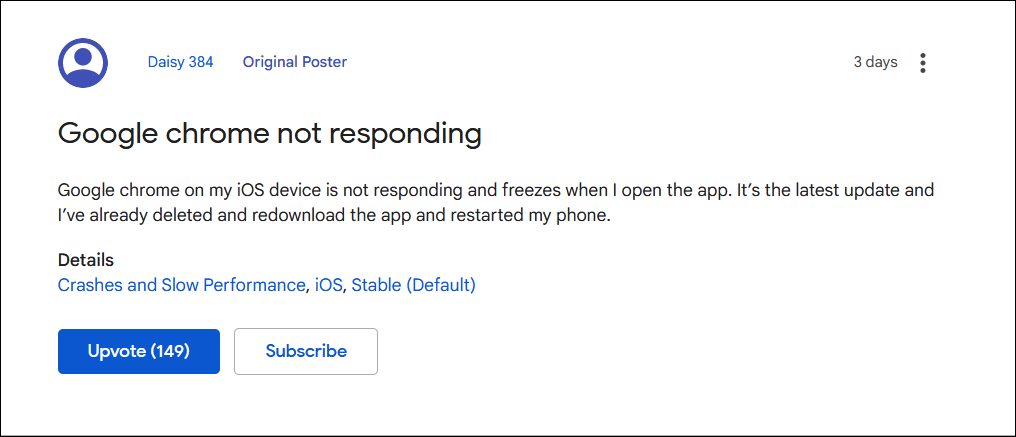
However, the latest iOS update combined with the new Chrome update have made the matter worse. In this regard, users have already tried the basic workaround of deleting cache but it didn’t work out for them. So they then opted for the nuclear approach of reinstalling the browser. But when they did this process, they aren’t able to go past the Welcome to Chrome screen.

Even the Accept and Continue button isn’t responding either. So if you are also getting bugged with this issue, then this tutorial shall help you out. In this guide, we will show you various methods to fix the Chrome not working issue on iOS 15.2 and being stuck at the Welcome to Chrome. Follow along.
How to Fix Chrome not working on iOS 15.2 | Stuck at Welcome to Chrome
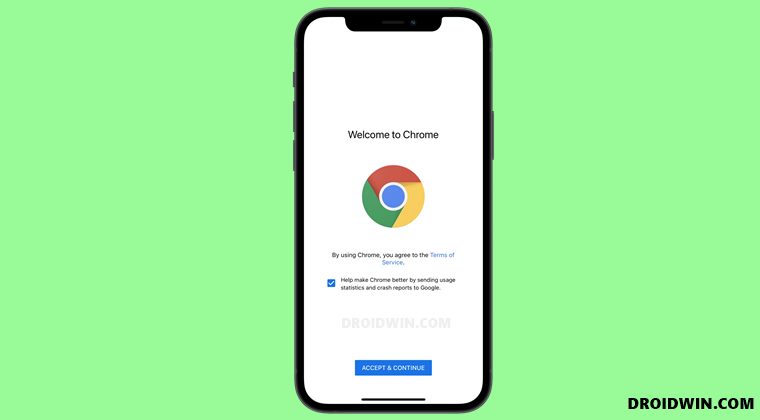
Since you are currently stuck in the Welcome to Chrome screen with Accept and Continue button not working, here’s what you need to do to bypass this screen and hence rectify the underlying issue. (If you haven’t reinstalled Chrome, then you wouldn’t be seeing the Welcome to Chrome screen. In that case, you could directly move over to STEP 3).
- To begin with, turn off WiFi/Mobile Data and then enable Airplane Mode.
- Now tap on Accept and Continue and you should be able to bypass this screen.
- So go to the Settings menu and disable the feature named Discover.
- Now disable Airplane Mode and enable WiFi/Mobile Data. That’s it.
- How to Uninstall Google Chrome from Android [Without Root]
- Google Chrome Not Working in Windows 11: How to Fix [10 Methods]
- How to Bring Back the Open in New Tab option in Chrome Android
- How to Disable New Tab UI for Tablet Mode in Chrome OS 93

(Cancel Reply)
Δ
