COD Warzone 2 and Modern Warfare 2 Dev Error 11557 [Fixed]
In this guide, we will show you various methods to fix Dev Error 11557 in COD Warzone 2 and Modern Warfare 2. When it comes to battle royale and first-person shooter games, then it’s the offerings from COD that are at the pinnacle in their respective fields. However, in spite of their impressive performance, intriguing gameplay, and challenging quests, they aren’t free from their fair share of issues either.
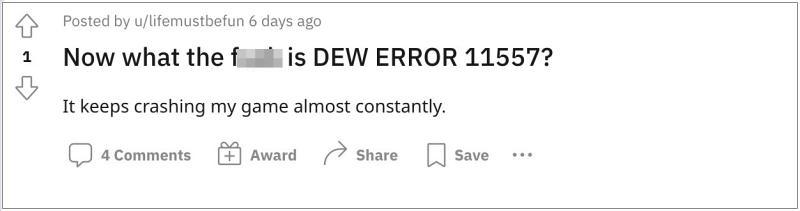
As of now, numerous COD Warzone 2 and Modern Warfare 2 have voiced their concern that they are getting bugged with the Dev Error 11557. As a result of which, the game is constantly lagging/crashing and is even unable to load in certain instances. If you are also getting bugged by these issues, then this guide will help make you aware of numerous methods to address this bug. Follow along.
- Fix COD Warzone 2 and Modern Warfare 2 Dev Error 11557 FIX 1: Restart BattleNet Client FIX 2: Delete randgridauks folder FIX 3: Move Game Files
Fix COD Warzone 2 and Modern Warfare 2 Dev Error 11557
It is recommended that you try out each of the below-mentioned workarounds and then see which one spells out success for you. So with that in mind, let’s get started.
FIX 1: Restart BattleNet Client
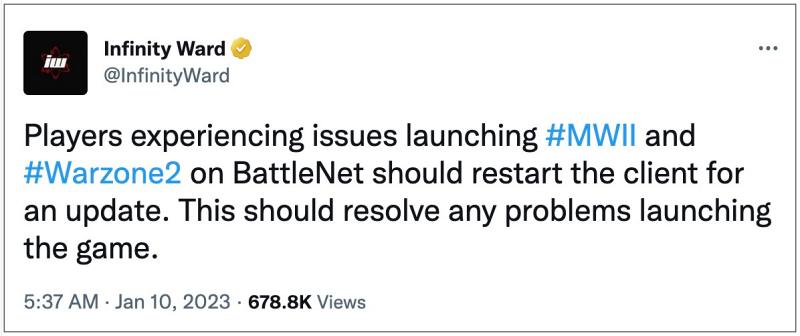
This is the official fix recommended by Infinity Ward which involves closing and then restarting the BattleNet Client. So try out this tweak and check if it manages to fix the Dev Error 11557 in COD Warzone 2 and Modern Warfare 2.
FIX 2: Deleterandgridauks folder
Next up, you should consider deleting the randgridauks folder and then let the game repopulate a fresh instance of the same from scratch. Here’s how it could be done:
- Launch File Explorer via Windows+E and head over to the below location C:\ProgramData\Battle.net_components\randgridauks
- Then delete the randgridauks folder and close the BattleNet Client.
- Now restart the BattleNet Client and it will repopulate the randgridauks data.
- Check if it fixes fix Dev Error 11557 in COD Warzone 2 and Modern Warfare 2.
FIX 3: Move Game Files
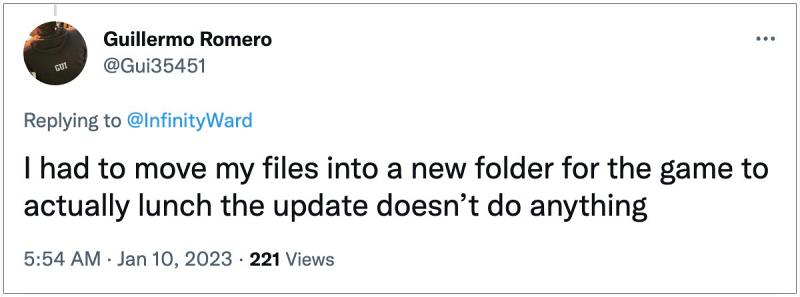
Some users were able to rectify this issue after moving the game files to a new directory and then restarting the BattleNet Client. So try out this tweak and check if it spells out success for you.
That’s it. These were the three different methods that should help you fix the Dev Error 11557 in COD Warzone 2 and Modern Warfare 2. As far as the official stance on this matter is concerned, the developers are aware of this issue, but they haven’t given out any ETA for the rollout of a fix. As and when that happens, we will update this guide accordingly. In the meantime, the aforementioned workarounds are your best bet.
- COD Warzone 2: Recon Drone Hangs/Freeze Game [Fixed]
- Warzone 2.0 custom loadout blueprint mods not working [Fixed]
- Modern Warfare 2 Kastov 545 30 round ammunition bug [Fix]
- COD Modern Warfare 2 Keybind Reset Bug [Fix]

- PeTrIeS VaNdErDoNk 2 years ago Reply Outta curiosity, you do know that the randgridauks folder in fact contains randgridauks.sys, which is essentially the RICOCHET Anti Cheat Kernel driver. So you might want to add that it might be wise to bring up task manager and double check that COD has indeed fully shut down, because if it hasn’t that driver will be running and it might just trigger its detection methods and flag the account for manipulation of game files, and may just result in an instant Shadow Ban, which will 90.99% of the time lead to a Permanent Ban after the pending investigation is finished which will trigger the email stating the decision is final your account is perma-banned for Manipulation of Game Files, just throwing it out there.
(Cancel Reply)
Δ
Warzone 2.0 custom loadout & blueprint mods not working [Fixed]
In this guide, we will show you the steps to fix the issue of Warzone 2.0 custom loadout & blueprint mods not working. This sequel to the popular free-to-play battle royale video game follows in the footstep of its predecessor by having the Battle Royale game mode as the primary one that beholds a continuously shrinking map until the last player remains.
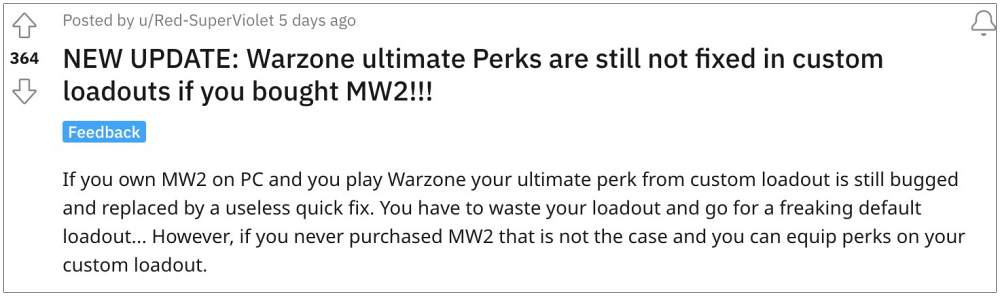
Moreover, it also beholds a slew of intriguing game modes and challenging missions but as of now, users are having to deal with an altogether different challenge. Numerous Warzone 2.0 players have voiced their concern that custom loadout & blueprint mods are not working along the expected lines.
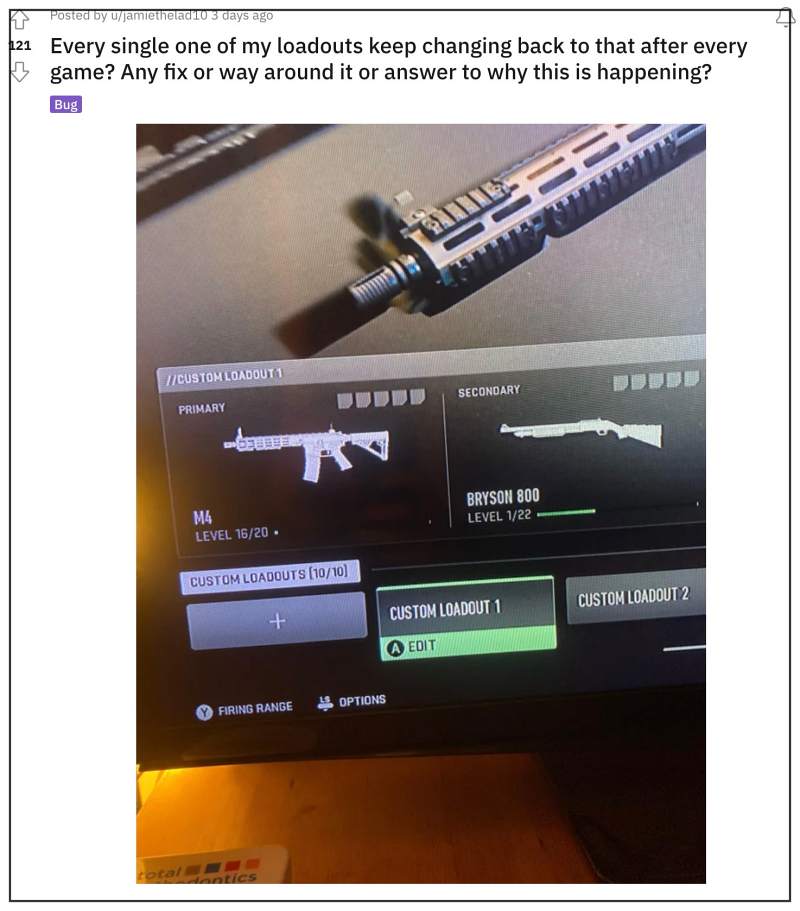
According to them, these mods and loadout revert to the default version on their own. The issue first came to light right after the developers rolled out a new patch. With that said, there does a nifty workaround that should help you rectify this bug. So without further ado, let’s check it out.
Fix Warzone 2.0 custom loadout & blueprint mods not working
Due to the recent buggy patch release, it is literally impossible to carry two custom blueprint weapons at the same time (even picking them up from a dead player backpack is currently not possible). So try out the below-listed steps to effectively address this issue:
- First off, make your blueprints and save them (it will work for edited pre-made blueprints as well)
- Then edit one attachment after saving the blueprint (select something that isn’t tuned like a magazine)
- Now switch the attachment back to the desired attachment after confirming that you want to disrupt the blueprint.
- Finally, repeat it for secondary the slot.
That’s it. This should help you fix the issue of Warzone 2.0 custom loadout & blueprint mods not working. As far as the official stance on this matter is concerned, the developers are aware of this issue, but they haven’t given out any ETA for the rollout of a fix. As and when that happens, we will update this guide accordingly. In the meantime, the aforementioned workarounds are your best bet.
- COD Warzone 2.0 Not Installed error on PS5 [Fixed]
- COD Warzone 2 Modern Warfare 2 random recoil bug [Fix]
- How to turn off SMBB in COD Modern Warfare 2
- COD Modern Warfare 2 Daily Challenge not working [Fix]
(Cancel Reply)
Δ
