Continuity Camera not working after macOS 13.3 update [Fix]
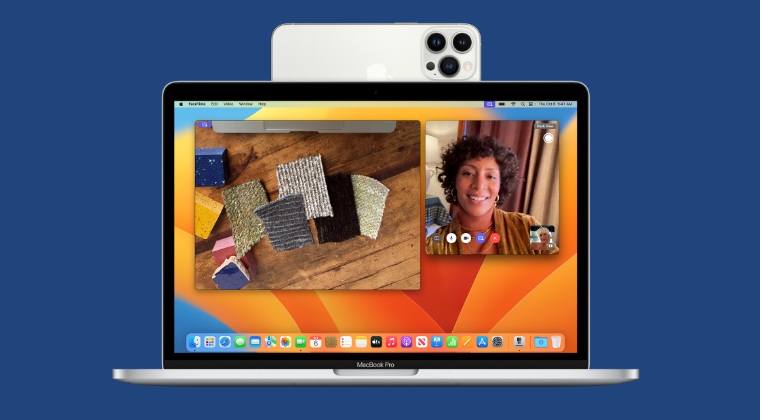
In this guide, we will show you the steps to fix the issue of the Continuity Camera not working after the MacOS 13.3 update. One of the biggest taking points to come out of the Ventura release was the introduction of the Continuity Camera feature which allows you to use your iPhone’s camera as a webcam for your Mac. This will also allow you to use intriguing camera features such as Center Stage, Portrait mode, Studio Light, and Desk View on your Mac.
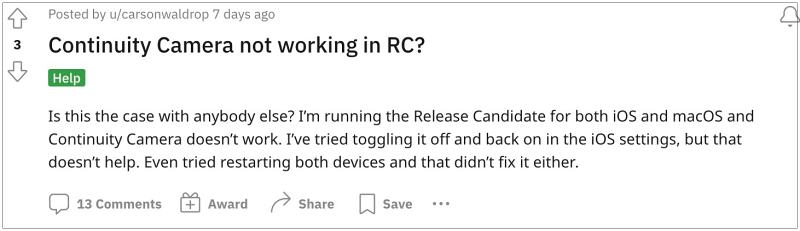
However, the latest OS update seems to have broken this functionality for some. According to the affected users, Continuity Camera is no longer working on their Mac after the MacOS 13.3 update. Interestingly, this issue was even then in the Release Candidate version and has managed to sneak into the stable build as well. With that said, we did manage to find out a nifty workaround that should help you rectify this issue. So without further ado, let’s check it out.
Fix Continuity Camera not working after macOS 13.3 update
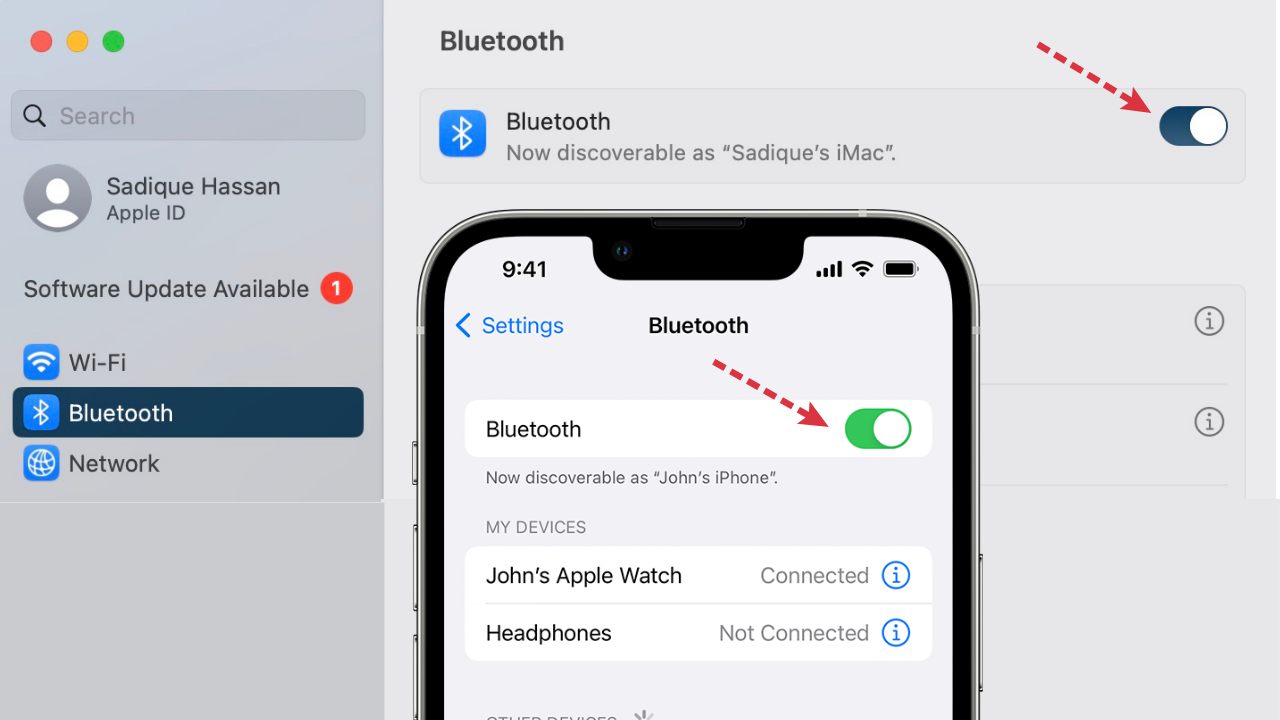
In order to rectify this issue, you just need to turn off the Bluetooth on your Mac and iPhone and then turn it back on across both these devices. On your Mac, you could do so directly from the System Settings >Bluetooth Page whereas, on your iPhone, it could be done from the Settings > Bluetooth section. So toggle them off and then turn them back on and the underlying issue will be rectified.
UPDATE 1 [April 1st, 2023]: Continuity is in a mess!
Continuity and Handoff not working on macOS 13.3 [Fixed]
- Fix iPhone apps automatically downloaded on Mac macOS 13.3
- Screensaver not working on Multi-Monitor after macOS 13.3 update
- Apple Watch cannot unlock Mac after macOS 13.3 [Fix]
- File Sharing not working in macOS Ventura 13.2: How to Fix

(Cancel Reply)
Δ
