Convert OnePlus Ace 3 ColorOS to OnePlus 12R OxygenOS
In this guide, we will show you the steps to convert OnePlus Ace 3 ColorOS to OnePlus 12R OxygenOS. OnePlus runs ColorOS in the China region and OxygenOS in the Global region [rest of the world]. However, many users are of the opinion that OxygenOS takes the upper hand when compared with its counterpart, as it offers a clean, fast, and bloat-free usage experience. So even though the users in China have purchased the Ace 3 running ColorOS, they want to ditch it in favor of OxygenOS, thereby getting a taste of the 12R. If you are also in the same boat, then this guide will help you out. Follow along for the instructions.
How to Convert OnePlus Ace 3 ColorOS to OnePlus 12R OxygenOS
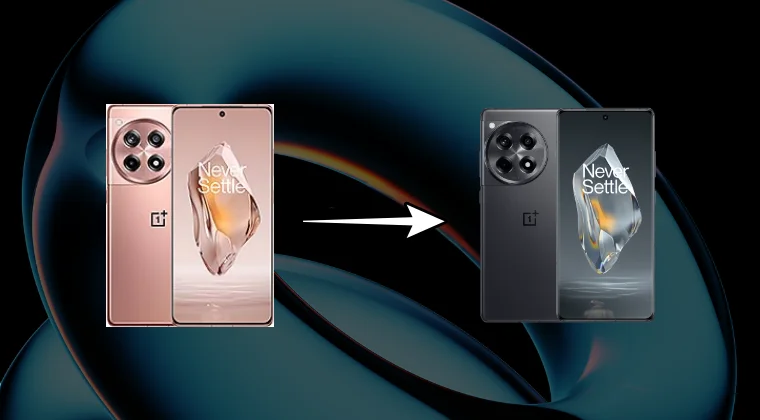
Before starting, please take a complete device backup. Droidwin and its members wouldn’t be held responsible in case of a thermonuclear war, your alarm doesn’t wake you up, or if anything happens to your device, and data by performing the below steps. [Credits: XDA Member alexia8].
- To begin with, download and extract Android SDK Platform Tools .
- Then, enable USB Debugging and OEM Unlocking on your device.
- Now unlock the bootloader on your device from the Fastboot Mode.
- Next up, download the twrp.img and transfer it to the platform-tools.
- Download Magisk ZIP and APK files and transfer them to your device.
- Now open Command Prompt inside platform-tools folder and type in: adb reboot bootloader
- After that, type in the following command to flash the TWRP Recovery: fastboot flash recovery_ab twrp.img
- Next, boot your device to the TWRP Recovery via the below command: fastboot reboot recovery
- After that, change the language in the TWRP from Chinese to English.
- Now go to Install, select the Magisk ZIP file, and then swipe to flash it.
- Then go to Reboot > System. Once booted to the OS, install Magisk app.
- Now download the same firmware version that is installed on your device. In my case, it is ColorOS .801 [ Download Link ] [Cannot Download? See FAQ]
- Then download the OxygenOS firmware corresponding to the same version. In my case, it will be OxygenOS 15.0.0.801 DOWNLOAD: INDIA | EU | GLOBAL [Cannot Download? See FAQ]
- We will now have to take a backup of the stock oplusstanvbk.img and ocdt.img.
- So for that, download and install the Fastboot Firmware Flasher software.
- Now launch it, go to Firmware Unpacker, and load the ColorOS firmware.
- Then extract it. Once done, go to Firmware > Critical > Copy oplusstanvbk.
- Then transfer this file to the platform-tools folder.
- Next up, type in the following commands in the Command Prompt: adb shell su dd if=/dev/block/bootdevice/by-name/ocdt of=/sdcard/ocdt.img
- You’ll get the ocdt.img file on your device, transfer it to the platform-tools.
- Now go to OCDT Converter , load the ocdt.img, and click on Generator.
- Rename the file that you got to ocdt.img and transfer it to platform-tools.
- Next, head over to Fastboot Firmware Flasher > Firmware > Bootloader.
- Then copy the recovery.img from there and transfer it to the platform tool.
- Now, boot your device to the Fastboot Mode using the below command: adb reboot bootloader
- Once that’s done, type in the below command to flash the stock recovery: fastboot flash recovery_ab recovery.img
- Once done, boot to the OS via the below command: fastboot reboot
- We may now start with the ROM flashing process. So boot back to Fastboot.
- Launch Fastboot Firmware Flasher, load the OxygenOS firmware, and extract it.
- Then go to the Firmware Flasher tab and flash it.
- You’ll get a prompt when the device is about to boot to Fastboot Mode, reply YES/OK on both the phone and PC.
- Once the flashing is done, do a factory reset from the FastbootD Mode itself, after which, you may boot to the OS.
- If your device does not have a cellular network, then you’ll have to flash oplusstanvbk and ocdt to rectify this bug.
- So, boot your device back to Fastboot Mode and execute the following commands given below to flash these files: fastboot flash oplusstanvbk_a oplusstanvbk.img fastboot flash oplusstanvbk_b oplusstanvbk.img fastboot flash ocdt ocdt.img fastboot erase modemst1 fastboot erase modemst2
- Finally, use the below command to boot to the OS: fastboot reboot
Access Denied 403 Forbidden When Downloading OnePlus Firmware [Fix]
- How to Convert Ace 5 to OnePlus 13R: ColorOS to OxygenOS
- How to Unbrick OnePlus 13T/Ace 5 Pro via Fastboot ROM
- Guide to Unbrick the OnePlus 13R/Ace 5 via Fastboot ROM
- Fix Camera not working on OnePlus Ace 5 converted to 13R

- Zeeshan 6 months ago Reply Hello. Sadiq bhai please help me out, I have my oneplus 12R, now my phone is in bootloop, actully my phone is oneplus ace 3, I sucessfully convert into oneplus 12R. Now my phone is corrept, its show your download process is incomplete, try again or your phone will reboot in 55 sec. Problem is,,, my phone is ace 3,, and I convert OCDT to 12R. Fastboot also corrept. I try to use with official auth tool with otp. Project fail. I try ace 3 file, not working, I try 12R file, also fail to flash.. Because of ocdt not match. What can I do now.? Phone is in bootloop, no fastboot working… help me out please…
(Cancel Reply)
Δ
