Convert Realme GT China ROM to EU ROM or Indian ROM [2 Methods]
In this guide, we will show you two different methods to convert the Realme GT China ROM to EU or Indian ROM. This 5G device from the Chinese OEM beholds quite an impressive specs sheet. A 120hz refresh rate display, Snapdragon 888 chipset, up to 12G RAM, and support of 65W fast charging are just the tip of the iceberg. Moreover, the device has even been blessed with the latest Realme UI 3.0 Android 12 update. As of now, it has firmly established its domain in the European, Indian, and Chinese markets.
However, the latter set of users doesn’t seem to be quite impressed with the underlying OS as well as the features that it beholds. The underlying OS in that region comes bloated with a plethora of pre-installed apps. Likewise, even for the tech enthusiasts, it is giving them a hard time, with the Play Store’s Device Not Certified and Google Pay not working issues bugging their entire usage experience. So all in all the best bet is to convert the Realme GT China ROM to EU or Indian ROM. And in this guide, we will show you how to do just that. Follow along.
- How to Convert Realme GT China ROM to EU ROM or Indian ROM
- Method 1: Convert Realme GT China ROM to EU or Indian ROM via Fastboot STEP 1: Install Android SDK STEP 2: Enable USB Debugging and OEM Unlocking STEP 3: Unlock Bootloader Realme GT 5G STEP 4: Download Realme GT India and Global ROM Indian ROMs EU ROMs STEP 5: Boot Realme GT to Fastboot Mode STEP 7: Flash Realme GT EU/Indian ROM via Fastboot Commands
- Method 2: Convert Realme GT China ROM to EU or Indian ROM via TWRP Recovery STEP 1: Install Android SDK STEP 2: Enable USB Debugging and OEM Unlocking STEP 3: Unlock Bootloader Realme GT STEP 4: Download Realme GT India and Global ROM Indian ROM EU ROM STEP 5: Boot Realme GT to Fastboot Mode STEP 6: Boot Realme GT to TWRP Recovery STEP 7: Flash Realme GT EU/Indian ROM via TWRP
How to Convert Realme GT China ROM to EU ROM or Indian ROM
There exist two different methods through which you could get the job done- via Fastboot Commands and using TWRP Recovery. We have listed both these approaches below, you may refer to the one that is in sync with your requirement. But take a complete device backup beforehand, as both these methods will wipe off all the data . Droidwin and its members wouldn’t be held responsible in case of a thermonuclear war, your alarm doesn’t wake you up, or if anything happens to your device and data by performing the below steps.
Method 1: Convert Realme GT China ROM to EU or Indian ROM via Fastboot
Given here are the steps to convert the Realme GT China ROM to EU or Indian ROM using Fastboot Commands.
STEP 1: Install Android SDK
First and foremost, you will have to install the Android SDK Platform Tools on your PC. This is the official ADB and Fastboot binary provided by Google and is the only recommended one. So download it and then extract it to any convenient location on your PC. Doing so will give you the platform-tools folder, which will be used throughout this guide.

STEP 2: Enable USB Debugging and OEM Unlocking
Next up, you will have to enable USB Debugging and OEM Unlocking on your device. The former will make your device recognizable by the PC in ADB mode. This will then allow you to boot your device to Fastboot Mode. On the other hand, OEM Unlocking is required to carry out the bootloader unlocking process.
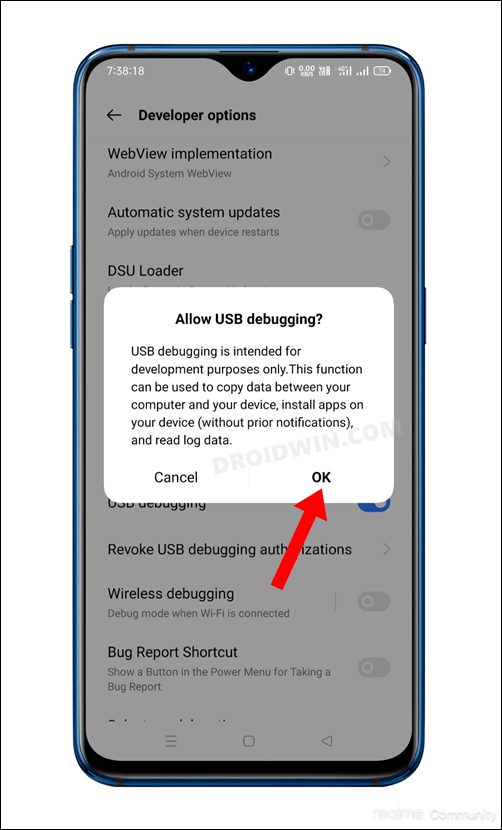
So head over to Settings > About Phone > Tap on Build Number 7 times > Go back to Settings > System > Advanced > Developer Options > Enable USB Debugging and OEM Unlocking.
STEP 3: Unlock Bootloader Realme GT 5G
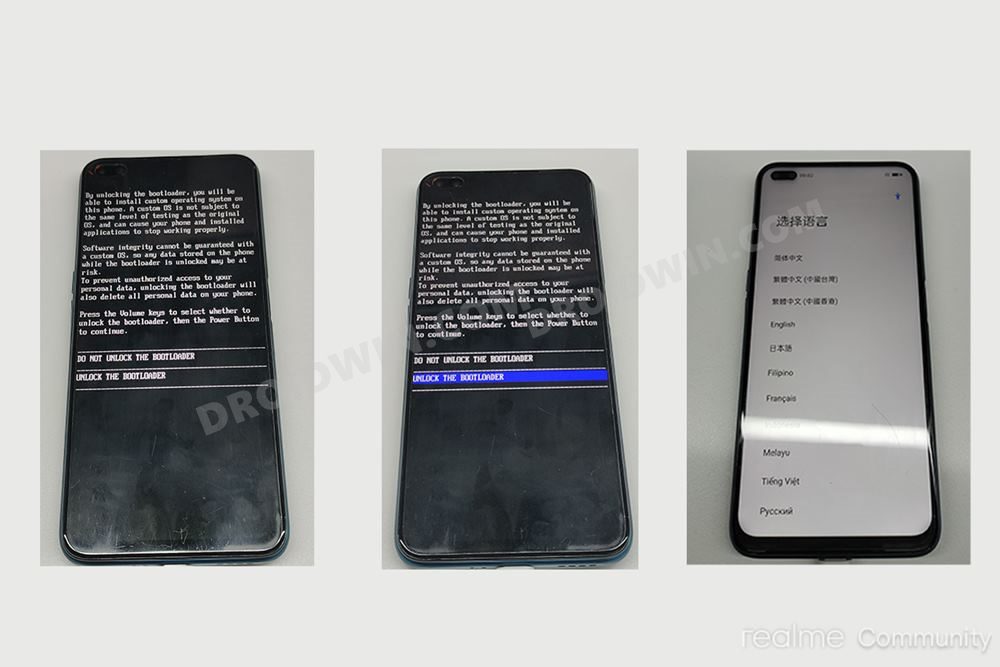
Next up, you will also have to unlock the device’s bootloader. Do keep in mind that doing so will wipe off all the data from your device and could nullify its warranty as well. So if that’s all well and good, then please refer to our detailed guide on How to Unlock the Bootloader on Realme GT 5G .
STEP 4: Download Realme GT India and Global ROM
Now grab hold of the stock firmware corresponding to your region from below. The ROMs that have the “[already converted to IMG]” tag are the ones that have already been extracted from their OZIP package and converted to ZIP. You just need to extract their ZIP via WinRAR and you will get all the partition IMG files.
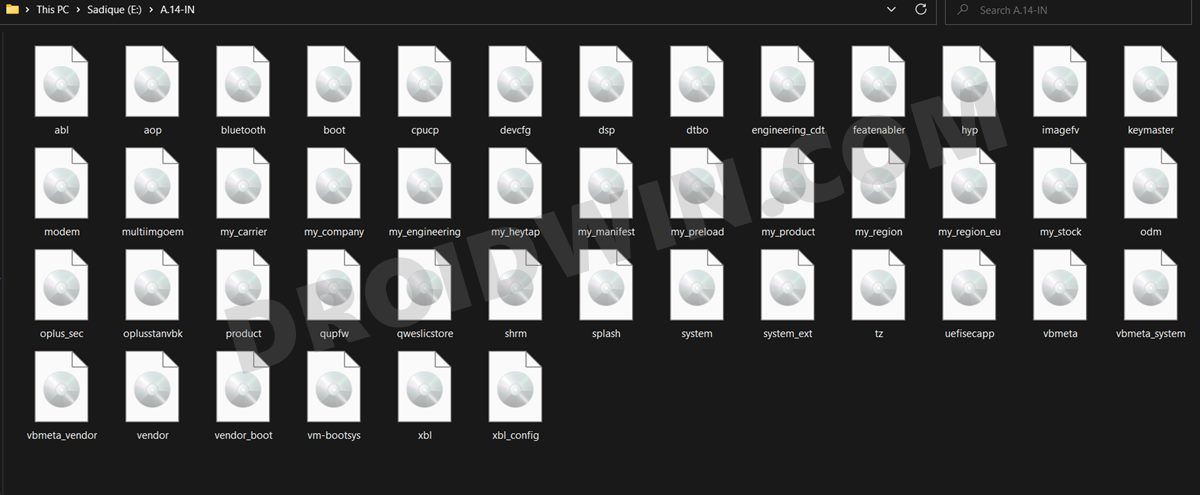
The rest are the OZIP packages, so you may refer to our guide on How to Extract OZIP Realme Stock ROM (Firmware) . Anyways, no matter which method you opt for or which ROM file you download, the end result should be that all the partition IMG files should be transferred to the platform-tools folder on your PC.
Indian ROMs
- RMX2202_11.A.14 export [already converted to IMG]
- RMX2202_11.A.16 export
- RMX2202_11.A.17 export
EU ROMs
- RMX2202_11.A.09 GDPR [already converted to IMG]
- RMX2202_11.A.17 GDPR
STEP 5: Boot Realme GT to Fastboot Mode
- Connect your device to the PC via USB cable. Make sure USB Debugging is enabled.
- Then head over to the platform-tools folder, type in CMD in the address bar, and hit Enter. This will launch the Command Prompt.
- After that, type in the following command in the CMD window to boot your device to Fastboot Mode adb reboot bootloader
- To verify the Fastboot connection, type in the below command and you should get back the device ID. fastboot devices
STEP 7: Flash Realme GT EU/Indian ROM via Fastboot Commands
Now just execute each of the below commands, one at a time, inside the CMD window that you have opened in the platform-tools folder. No need to check for or specify the active slot, the commands will automatically flash the partitions files to their active slots.
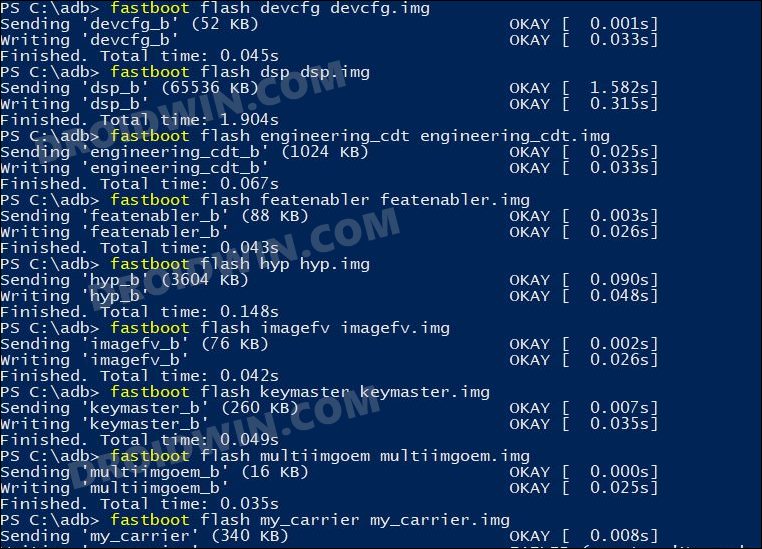
Moreover, the second last command (fastboot -w) will factory reset the device, so make sure that you have taken a backup beforehand. Then the last command (fastboot reboot) will automatically boot the device to the OS.
fastboot flash boot boot.img

fastboot flash dtbo dtbo.img

fastboot flash modem modem.img

fastboot --disable-verity flash vbmeta vbmeta.img

fastboot --disable-verity flash vbmeta_system vbmeta_system.img

fastboot --disable-verity flash vbmeta_vendor vbmeta_vendor.img

fastboot reboot fastboot

fastboot flash abl abl.img

fastboot flash aop aop.img

fastboot flash bluetooth bluetooth.img

fastboot flash cpucp cpucp.img

fastboot flash devcfg devcfg.img

fastboot flash dsp dsp.img

fastboot flash engineering_cdt engineering_cdt.img

fastboot flash featenabler featenabler.img

fastboot flash hyp hyp.img

fastboot flash imagefv imagefv.img

fastboot flash keymaster keymaster.img

fastboot flash multiimgoem multiimgoem.img

fastboot flash my_carrier my_carrier.img

fastboot flash my_company my_company.img

fastboot flash my_engineering my_engineering.img

fastboot flash my_heytap my_heytap.img

fastboot flash my_manifest my_manifest.img

fastboot flash my_preload my_preload.img

fastboot flash my_product my_product.img

fastboot flash my_region my_region.img

fastboot flash my_stock my_stock.img

fastboot flash odm odm.img

fastboot flash oplus_sec oplus_sec.img

fastboot flash oplusstanvbk oplusstanvbk.img

fastboot flash product product.img

fastboot flash qupfw qupfw.img

fastboot flash qweslicstore qweslicstore.img

fastboot flash shrm shrm.img

fastboot flash splash splash.img

fastboot flash system system.img

fastboot flash system_ext system_ext.img

fastboot flash tz tz.img

fastboot flash uefisecapp uefisecapp.img

fastboot flash vendor vendor.img

fastboot flash vendor_boot vendor_boot.img

fastboot flash vm-bootsys vm-bootsys.img

fastboot flash xbl xbl.img

fastboot flash xbl_config xbl_config.img

fastboot -w

fastboot reboot
That’s it. These were the steps to convert the Realme GT China ROM to EU or Indian ROM using Fastboot Commands. Let’s now check out the same could be carried out via the TWRP Recovery.
Method 2: Convert Realme GT China ROM to EU or Indian ROM via TWRP Recovery
Given here are the steps to convert Realme GT China ROM to EU ROM or Indian ROM using TWRP Recovery.
STEP 1: Install Android SDK
First and foremost, you will have to install the Android SDK Platform Tools on your PC. This is the official ADB and Fastboot binary provided by Google and is the only recommended one. So download it and then extract it to any convenient location on your PC. Doing so will give you the platform-tools folder, which will be used throughout this guide.
STEP 2: Enable USB Debugging and OEM Unlocking
Next up, you will have to enable USB Debugging and OEM Unlocking on your device. The former will make your device recognizable by the PC in ADB mode. This will then allow you to boot your device to Fastboot Mode. On the other hand, OEM Unlocking is required to carry out the bootloader unlocking process.
So head over to Settings > About Phone > Tap on Build Number 7 times > Go back to Settings > System > Advanced > Developer Options > Enable USB Debugging and OEM Unlocking.
STEP 3: Unlock Bootloader Realme GT
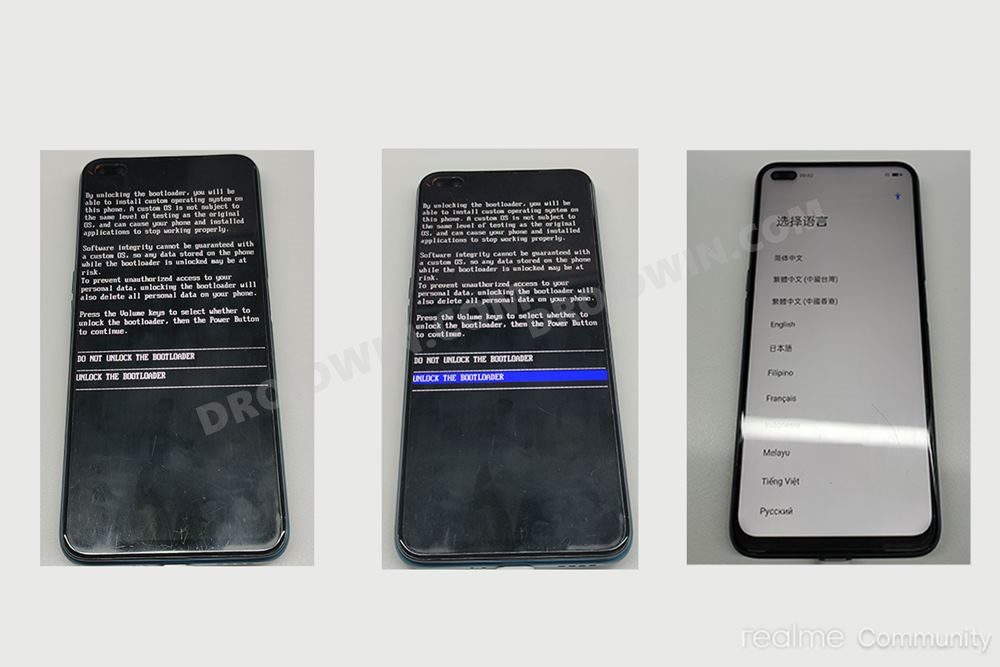
Next up, you will also have to unlock the device’s bootloader. Do keep in mind that doing so will wipe off all the data from your device and could nullify its warranty as well. So if that’s all well and good, then please refer to our detailed guide on How to Unlock the Bootloader on Realme GT 5G .
STEP 4: Download Realme GT India and Global ROM
Now grab hold of the stock firmware corresponding to your region from below:
Indian ROM
- Download: RMX2202_ROLLBACK_Android11_IN.zip
EU ROM
- Download: RMX2202_ROLLBACK_Android11_EUEX_0609.zip
STEP 5: Boot Realme GT to Fastboot Mode
- Connect your device to the PC via USB cable. Make sure USB Debugging is enabled.
- Then head over to the platform-tools folder, type in CMD in the address bar, and hit Enter. This will launch the Command Prompt.
- After that, type in the following command in the CMD window to boot your device to Fastboot Mode adb reboot bootloader
STEP 6: Boot Realme GT to TWRP Recovery
We will now temporarily boot your device to the TWRP Recovery for one-time usage. Follow along.
- Download the TWRP Recovery for your device: TWRP-3.6.0_V2.img
- Then transfer it to the platform-tools folder on your PC.
- Likewise, rename it to twrp, so that the complete name becomes twrp.img.
- Now open CMD inside the platform-tools folder and execute the below command to boot your device to TWRP: fastboot boot twrp.img
STEP 7: Flash Realme GT EU/Indian ROM via TWRP
- To begin with, transfer the downloaded ROM to the platform-tools folder on your PC.
- Then rename the downloaded firmware file to ROM, so that the complete name becomes ROM.ZIP.
- After that, execute the below command to send the ROM to the /data/ota.zip directory: adb push ROM.zip /data/ota.zip
- Now execute the below command to flash the ROM.ZIP file: adb shell twrp install /data/ota.zip
- Once the flashing is complete, boot your device to the stock recovery using the following command: adb reboot recovery
- Now factory reset your device from the Stock Recovery. Once done, you may reboot your device to the OS.

- Leo 3 years ago Reply Hi, I’m interested in do this but I’m not sure because I’h heard a lot of briks situation. The phone keep all original functions? Will it receive the OTA updates? Thx!
- Helio 3 years ago Reply Ola Tenho um Realme GT 5G Ele sta com o Android 12 e UI3 Esse metodo vai funcionar com Android 12?
- Omar 3 years ago Reply I’m getting this error: “error: Failed to boot into userspace fastboot; one or more components might be unbootable.” while typing this command “fastboot reboot fastboot”. Any help?
(Cancel Reply)
Δ
