Couldn’t Update Installation Problem on Pixel [Fixed]
In this guide, we will show you various methods to fix the Couldn’t Update Installation Problem on Pixel devices. When it comes to receiving timely software upgrades, then the offering from Google is right there at the top. Not only are they the fastest to get security patches but they are also the first in line to get blessed with the latest OS upgrades.
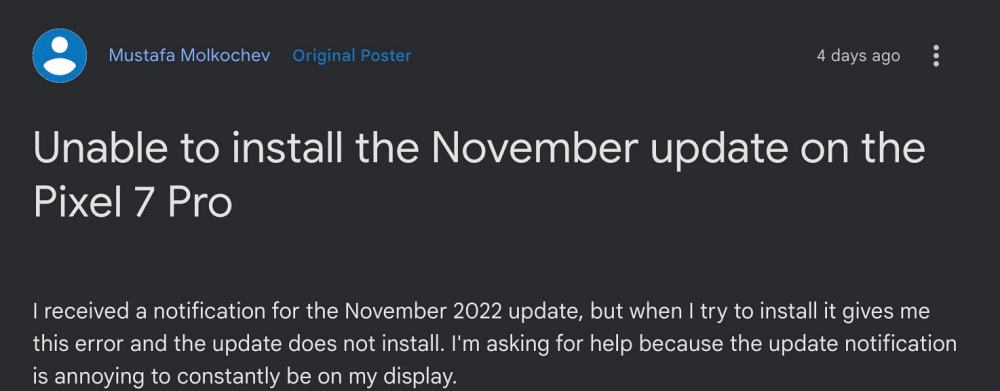
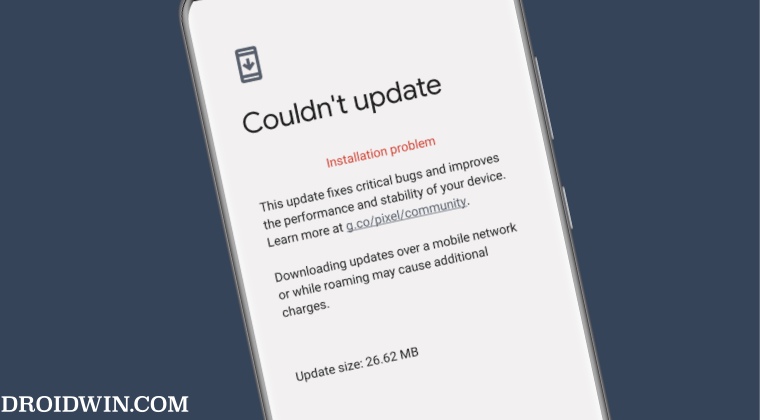
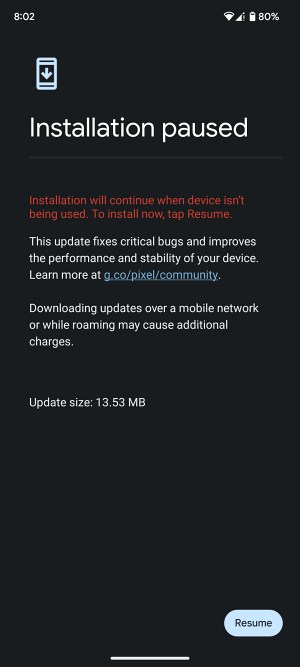
However, some users are having an issue or two while installing these updates onto their devices. In this regard, Pixel devices are reportedly getting the Couldn’t Update Installation Problem error when trying to install an update. If you are also currently getting bugged with this issue, then this guide will make you aware of numerous workarounds to rectify it. Follow along.
- Fix Couldn’t Update Installation Problem on Pixel FIX 1: Delete Play Service Data FIX 2: Close All Background Apps FIX 3: Leave the Device Idle FIX 4: Return to Stock
Fix Couldn’t Update Installation Problem on Pixel
It is recommended that you try out each of the below-mentioned workarounds and then see which one spells out success for you. So with that in mind, let’s get started.
FIX 1: Delete Play Service Data
One major reason why you might be getting this error is due to the Google Play Service data getting corrupted. So you should consider deleting this data and letting the app recreate its fresh instance from the servers. Here’s how it could be done:
- Head over to Settings > Apps > See All Apps > Google Play Service.
- Then go to its Storage and Cach section and tap on Manage Space.
- Now tap on Clear All Data and wait for the process to complete.
- Once done, restart your device, and then try installing the update.
FIX 2: Close All Background Apps
In some instances, Pixel might throw up the Couldn’t Update Installation Problem error if a background app or service is conflicting with the system update process. Therefore, you should consider closing all such apps and then check out the results. Here’s how it could be done:
- Bring up the Recent Apps screen, scroll to the extreme left, and tap on Clear All.
- Then bring up the Notification Panel and tap on the active apps section.
- Now hit Stop next to all the running apps and then retry installing the update.
FIX 3: Leave the Device Idle
The system might not be able to install the update if you are currently interacting with it or have used it a couple of minutes ago. Therefore close all the background apps using the steps listed above and then leave the device idle for a few minutes. Once a considerable time period has elapsed, retry the update process and you are able to install the update this time around or not.
FIX 4: Return to Stock
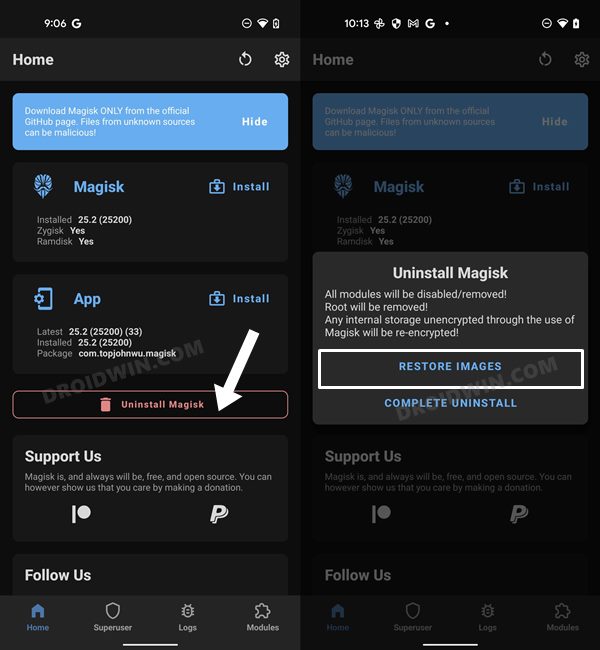
If you have performed any system-level tweaks or have administrative access, then it’s time you bid adieu to all those modifications and return back to the stock environment. In other words, remove all Magisk Modules, unroot your device by restoring the stick boot [or init_boot], and then flash the stock firmware. Once that is done, relock the bootloader fastboot flashing lock command and then retry installing the update, you shouldn’t face anh issues now.
- Instagram Mods will not work with Pixel 7/Pro, atleast for now
- Pixel: Add the Clear All button in Recent Apps at the bottom
- Restricted App Battery Usage not working on Pixel 7/Pro [Fix]
- Pixel 7/Pro: Quick Tap to Start Action/Back Tap not working [Fix]

(Cancel Reply)
Δ
