Dark Mode is enabled automatically on Apple Music [Fix]
In this guide, we will show you the steps to fix the issue wherein the dark mode is enabled automatically in Apple Music on iPhone. This music, audio, and video streaming service from the Cupertino giant is usually the go-to choice for users who are part of the Apple ecosystem. It allows users to stream music on demand or listen to existing playlists. However, in spite of all the goodies attached, it isn’t free from its fair share of issues either.
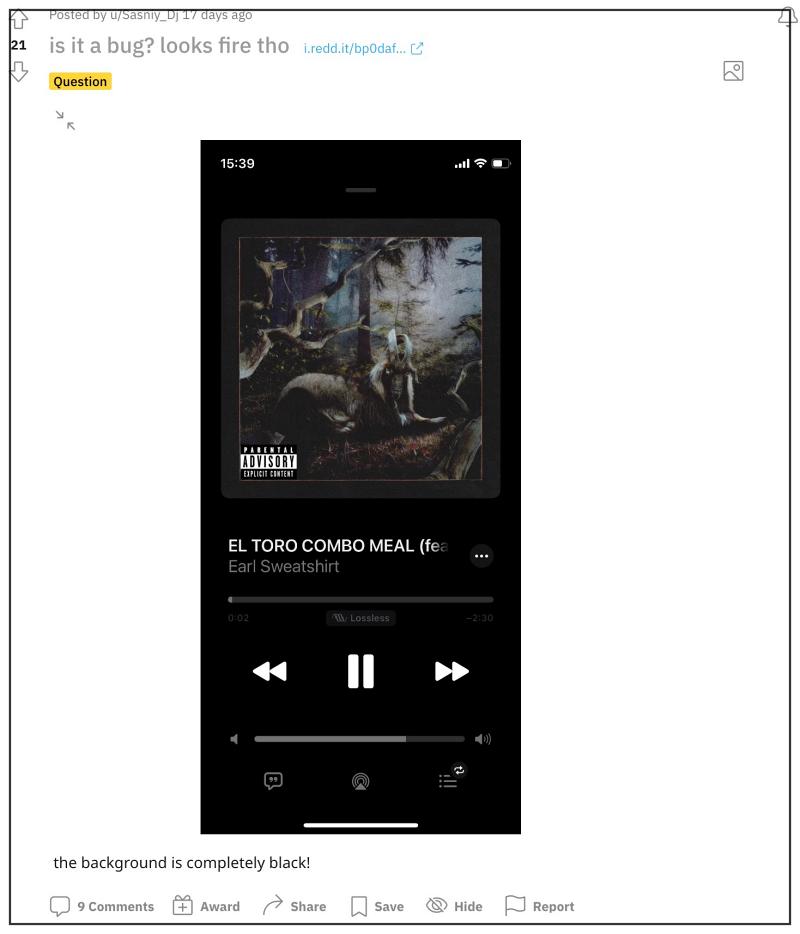
In this regard, numerous users have voiced their concern that the dark mode tends to get enabled automatically in the Apple Music app on their iPhones. In some instances, it doesn’t even respect the system theme setting, even if the OS is set to white mode, the app would still have the dark mode throughout its interface. With that said, there does exist a couple of nifty workarounds that should help you rectify this issue. So without further ado, let’s check them out.
- Fix Dark Mode is Enabled automatically on Apple Music FIX 1: Let it Cool Down FIX 2: Change Contrast Settings FIX 3: Turn off Invert
Fix Dark Mode is Enabled automatically on Apple Music

It is recommended that you try out each of the below-mentioned workarounds and then see which one spells out success. So with that in mind, let’s get started.
FIX 1: Let it Cool Down
As strange as it may sound, the app might automatically adopt the dark theme if your device is currently overheating. The best way to verify and hence rectify this issue is to leave your device unattended for around 15-2o minutes and let it cool down. Once that happens, check if it fixes the issue of the dark mode being enabled automatically in Apple Music on iPhone.
FIX 2: Change Contrast Settings
Next up, you should consider tweaking the device’s contrast setting and check if it works out in your favor or not. Here’s how it could be done:
- Head over to Accessibility > Display & Touch.
- Then disable the toggle next to High Contrast.
- Check if it fixes Apple Music Dark Mode issue.
FIX 3: Turn off Invert
You might also get bugged by this issue if you have enabled either Smart Invert or Classic invert. Therefore, it is recommended to disable both these features ad then check out the results. Here’s how it could be done:
- Head over to Settings > Accessibility > Display & Text Size.
- Then disable both the Smart Invert as well as Classic Invert.
- How to Install Apple Music and Apple TV app on Windows 11
- Apple Music Skipping Songs in Playlists and Albums: How to Fix
- Apple Music: The requested URL was not found on this server [Fix]
- Fix Apple Music Back Button Disappearing Issue on Mac

(Cancel Reply)
Δ
