Debloat/Remove Bloatware from Galaxy S22/Plus/Ultra via ADB
In this guide, we will show you the steps to debloat and remove bloatware from Samsung Galaxy S22/Plus/Ultra devices. OEMs nowadays pack in quite a few apps onto their devices. While their reasoning is that it would benefit the user as they wouldn’t have to then manually install those apps, but that isn’t really the case. There exists two major reasons why OEMs ship their devices with a truckload of in-built apps.
First off, it is done to keep its user engrossed only in its offering (if Samsung has its own Notes app, then you wouldn’t go an extra mile in downloading Google Keep). Secondly, it is due to the profit aspect- as they would earn a few additional bucks by shipping third-party apps (such as Facebook). But from users’ point of view, it doesn’t translate to the best usage experience as it would only end up bloating their device.
In this regard, one general course of action is to simply uninstall these pre-installed. However, that isn’t possible, as the OEMs treat such apps as system apps and you wouldn’t be able to remove them the normal way aka via the Settings menu. But fret not. There exist another nifty method through which you could easily debloat and remove bloatware from your Samsung Galaxy S22/Plus/Ultra device. And in this guide, we will help you with just that. Follow along.
- How to Debloat/Remove Bloatware from Samsung Galaxy S22 / Plus/Ultra STEP 1: Install Android SDK STEP 2: Enable USB Debugging STEP 3: Establish ADB Shell Connection STEP 4: ADB Commands to Debloat/Remove Bloatware from Galaxy S22/Plus/Ultra Remove Bixby Bloatware Apps Bixby Remap General System Samsung Pass/Pay Gimmicky Apps Facebook Car Mode Printing Samsung Email Samsung Game Launcher Samsung Browser Gear VR Samsung Kids Samsung LED Cover Edge General Bloatware Samsung Bloatware Google Bloatware Microsoft Bloatware Samsung Knox Samsung Dex Others
- Disable/Re-Enable Bloatware Apps on Samsung
- Re-Install Bloatware Apps on Samsung
How to Debloat/Remove Bloatware from Samsung Galaxy S22 / Plus/Ultra
The below instructions are listed under separate sections for ease of understanding. Make sure to follow in the exact same sequence as mentioned. Droidwin and its members wouldn’t be held responsible in case of a thermonuclear war, your alarm doesn’t wake you up, or if anything happens to your device and data by performing the below steps to debloat and remove bloatware from the Samsung Galaxy S22/Plus/Ultra devices.
STEP 1: Install Android SDK

First and foremost, you will have to install the Android SDK Platform Tools on your PC. This is the official ADB and Fastboot binary provided by Google and is the only recommended one. So download it and then extract it to any convenient location on your PC. Doing so will give you the platform-tools folder, which will be used throughout this guide.
STEP 2: Enable USB Debugging
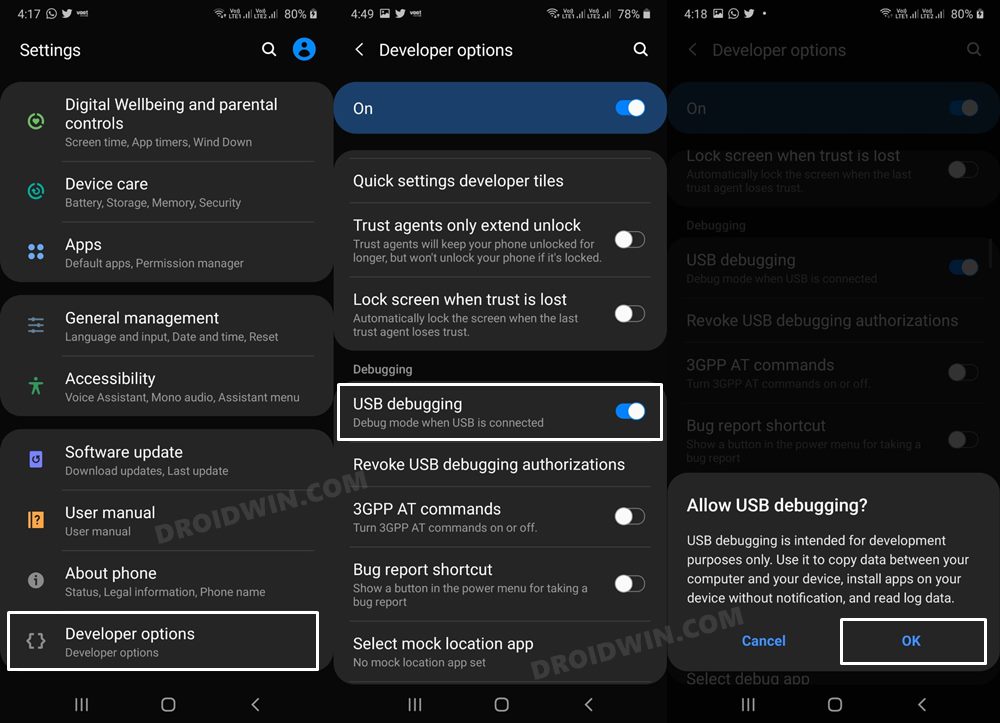
Next up, you will have to enable USB Debugging on your device so that it is recognizable by the PC in ADB mode. So head over to Settings > About Phone > Tap on Build Number 7 times > Go back to Settings > System > Advanced > Developer Options > Enable USB Debugging.
STEP 3: Establish ADB Shell Connection
- To begin with, connect your device to the PC via USB cable. Make sure USB Debugging is enabled.
- Then head over to the platform-tools folder, type in CMD in the address bar, and hit Enter. This will launch the Command Prompt.
- Now in the following command in the CMD window to verify the ADB connection: adb devices
- If you get the device ID, then the connection stands successful. Now type in the below command to open the Shell environment: adb shell
- It will now list out your device codename, which means that the shell connection has been successfully established as well, and you are good to go ahead to debloat or remove bloatware from Samsung Galaxy S22/Plus/Ultra.
STEP 4: ADB Commands to Debloat/Remove Bloatware from Galaxy S22/Plus/Ultra
- In order to find the list of all the apps installed as well as their package names, you may execute the below command: pm list packages
- Now, the generic command to uninstall any bloatware from a device is: pm uninstall -k –user 0 PackageName
- For example, the package name for Game Tools is com.samsung.android.game.gametools, so its removal command will be: pm uninstall -k –user 0 com.samsung.android.game.gametools
- In the same manner, you may now directly copy the bloatware removal command corresponding to their app from the below list and paste it into the CMD window [Credits: XDA Senior Member hogyoku ].
NOTE: If you have any concerns about whether the removal of any of the apps would cause any issues on your device or not, then the best bet is to first disable them and use your device for a minute or two. If everything is working well and good, then you could permanently remove them from your device. However, if your device is not working as expected, then you could easily re-enable that app.
Remove Bixby Bloatware Apps
pm uninstall -k --user 0 com.samsung.android.bixby.wakeup

pm uninstall -k --user 0 com.samsung.android.app.spage

pm uninstall -k --user 0 com.samsung.android.app.routines

pm uninstall -k --user 0 com.samsung.android.bixby.service

pm uninstall -k --user 0 com.samsung.android.visionintelligence

pm uninstall -k --user 0 com.samsung.android.bixby.agent

pm uninstall -k --user 0 com.samsung.android.bixby.agent.dummy

pm uninstall -k --user 0 com.samsung.android.bixbyvision.framework
Bixby Remap
pm uninstall -k --user 0 com.samsung.android.bixby.wakeup

pm uninstall -k --user 0 com.samsung.android.app.spage

pm uninstall -k --user 0 com.samsung.android.app.routines

pm uninstall -k --user 0 com.samsung.android.bixby.service

pm uninstall -k --user 0 com.samsung.android.bixby.agent

pm uninstall -k --user 0 com.samsung.android.bixby.agent.dummy
General System
pm uninstall -k --user 0 com.dsi.ant.sample.acquirechannels

pm uninstall -k --user 0 com.dsi.ant.service.socket

pm uninstall -k --user 0 com.dsi.ant.server

pm uninstall -k --user 0 com.dsi.ant.plugins.antplus

pm uninstall -k --user 0 com.android.egg

pm uninstall -k --user 0 com.sec.android.easyonehand

pm uninstall -k --user 0 com.sec.android.widgetapp.samsungapps

pm uninstall -k --user 0 com.samsung.android.mateagent

pm uninstall -k --user 0 com.sec.android.easyMover.Agent

pm uninstall -k --user 0 com.sec.android.daemonapp

pm uninstall -k --user 0 com.samsung.android.app.social
Samsung Pass/Pay
pm uninstall -k --user 0 com.samsung.android.samsungpassautofill

pm uninstall -k --user 0 com.samsung.android.authfw

pm uninstall -k --user 0 com.samsung.android.samsungpass

pm uninstall -k --user 0 com.samsung.android.spay

pm uninstall -k --user 0 com.samsung.android.spayfw
Gimmicky Apps
pm uninstall -k --user 0 com.samsung.android.aremoji

pm uninstall -k --user 0 flipboard.boxer.app

pm uninstall -k --user 0 com.samsung.android.wellbeing

pm uninstall -k --user 0 com.samsung.android.da.daagent

pm uninstall -k --user 0 com.samsung.android.service.livedrawing

pm uninstall -k --user 0 com.sec.android.mimage.avatarstickers
pm uninstall -k --user 0 com.facebook.system

pm uninstall -k --user 0 com.facebook.appmanager

pm uninstall -k --user 0 com.facebook.services
Car Mode
pm uninstall -k --user 0 com.samsung.android.drivelink.stub
Printing
pm uninstall -k --user 0 com.android.bips

pm uninstall -k --user 0 com.google.android.printservice.recommendation

pm uninstall -k --user 0 com.android.printspooler
Samsung Email
pm uninstall -k --user 0 com.samsung.android.email.provider

pm uninstall -k --user 0 com.wsomacp
Samsung Game Launcher
pm uninstall -k --user 0 com.samsung.android.game.gamehome

pm uninstall -k --user 0 com.enhance.gameservice

pm uninstall -k --user 0 com.samsung.android.game.gametools

pm uninstall -k --user 0 com.samsung.android.game.gos

pm uninstall -k --user 0 com.samsung.android.gametuner.thin
Samsung Browser
pm uninstall -k --user 0 com.sec.android.app.sbrowser

pm uninstall -k --user 0 com.samsung.android.app.sbrowseredge
Gear VR
pm uninstall -k --user 0 com.samsung.android.hmt.vrsvc

pm uninstall -k --user 0 com.samsung.android.app.vrsetupwizardstub

pm uninstall -k --user 0 com.samsung.android.hmt.vrshell

pm uninstall -k --user 0 com.google.vr.vrcore
Samsung Kids
pm uninstall -k --user 0 com.samsung.android.kidsinstaller

pm uninstall -k --user 0 com.samsung.android.app.camera.sticker.facearavatar.preload
Samsung LED Cover
pm uninstall -k --user 0 com.samsung.android.app.ledbackcover

pm uninstall -k --user 0 com.sec.android.cover.ledcover
Edge
pm uninstall -k --user 0 com.samsung.android.service.peoplestripe
General Bloatware
pm uninstall -k --user 0 com.dsi.ant.sample.acquirechannels

pm uninstall -k --user 0 com.dsi.ant.service.socket

pm uninstall -k --user 0 com.dsi.ant.server

pm uninstall -k --user 0 com.dsi.ant.plugins.antplus

pm uninstall -k --user 0 flipboard.boxer.app

pm uninstall -k --user 0 com.cnn.mobile.android.phone.edgepanel

pm uninstall -k --user 0 com.sec.android.easyonehand

pm uninstall -k --user 0 com.samsung.android.widgetapp.yahooedge.finance

pm uninstall -k --user 0 com.android.dreams.phototable

pm uninstall -k --user 0 com.samsung.android.widgetapp.yahooedge.sport

pm uninstall -k --user 0 com.samsung.android.spdfnote

pm uninstall -k --user 0 com.sec.android.daemonapp

pm uninstall -k --user 0 com.samsung.android.weather

pm uninstall -k --user 0 com.samsung.android.app.reminder

pm uninstall -k --user 0 com.hancom.office.editor.hidden

pm uninstall -k --user 0 com.samsung.android.keyguardwallpaperupdator

pm uninstall -k --user 0 com.samsung.android.app.news

pm uninstall -k --user 0 com.android.egg

pm uninstall -k --user 0 com.sec.android.widgetapp.samsungapps
Samsung Bloatware
pm uninstall -k --user 0 com.samsung.svoice.sync

pm uninstall -k --user 0 com.samsung.android.drivelink.stub

pm uninstall -k --user 0 com.samsung.android.svoice

pm uninstall -k --user 0 com.samsung.android.widgetapp.yahooedge.finance

pm uninstall -k --user 0 com.android.dreams.phototable

pm uninstall -k --user 0 com.samsung.android.widgetapp.yahooedge.sport

pm uninstall -k --user 0 com.samsung.android.spdfnote

pm uninstall -k --user 0 com.sec.android.widgetapp.samsungapps

pm uninstall -k --user 0 com.samsung.android.email.provider

pm uninstall -k --user 0 com.samsung.android.app.ledcoverdream

pm uninstall -k --user 0 com.sec.android.cover.ledcover

pm uninstall -k --user 0 com.sec.android.app.withtv

pm uninstall -k --user 0 com.samsung.android.app.memo

pm uninstall -k --user 0 com.sec.spp.push

pm uninstall -k --user 0 com.samsung.android.spay

pm uninstall -k --user 0 com.samsung.android.voicewakeup

pm uninstall -k --user 0 com.samsung.voiceserviceplatform

pm uninstall -k --user 0 com.sec.android.sidesync30

pm uninstall -k --user 0 com.samsung.android.hmt.vrsvc

pm uninstall -k --user 0 com.samsung.android.app.vrsetupwizardstub

pm uninstall -k --user 0 com.samsung.android.hmt.vrshell

pm uninstall -k --user 0 com.android.exchange

pm uninstall -k --user 0 com.samsung.groupcast

pm uninstall -k --user 0 com.sec.kidsplat.installer

pm uninstall -k --user 0 com.sec.android.widgetapp.diotek.smemo

pm uninstall -k --user 0 com.sec.android.provider.snote

pm uninstall -k --user 0 com.sec.android.app.translator

pm uninstall -k --user 0 com.vlingo.midas

pm uninstall -k --user 0 com.sec.readershub

pm uninstall -k --user 0 com.sec.android.app.gamehub

pm uninstall -k --user 0 com.sec.everglades.update

pm uninstall -k --user 0 com.sec.everglades

pm uninstall -k --user 0 tv.peel.samsung.app

pm uninstall -k --user 0 com.sec.yosemite.phone

pm uninstall -k --user 0 com.samsung.android.app.episodes

pm uninstall -k --user 0 com.samsung.android.app.storyalbumwidget

pm uninstall -k --user 0 com.samsung.android.tripwidget

pm uninstall -k --user 0 com.samsung.android.service.travel

pm uninstall -k --user 0 com.tripadvisor.tripadvisor

pm uninstall -k --user 0 com.android.email

pm uninstall -k --user 0 com.sec.android.app.ocr
Google Bloatware
pm uninstall -k --user 0 com.google.android.gm

pm uninstall -k --user 0 com.google.android.apps.tachyon

pm uninstall -k --user 0 com.google.android.music

pm uninstall -k --user 0 com.google.android.apps.docs

pm uninstall -k --user 0 com.android.chrome

pm uninstall -k --user 0 com.google.vr.vrcore

pm uninstall -k --user 0 com.google.android.videos

pm uninstall -k --user 0 com.google.android.talk

pm uninstall -k --user 0 com.google.android.apps.magazines

pm uninstall -k --user 0 com.google.android.apps.plus
Microsoft Bloatware
pm uninstall -k --user 0 com.skype.raider

pm uninstall -k --user 0 com.microsoft.office.excel

pm uninstall -k --user 0 com.microsoft.office.word

pm uninstall -k --user 0 com.microsoft.office.powerpoint
Samsung Knox
pm uninstall -k --user 0 com.knox.vpn.proxyhandler

pm uninstall -k --user 0 com.android.stk2

pm uninstall -k --user 0 com.android.stk

pm uninstall -k --user 0 com.samsung.android.authfw

pm uninstall -k --user 0 com.samsung.knox.keychain

pm uninstall -k --user 0 com.samsung.SMT

pm uninstall -k --user 0 com.samsung.android.knox.attestation

pm uninstall -k --user 0 com.samsung.android.bbc.bbcagent

pm uninstall -k --user 0 com.samsung.android.allshare.service.fileshare

pm uninstall -k --user 0 com.samsung.android.beaconmanager
Samsung Dex
pm uninstall -k --user 0 com.samsung.android.knox.containerdesktop

pm uninstall -k --user 0 com.sec.android.app.desktoplauncher

pm uninstall -k --user 0 com.sec.android.desktopmode.uiservice

pm uninstall -k --user 0 com.samsung.desktopsystemui

pm uninstall -k --user 0 com.sec.android.app.desktoplauncher
Others
pm uninstall -k --user 0 com.google.ar.core

pm uninstall -k --user 0 com.google.android.music

pm uninstall -k --user 0 com.google.android.apps.docs

pm uninstall -k --user 0 com.google.android.videos

pm uninstall -k --user 0 com.samsung.android.bbc.bbcagent

pm uninstall -k --user 0 com.samsung.knox.securefolder

pm uninstall -k --user 0 com.samsung.android.visionintelligence

pm uninstall -k --user 0 com.samsung.android.samsungpassautofill

pm uninstall -k --user 0 com.samsung.android.samsungpass

pm uninstall -k --user 0 com.samsung.android.bbc.bbcagent

pm uninstall -k --user 0 com.google.android.feedback

pm uninstall -k --user 0 com.samsung.android.livestickers

pm uninstall -k --user 0 com.samsung.android.app.watchmanagerstub

pm uninstall -k --user 0 com.google.android.youtube

pm uninstall -k --user 0 com.samsung.android.honeyboard

pm uninstall -k --user 0 com.samsung.android.homemode

pm uninstall -k --user 0 com.samsung.android.galaxycontinuity

pm uninstall -k --user 0 com.sec.android.widgetapp.webmanual

pm uninstall -k --user 0 com.samsung.android.oneconnect

pm uninstall -k --user 0 com.samsung.android.voc

pm uninstall -k --user 0 com.samsung.android.email.provider

pm uninstall -k --user 0 com.microsoft.office.officehubrow

pm uninstall -k --user 0 com.sec.android.usermanual

pm uninstall -k --user 0 com.sec.android.app.myfiles
Disable/Re-Enable Bloatware Apps on Samsung
- In order to disable any bloatware app, execute the below command in the CMD window (make sure that you have executed the adb shell command beforehand) pm disable-user -–user 0 PackageName
- Replace PackageName accordingly from the above command. For example, if you wish to disable Game Tool, then its app package name is com.samsung.android.game.gametools, so the above command will transform to: pm disable-user -–user 0 com.samsung.android.game.gametools
- Now to re-enable any app, you will have to execute the following command: pm enable -–user 0 PackageName
- Say, if you wish to enable Game Tools that has the package name com.samsung.android.game.gametools, the command will be: pm enable -–user 0 com.samsung.android.game.gametools
Re-Install Bloatware Apps on Samsung
If you have uninstalled any bloatware app but after that, your device or any of its apps isn’t functioning along the expected lines, then you could easily reinstall that app.
- For that, execute the below command (after executing the adb shell command). Make sure to replace PackageName accordingly: cmd package install-existing PackageName
- For example, if you wish to reinstall Game Tools whose app package name is com.samsung.android.game.gametools, then the above command will transform to: cmd package install-existing com.samsung.android.game.gametools
- Unlock Bootloader on Samsung Galaxy S22, S22 Plus, S22 Ultra
- How to Root Samsung Galaxy S22 via Magisk Patched AP File
- Guide to Root Samsung Galaxy S22 Plus via Magisk Patched AP
- How to Root Samsung Galaxy S22 Ultra via Magisk Patched AP

- mahmoud 3 years ago Reply please how on remove boot warning message. it keep appears
- Adrienne 3 years ago Reply Hello – Great article, thank you. When I first used your instructions, my adb shell was working fine and once I typed in adb shell, the next line would show: ‘ m20lte:/ $ ‘ and I could easily copy and paste package names; however something change and now the same line shows ‘ r0q:/ $ ‘ and I have to manually type or paste ‘pm uninstall -k –user 0’ before pasting each package name, can you help? Thank you.
- Hans 4 years ago Reply many thanks 🙂 however there are a few small typos regarding disable/enable instead of the triple dash (before user) pm disable-user -–user 0 package name pm enable-user -–user 0 package name it should be a double dash pm disable-user –user 0 package name pm enable-user –user 0 package name
- sugg 4 years ago Reply Thanks for your great article. I have a question – with my S22+ works only cca 1/3 of this uninstall commands. I made something wrong ?
- sugg 4 years ago Reply Hello . great article. Thanx a lot. One question – on my 22+ only 1/3 of this unistall commands work. Why ?
- Fabian 4 years ago Reply Thanks a lot for this detailed description! Besides pricacy aspects I hope my battery will now last longer
- Vassabi 4 years ago Reply Thank you for posting a detailed step with clear instruction. Could you please point out the package name for: -Android Auto -AR Doodle -Carrier Services -Digital Wellbeing -Link to Window Service -Messages (Google) -Visual Voicemail -Your Phone Companion Thank you in advance! justgoogleit 4 years ago Reply visit the google play store website and search for your apps. in the url there is a paramter “id” check its value, its the package name u are looking for.
- Markus 4 years ago Reply Is it safe to factory reset even after debloating the phone?
- Markus Cantu-Olivarez 4 years ago Reply Great Article! I have a quick question though. If I go through and debloat my s22 ultra, getting rid of majority of everything you posted – If I choose to do a Factory Reset, will everything come back on my phone like if I just bought it?? Or do I have to re-install everything I uninstalled with ADB and then do the factory reset? Thank you so much for your time and the article. I look forward to hearing back!
- Rafal 4 years ago Reply Gallery is working but photo edit function in gallery not, what should i bring back? Weather widget also gone, how to bring it back?
- Carlos 4 years ago Reply To keep DEX working you must keep this as well: com.samsung.android.honeyboard
- Vibranze 4 years ago Reply Hello, great article. I have a question, how do I restore the Samsung gallery and accessibility services? Thanks. freshj1ve 4 years ago Reply You should be able to download the Samsung Gallery from the Samsung Store. I fixed my accessibility by installing the Samsung Keyboard again. Hope that helps!
(Cancel Reply)
Δ
