Debloat/Remove Bloatware from Huawei via ADB [No Root]
In this guide, we will show you the steps to debloat and remove bloatware from your Huawei device via ADB Commands. Many OEMs pack in their devices with a slew of pre-installed apps. While they might categorize these apps as helping you get the most out of your device, but in reality, things are a little bit different. These apps are either from the promotional perspective [Huawei’s own apps] or from a revenue point of view [third-party apps].
Moreover, most of these apps are treated as system apps, thereby preventing you from uninstalling them via the normal method [Settings menu]. And it is nearly an impossible task in rooting a Huawei device since you can no longer officially unlock the bootloader. So what else could be done? Well, you could easily debloat and remove bloatware from your Huawei device via ADB Commands, without the need for root. And in this guide, we will show you how to do just that. Follow along.
- How to Debloat/Remove Bloatware from Huawei via ADB [No Root] STEP 1: Install Android SDK STEP 2: Enable USB Debugging STEP 3: Establish ADB Shell Connection STEP 4: ADB Commands to Debloat/Remove Bloatware from Huawei STEP 5: List of Installed Apps in Huawei STEP 6: Huawei Bloatware Removal Commands Sheet
- How to Re-Install Bloatware Apps on Huawei
- How to Disable/Re-Enable Bloatware Apps in Huawei
How to Debloat/Remove Bloatware from Huawei via ADB [No Root]
The below instructions are listed under separate sections for ease of understanding. Make sure to follow the same sequence as mentioned. Droidwin and its members wouldn’t be held responsible in case of a thermonuclear war, your alarm doesn’t wake you up, or if anything happens to your device and data by performing the below steps.
STEP 1: Install Android SDK

First and foremost, you will have to install the Android SDK Platform Tools on your PC. This is the official ADB and Fastboot binary provided by Google and is the only recommended one. So download it and then extract it to any convenient location on your PC. Doing so will give you the platform-tools folder, which will be used throughout this guide.
STEP 2: Enable USB Debugging
Next up, you will have to enable USB Debugging on your device so that it is recognizable by the PC in ADB mode. So head over to Settings > About Phone > Tap on Build Number 7 times > Go back to Settings > System > Advanced > Developer Options > Enable USB Debugging.
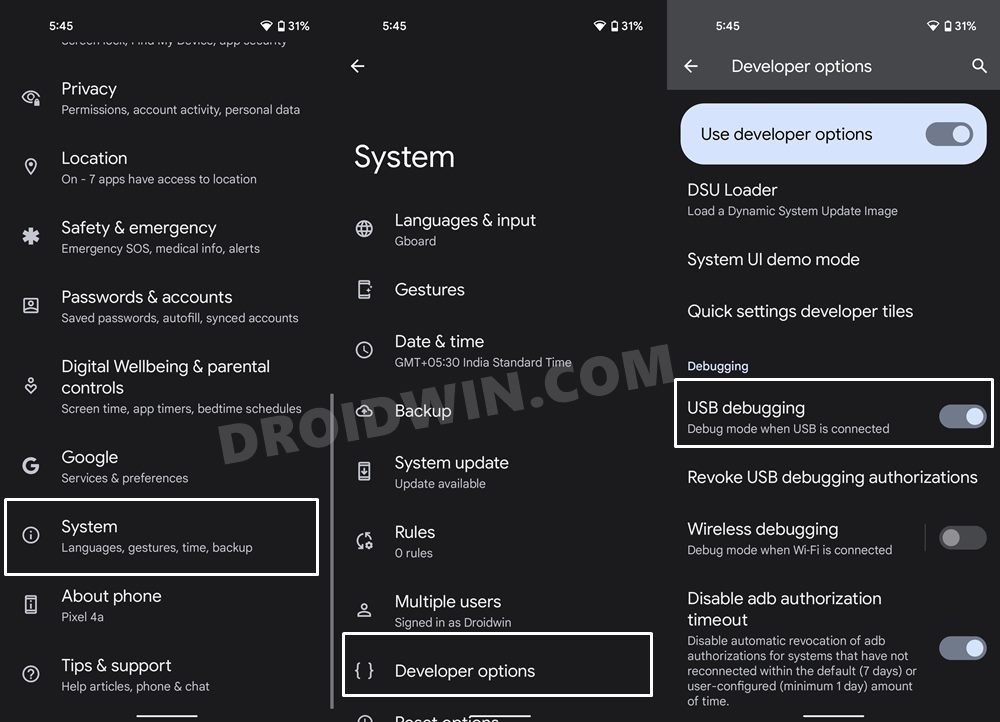
STEP 3: Establish ADB Shell Connection
- To begin with, connect your device to the PC via USB cable. Make sure USB Debugging is enabled.
- Then head over to the platform-tools folder, type in CMD in the address bar, and hit Enter. This will launch the Command Prompt.
- Now in the following command in the CMD window to verify the ADB connection: adb devices
- If you get the device ID, then the connection stands successful. Now type in the below command to open the Shell environment: adb shell
- It will now list out your device codename, which means that the shell connection has been successfully established as well, and you are good to go ahead to debloat or remove bloatware from Huawei.
NOTE: If you don’t wish to take the extreme measure of uninstalling the bloatware from your device, then you could also disable these bloatware, the steps for which are mentioned at the end of this guide.
STEP 4: ADB Commands to Debloat/Remove Bloatware from Huawei
- In order to find the list of all the apps installed as well as their package names, you may execute the below command: pm list packages
- Now, the generic command to uninstall any bloatware from a device is: pm uninstall -k –user 0 PackageName
- For example, if you wish to remove the Huawei Health App whose package name is com.huawei.health, then you will have to execute the below command: pm uninstall -k –user 0 com.huawei.health
- In the same manner, you may now directly copy the bloatware removal command corresponding to their app from the below two sections and paste it into the CMD window.
STEP 5: List of Installed Apps in Huawei
Here’s a complete list of all the bloatware apps present on your Huawei [Credits- XDA Recognized Contributor silviuo]. Do note that these are the app package names, which you could manually find as well using any of these three methods.
com.google.android.googlequicksearchbox - Google Assistant

com.google.android.apps.books - Google Books

com.google.android.apps.docs.editors.docs – Google Docs

com.google.android.apps.docs.editors.sheets – Google Sheets

com.google.android.apps.docs.editors.slides – Google Slides

com.google.android.apps.cloudprint - Cloud print

com.google.android.apps.docs - Google Drive

com.google.android.apps.mapps - Google Maps app

com.google.android.apps.photos - Google Photos

com.google.android.apps.tachyon - Google Duo

com.google.android.apps.magazines – Google News

com.google.android.feedback – Google Feedback

com.google.android.keep – Google Keep (Notes and Lists)

com.google.android.marvin.talkback – Android Accessibility Suite

com.google.android.music – Google Music

com.google.android.play.games - Google Play Games app

com.google.android.projection.gearhead - Android Auto

com.google.android.talk - Hangouts

com.google.android.videos – Google Play Movies

com.google.android.youtube – Youtube (i use YTB Vanced)

com.google.android.apps.youtube.music - YouTube Music

com.google.android.googlequicksearchbox - Google Search

com.amazon.appmanager – Amazon app

com.amazon.mShop.android.shopping – Amazon app related

com.booking – Booking app

com.android.email - Stock Huawei Email ( i use Outlook)

com.android.bookmarkprovider – Preseted bookmarks for Chrome

com.android.chrome – Chrome browser (i use Brave Browser)

com.android.hwmirror – Mirror app

com.android.partnerbrowsercustomizations.tmobile – Browser settings T-mobile

com.android.providers.partnerbookmarks – OEM preseted bookmarks for Chrome

com.android.partnerbrowsercustomizations – SIM preseted bookmarks for Chrome

com.android.storagemanager - Is the interface to the systems storage service (i use file explorer)

com.android.stk - SIM Application Toolkit (never used it)

com.baidu.input_huawei - Huawei chinese stock input keyboard

com.huawei.appmarket - Huawei Market app (if you don’t plan to update any Huawei app)

com.huawei.phoneservice - HiCare app

com.huawei.hwid - Huawei Mobile Services (including Huawei ID) app

com.huawei.android.chr - HwChrService

com.huawei.android.hwpay - HuaweiI HiPayment

com.huawei.android.remotecontroller – Remote control

com.huawei.android.tips – Huawei Tips

com.huawei.browser – Huawei Browser

com.huawei.compass – Huawei Compass

com.huawei.contactscamcard – Huawei scan business card

com.huawei.health - Huawei Health app

com.huawei.hwapplet - Huawei system Services

com.huawei.hifolder - Huawei AppAdvisor

com.huawei.KoBackup - Huawei Backup

com.huawei.parentcontrol – Parental controls

com.huawei.search - HiSearch

com.huawei.tips – Huawei Tips

com.huawei.vassistant – Huawei Voice Assistant (i preffer Google)

com.huawei.wallet – Huawei Wallet

com.huawei.himovie.overseas – Huawei movie app (i use VLC)

com.android.soundrecorder – Sound Recorder

com.ironsource.appcloud.oobe.huawei - Download Essential Apps

com.facebook.appmanager - Facebook

com.facebook.system - Facebook

com.facebook.katana - Facebook

com.facebook.services - Facebook

com.hicloud.android.clone – Clone device

com.microsoft.translator – Microsoft Translator

com.swiftkey.swiftkeyconfigurator - SwiftKey factory settings

com.touchtype.swiftkey - SwiftKey Keyboard (i use Gboard)

com.example.android.notepad - Notepad app

com.orange.update - Orange App
STEP 6: Huawei Bloatware Removal Commands Sheet
These are the uninstallation commands corresponding to the apps that we have listed above [Credits- XDA Recognized Contributor silviuo].
pm uninstall -k --user 0 com.google.android.googlequicksearchbox

pm uninstall -k --user 0 com.google.android.apps.books

pm uninstall -k --user 0 com.google.android.apps.docs.editors.docs

pm uninstall -k --user 0 com.google.android.apps.docs.editors.sheets

pm uninstall -k --user 0 com.google.android.apps.docs.editors.slides

pm uninstall -k --user 0 com.google.android.apps.cloudprint

pm uninstall -k --user 0 com.google.android.apps.docs

pm uninstall -k --user 0 com.google.android.apps.mapps

pm uninstall -k --user 0 com.google.android.apps.photos

pm uninstall -k --user 0 com.google.android.apps.tachyon

pm uninstall -k --user 0 com.google.android.apps.magazines

pm uninstall -k --user 0 com.google.android.feedback

pm uninstall -k --user 0 com.google.android.keep

pm uninstall -k --user 0 com.google.android.marvin.talkback

pm uninstall -k --user 0 com.google.android.music

pm uninstall -k --user 0 com.google.android.play.games

pm uninstall -k --user 0 com.google.android.projection.gearhead

pm uninstall -k --user 0 com.google.android.talk

pm uninstall -k --user 0 com.google.android.videos

pm uninstall -k --user 0 com.google.android.youtube

pm uninstall -k --user 0 com.google.android.apps.youtube.music

pm uninstall -k --user 0 com.google.android.googlequicksearchbox

pm uninstall -k --user 0 com.amazon.appmanager

pm uninstall -k --user 0 com.amazon.mShop.android.shopping

pm uninstall -k --user 0 com.booking

pm uninstall -k --user 0 com.android.email

pm uninstall -k --user 0 com.android.bookmarkprovider

pm uninstall -k --user 0 com.android.chrome

pm uninstall -k --user 0 com.android.hwmirror

pm uninstall -k --user 0 com.android.partnerbrowsercustomizations.tmobile

pm uninstall -k --user 0 com.android.providers.partnerbookmarks

pm uninstall -k --user 0 com.android.partnerbrowsercustomizations

pm uninstall -k --user 0 com.android.storagemanager

pm uninstall -k --user 0 com.android.stk

pm uninstall -k --user 0 com.baidu.input_huawei

pm uninstall -k --user 0 com.huawei.appmarket

pm uninstall -k --user 0 com.huawei.phoneservice

pm uninstall -k --user 0 com.huawei.hwid

pm uninstall -k --user 0 com.huawei.android.chr

pm uninstall -k --user 0 com.huawei.android.hwpay

pm uninstall -k --user 0 com.huawei.android.remotecontroller

pm uninstall -k --user 0 com.huawei.android.tips

pm uninstall -k --user 0 com.huawei.browser

pm uninstall -k --user 0 com.huawei.compass

pm uninstall -k --user 0 com.huawei.contactscamcard

pm uninstall -k --user 0 com.huawei.health

pm uninstall -k --user 0 com.huawei.hwapplet

pm uninstall -k --user 0 com.huawei.hifolder

pm uninstall -k --user 0 com.huawei.KoBackup

pm uninstall -k --user 0 com.huawei.parentcontrol

pm uninstall -k --user 0 com.huawei.search

pm uninstall -k --user 0 com.huawei.tips

pm uninstall -k --user 0 com.huawei.vassistant

pm uninstall -k --user 0 com.huawei.wallet

pm uninstall -k --user 0 com.huawei.himovie.overseas

pm uninstall -k --user 0 com.android.soundrecorder

pm uninstall -k --user 0 com.ironsource.appcloud.oobe.huawei

pm uninstall -k --user 0 com.facebook.appmanager

pm uninstall -k --user 0 com.facebook.system

pm uninstall -k --user 0 com.facebook.katana

pm uninstall -k --user 0 com.facebook.services

pm uninstall -k --user 0 com.hicloud.android.clone

pm uninstall -k --user 0 com.microsoft.translator

pm uninstall -k --user 0 com.swiftkey.swiftkeyconfigurator

pm uninstall -k --user 0 com.touchtype.swiftkey

pm uninstall -k --user 0 com.example.android.notepad

pm uninstall -k --user 0 com.orange.update
How to Re-Install Bloatware Apps on Huawei
If you have uninstalled any bloatware app but after that, your device or any of its apps isn’t functioning along the expected lines, then you could easily reinstall that app.
- For that, execute the below command (after executing the adb shell command). Make sure to replace PackageName accordingly: cmd package install-existing PackageName
- For example, if you wish to reinstall Huawei Health App whose app package name is com.huawei.health, then the above command will transform to: cmd package install-existing com.huawei.health
How to Disable/Re-Enable Bloatware Apps in Huawei
- In order to disable any bloatware app, execute the below command in the CMD window (make sure that you have executed the adb shell command beforehand) pm disable-user -–user 0 PackageName
- Replace PackageName accordingly from the above command. For example, if you wish to disable Huawei Health App, then its app package name is com.huawei.health, so the above command will transform to: pm disable-user -–user 0 com.huawei.health
- Now to re-enable any app, you will have to execute the following command: pm enable -–user 0 PackageName
- Say, if you wish to enable Huawei Health App that has the package name com.huawei.health, the command will be: pm enable -–user 0 com.huawei.health

- Chris Wilby 3 years ago Reply Hi, can I use a .bat file to have all the commands in a file for execution
- Iain Harrison 3 years ago Reply I have successfully removed the system app ‘You Tube’ from my Huawei tablet – under Settings – Apps the app is still shown, but as Not installed. It is still, however, taking up 87.94mb of storage. Why? And is it possible to change this? Sven 3 years ago Reply For a “complete” removal of an app it requires root access to the device. Without root even with the uninstall command in shell the apps are just replaced to another folder within the device. Stefan 3 years ago Reply Sadly it isn’t, the apps still reside in the System partition and can’t be removed without root privileges.
- Mahdi 3 years ago Reply The article you wrote was very useful. Thank you.
(Cancel Reply)
Δ
