Debloat/Remove Bloatware OnePlus 9 Pro via ADB [Android 13]
In this guide, we will show you the steps to debloat/remove bloatware from the OnePlus 9 Pro. Even though the merger between ColorOS and OxygenOS has been canceled, but the real picture is right in front of us. With the twelfth iteration of the OS build, the entire ecosystem had been taken over by Oppo’s ColorOS and you would be lucky enough to find any elements of the in-house OxygenOS. Then came the OxygenOS 13 update and with that, our devices were completely “Oppodified”.
Apart from the sub-par UI experience, the device is now filled with tons of unnecessary bloatware apps that were would hardly ever interact with. To make matter worse, these apps are treated as system apps and hence you wouldn’t be able to remove them the native way. Fortunately, you could still debloat and remove bloatware from your OnePlus 9 Pro using ADB Commands. And in this guide, we will show you how to do just that.
- Debloat/Remove Bloatware OnePlus 9 Pro via ADB [Android 13] STEP 1: Install Android SDK STEP 2: Enable USB Debugging STEP 3: Establish ADB Shell Connection STEP 4: Debloat/Remove Bloatware from OnePlus 9 Pro
- OnePlus 9 Pro: List of Installed Apps
- How to Reinstall Bloatware Apps on OnePlus 9 Pro
Debloat/Remove Bloatware OnePlus 9 Pro via ADB [Android 13]
The below instructions are listed under separate sections for ease of understanding. Make sure to follow the same sequence as mentioned. Droidwin and its members wouldn’t be held responsible in case of a thermonuclear war, your alarm doesn’t wake you up, or if anything happens to your device and data by performing the below steps.
STEP 1: Install Android SDK
First and foremost, you will have to install the Android SDK Platform Tools on your PC. This is the official ADB and Fastboot binary provided by Google and is the only recommended one. So download it and then extract it to any convenient location on your PC. Doing so will give you the platform-tools folder, which will be used throughout this guide.

STEP 2: Enable USB Debugging
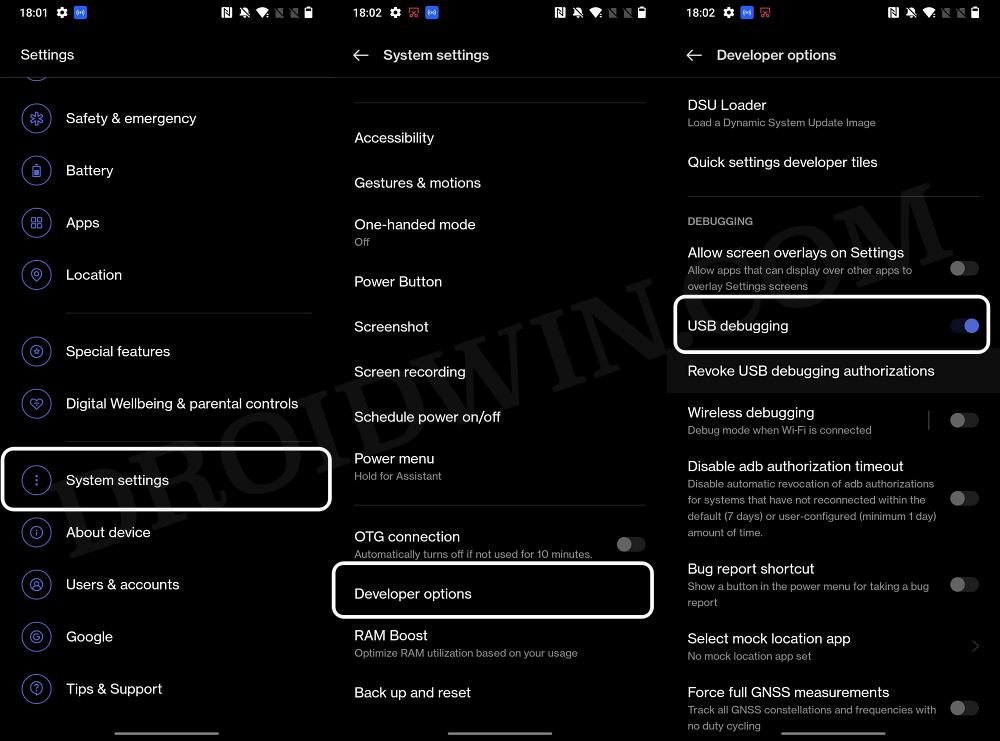
Next up, you will have to enable USB Debugging on your device so that it is recognizable by the PC in ADB mode. So head over to Settings > About Phone > Tap on Build Number 7 times > Go back to Settings > System Settings > Developer Options > Enable USB Debugging.
STEP 3: Establish ADB Shell Connection
- To begin with, connect your device to the PC via USB cable. Make sure USB Debugging is enabled.
- Then head over to the platform-tools folder, type in CMD in the address bar, and hit Enter. This will launch the Command Prompt.
- Now in the following command in the CMD window to verify the ADB connection. If you get the device ID, then the connection stands successful. adb devices
- Now type in the below command to open the Shell environment: adb shell
- It will now list out your device codename, which means that the shell connection has been successfully established as well, and you are good to go ahead to debloat or remove bloatware from your OnePlus 9 Pro.
STEP 4: Debloat/Remove Bloatware from OnePlus 9 Pro
- First and foremost, execute the below command to get the list of all the apps installed and their package names [the bloatware output list has been shared below as well]: pm list packages
- Now, the generic command to uninstall any bloatware from a device is: pm uninstall -k –user 0 PackageName
- For example, if I want to remove the Heytap Accessory with package name com.heytap.cloud, then its removal command will be: pm uninstall -k –user 0 com.heytap.cloud
- In the same manner, you may now remove the desired bloatware apps from your OnePlus 9 Pro.
OnePlus 9 Pro: List of Installed Apps
Given here are the list of the pre-installed apps on your OnePlus 9 Pro. Go through them once and only use the commands corresponding to the app that you want to remove from your device. If you mistakenly end up removing an app, then you could easily reinstall it as well using the instructions given in the next section.
pm uninstall -k --user 0 com.android.exchange

pm uninstall -k --user 0 com.android.protips

pm uninstall -k --user 0 com.android.dynsystems

pm uninstall -k --user 0 com.android.inputmethod.latin

pm uninstall -k --user 0 com.android.camera2

pm uninstall -k --user 0 com.android.providers.partnerbo

pm uninstall -k --user 0 com.android.emergencye

pm uninstall -k --user 0 com.android.printspooler

pm uninstall -k --user 0 com.android.apps.tag

pm uninstall -k --user 0 com.android.dreams.basic

pm uninstall -k --user 0 com.android.dreams.phototable

pm uninstall -k --user 0 com.android.magicsmoke

pm uninstall -k --user 0 com.android.managedprovisioning

pm uninstall -k --user 0 com.android.noisefield

pm uninstall -k --user 0 com.android.phasebeam

pm uninstall -k --user 0 com.android.wallpaper.holospira

pm uninstall -k --user 0 com.android.stk

pm uninstall -k --user 0 com.android.bluetoothmidiservic

pm uninstall -k --user 0 com.android.browser

pm uninstall -k --user 0 com.android.cellbroadcastreciev

pm uninstall -k --user 0 com.android.hotwordenrollment.oui

pm uninstall -k --user 0 com.android.printservice.recomm

pm uninstall -k --user 0 com.android.quicksearchbox

pm uninstall -k --user 0 com.android.email

pm uninstall -k --user 0 com.android.bips

pm uninstall -k --user 0 com.android.hotwordenrollment.x

pm uninstall -k --user 0 com.android.chrome

pm uninstall -k --user 0 com.android.calendar

pm uninstall -k --user 0 com.android.providers.calendar

pm uninstall -k --user 0 com.android.documentsui

pm uninstall -k --user 0 com.android.globalFileexplorer

pm uninstall -k --user 0 com.android.midrive

pm uninstall -k --user 0 com.android.calculator2e

pm uninstall -k --user 0 com.android.soundrecorder

pm uninstall -k --user 0 com.android.musicfx

pm uninstall -k --user 0 com.android.bookmarkprovider

pm uninstall -k --user 0 com.android.gallery3d

pm uninstall -k --user 0 com.android.calllogbackup

pm uninstall -k --user 0 com.android.traceur

pm uninstall -k --user 0 com.sec.android.AutoPreconfig

pm uninstall -k --user 0 com.sec.android.service.health

pm uninstall -k --user 0 com.google.android.tts

pm uninstall -k --user 0 com.google.android.apps.googleassistant

pm uninstall -k --user 0 com.google.android.apps.maps

pm uninstall -k --user 0 com.google.android.apps.setupwizard.searchselector

pm uninstall -k --user 0 com.google.android.pixel.setupwizard

pm uninstall -k --user 0 com.google.android.gm

pm uninstall -k --user 0 com.google.android.calendar

pm uninstall -k --user 0 com.google.android.calculator

pm uninstall -k --user 0 com.google.android.apps.recorder

pm uninstall -k --user 0 com.google.android.printservice.recommendation

pm uninstall -k --user 0 com.google.android.apps.books

pm uninstall -k --user 0 com.google.android.apps.cloudprint

pm uninstall -k --user 0 com.google.android.apps.currents

pm uninstall -k --user 0 com.google.android.apps.fitness

pm uninstall -k --user 0 com.google.android.apps.photos

pm uninstall -k --user 0 com.google.android.apps.plus

pm uninstall -k --user 0 com.google.android.apps.tachyon

pm uninstall -k --user 0 com.google.android.music

pm uninstall -k --user 0 com.google.android.apps.wellbeing

pm uninstall -k --user 0 com.google.android.email

pm uninstall -k --user 0 com.google.android.googlequicksearchbox

pm uninstall -k --user 0 com.google.android.talk

pm uninstall -k --user 0 com.google.android.syncadapters.contacts

pm uninstall -k --user 0 com.google.android.videos

pm uninstall -k --user 0 com.google.tango.measure

pm uninstall -k --user 0 com.google.android.youtube

pm uninstall -k --user 0 com.google.android.apps.docs

pm uninstall -k --user 0 com.google.ar.lens

pm uninstall -k --user 0 com.google.android.apps.restore

pm uninstall -k --user 0 com.google.android.soundpicker

pm uninstall -k --user 0 com.google.android.syncadapters.calendar

pm uninstall -k --user 0 com.google.ar.core

pm uninstall -k --user 0 com.google.android.setupwizard

pm uninstall -k --user 0 com.google.android.apps.wallpaper

pm uninstall -k --user 0 com.google.android.projection.gearhead

pm uninstall -k --user 0 com.google.android.marvin.talkback

pm uninstall -k --user 0 com.google.android.apps.magazines

pm uninstall -k --user 0 com.google.android.apps.subscriptions.red

pm uninstall -k --user 0 com.google.android.apps.podcasts

pm uninstall -k --user 0 com.google.android.apps.turbo

pm uninstall -k --user 0 com.google.android.as

pm uninstall -k --user 0 com.google.android.apps.youtube.music

pm uninstall -k --user 0 com.google.android.apps.nbu.files

pm uninstall -k --user 0 com.google.android.apps.walletnfcrel

pm uninstall -k --user 0 net.oneplus.commonlogtool

pm uninstall -k --user 0 net.oplus.commonlogtool

pm uninstall -k --user 0 com.oneplus.factorymode

pm uninstall -k --user 0 com.oplus.factorymode

pm uninstall -k --user 0 com.oneplus.factorymode.specialtest

pm uninstall -k --user 0 com.oplus.factorymode.specialtest

pm uninstall -k --user 0 cn.oneplus.nvbackup

pm uninstall -k --user 0 cn.oplus.nvbackup

pm uninstall -k --user 0 cn.oneplus.oemtcma

pm uninstall -k --user 0 cn.oplus.oemtcma

pm uninstall -k --user 0 com.oem.oemlogkit

pm uninstall -k --user 0 com.oneplus.account

pm uninstall -k --user 0 com.oplus.account

pm uninstall -k --user 0 cn.oneplus.photos

pm uninstall -k --user 0 cn.oplus.photos

pm uninstall -k --user 0 com.oplus.dm

pm uninstall -k --user 0 com.oneplus.dm

pm uninstall -k --user 0 com.oplus.calculator

pm uninstall -k --user 0 com.oneplus.calculator

pm uninstall -k --user 0 com.oplus.accessory

pm uninstall -k --user 0 com.oneplus.accessory

pm uninstall -k --user 0 com.oplus.chargingpilar

pm uninstall -k --user 0 com.oneplus.chargingpilar

pm uninstall -k --user 0 com.oplus.membership

pm uninstall -k --user 0 com.oneplus.membership

pm uninstall -k --user 0 com.oplus.opwlb

pm uninstall -k --user 0 com.oneplus.opwlb

pm uninstall -k --user 0 com.redteamobile.oneplus.roaming

pm uninstall -k --user 0 com.heytap.cloud
How to Reinstall Bloatware Apps on OnePlus 9 Pro
If you have uninstalled any bloatware app but after that, your device or any of its apps isn’t functioning along the expected lines, then you could easily reinstall that app.
- For that, execute the below command (after executing the adb shell command). Make sure to replace PackageName accordingly: cmd package install-existing PackageName
- For example, if you wish to reinstall Heytap Cloud with package name com.heytap.cloud, then the above command will transform to: cmd package install-existing com.heytap.cloud

(Cancel Reply)
Δ
