Delayed Notifications on Pixel: How to Fix
In this guide, we will show you various methods to fix the delayed notification issue on your Pixel device. When it comes to bugs and issues, then the latest flagships from the Silicon Valley giants wouldn’t leave you disappointed. Be it the device crashing to recovery mode , Bluetooth not working , inconsistent network , screen timeout not working , system UI not responding – you have a lot to deal with.
While a few of them were right from the start, others made their way after the buggiest OTA update we have seen to date (December 2021). While all of them are concerning in their own rights, yet as per my personal experience, none have interrupted my workflow or caused more loss of work hours than the delayed notification issues. Be it for Gmail, Twitter, or any other app, each of them is bugged with this problem.
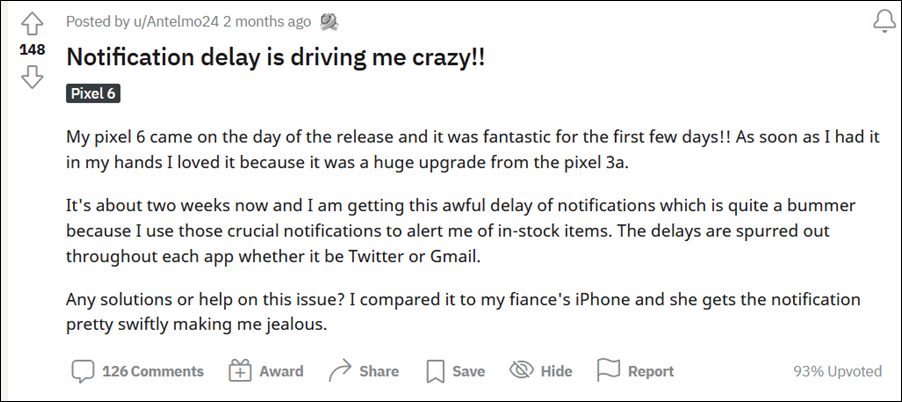
One important thing that many of us have noticed is that if we leave our device unattended, then there will be no notifications. But as soon as we wake up the device or unlock it, we will get bombarded with a plethora of notifications, some of which had arrived 30 (or more) minutes earlier. As a result of which, I usually end us missing various important emails, messages, and other alerts.
And truth be told, I’m not the only one facing this issue. Just a stroll around this Reddit thread and you would find a plethora of other users also sailing in the same boat. And if you are also a part of this journey, then this guide shall help you dock this boat once and for all. Given here are the various methods that shall help you fix the delayed notification issue on your Pixel device. Follow along.
- How to Fix Delayed Notifications on Pixel Devices FIX 1: Toggle Notifications FIX 2: Allow Background Data Usage FIX 3: Disable Adaptive Battery FIX 4: Remove Battery Restrictions FIX 5: Turn off Adaptive Connectivity FIX 6: Disable DNS Service FIX 7: Uninstall Pikmin Bloom FIX 8: Disable DND Gaming Schedule FIX 9: Disable Doze Mode FIX 10: Delay Doze Mode FIX 11: Add Apps to Doze Mode’s Whitelist FIX 12: Reset Network
How to Fix Delayed Notifications on Pixel Devices
Do note that there’s no universal fix as such. You will have to try out each of the below-mentioned workarounds and see which one works best in your favor. So with that in mind, let’s get started.
FIX 1: Toggle Notifications
Your first course of action should be to disable and re-enable the notifications for the concerned app. Here’s how it can be done:
- Head over to Settings > Apps > Choose your desired app.
- Then turn off its notifications and wait for a few seconds.
- Now re-enable the notifications and check out the result.
FIX 2:AllowBackground Data Usage
Next up, you should let the app be able to get network access even when it is minimized and running in the background. Here’s how it can be done:
- Head over to Settings > Apps > Choose your desired app.
- Now go to WiFi Data Usage and enable the toggle next to Background Data.
- If you have an unlimited data plan, then also enable Unrestricted Mobile Data Usage.
- Check if it fixes the delayed notification issue on your Pixel device.
FIX 3: Disable Adaptive Battery
This feature is notoriously infamous for the delayed notification issue. Based on your app’s usage behavior, it gives higher privileges to the one with whom you interact the most. But on the flip side, it also tends to minimize the background functionalities and disable sync features of the apps with whom your interaction isn’t on the higher side.
As a result of this, all the apps that fall in the latter domain are bound to be the suffering party, without any manual intervention from your end (another reason why everything shouldn’t be left over to the AI!). So to prevent this from happening, you should disable Adaptive Battery, which could be done as follows:
- To begin with, head over to the Settings menu on your device.
- Then go to Battery > Adaptive Preferences section.
- Now disable the toggle next to Adaptive Battery.
- Check if it fixes the delayed notification issue on your Pixel 6.
FIX 4: Remove Battery Restrictions
By default, each app has been assigned an optimized battery usage behavior. As a result of which, they make sure to maintain an equilibrium when it comes to preserving the battery juice and giving a fluid performance. While this setting suffices in most instances, sometimes you might have to sacrifice a little bit of additional battery power to give the app an extra push. In other words, assign it the Unrestricted access so that it is able to function in the background without any restrictions. Here’s how it could be done:
- To begin with, head over to Settings > Apps > See All Apps.
- Then select the app of your choice and go to its Battery section.
- After that, select Unrestricted from the list.
- Now check if it fixes the delayed notification issue on your Pixel 6.
FIX 5: Turn off Adaptive Connectivity
Its sole aim is to extend the device’s battery juice and improves it’s performance by placing some network restrictions on your device. It goes without saying that this in turn could have some adverse implications on the apps that are dependent on the internet for their proper functioning. Therefore, you should consider turning off this feature, as explained below:
- Go to Settings > Network & Internet.
- Then head to Adaptive Connectivity.
- Finally, turn off the toggle next to it.
FIX 6: Disable DNS Service
If you are using an adblocking DNS, then it might have have a Filterset called “GoodbyeAds” in it. This Filterset tends to block the firebase.googleapis.com, which in turn have some adverse impact on the app’s being able to access the internet in the backend. Therefore, you should either disable that filter or whitelisting that URL [firebase.googleapis.com] and this in turn should fix the delayed notifications on your Pixel device.
FIX 7: Uninstall Pikmin Bloom
As strange as it may sound, this fix seems to have gotten the job done for quite a few users [on Pixel 6 series, when the issue was first reported in 2022]. For the unaware, Pikmim Bloom is another one of those Pokemon Go type AR games (developed by the same developers) that requires your interaction with the outside world. And to keep a track of your activities, it constantly runs in the background.
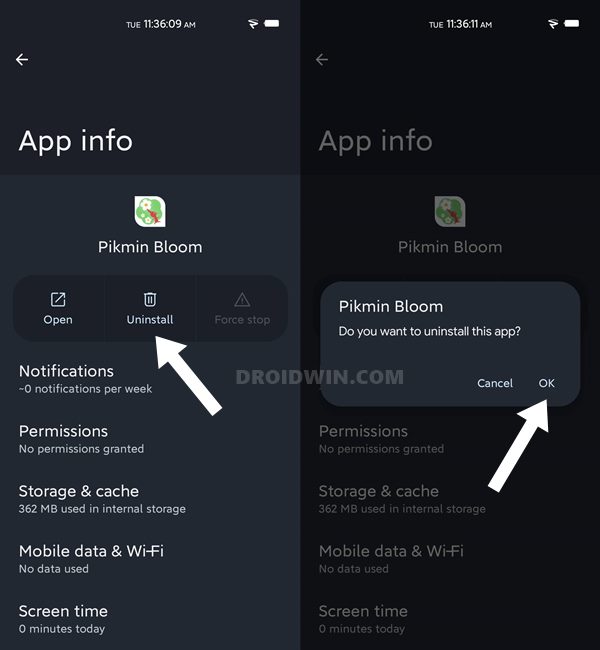
And not only that, it seems that this app is overpowering the notifications from other apps. While it may not add up on paper, in reality, many users did manage to rectify the delayed notification issue on their Pixel 6/Pro after bidding adieu to this game. So if you have installed this game, then try uninstalling it and see if it spells out success for you or not.
FIX 8: Disable DND Gaming Schedule
If you have turned on the DND Mode, then you wouldn’t receive any notifications- this is a universal fact that most of you might already be aware of by now. Likewise, you might have configured it accordingly as well and added the desired apps to the whitelist. But in all of this, you might have missed an important point. By default, the DND Mode is set to allow only one schedule- Gaming.
As a result of which, you will only get notifications from a selected few contacts and apps while you are gaming. Since games like Pikmin are continuously running in the background, your device might be tricked into believing that you are still busy in a game, and hence it wouldn’t display most of the alerts. So the best bet is to disable this Gaming Schedule right away, using the below-given instructions:
- Head over to Settings > Notifications on your device.
- Then scroll to Do Not Disturb and go to its Schedules section.
- After that, uncheck the Gaming option.
- Check if it fixes the delayed notification issue on your Pixel.
FIX 9: Disable Doze Mode
This feature was first introduced with Android 6.0 Marshmallow and is still touted as one of the most battery-restrictive measures to date. It forces the system to use only a minimal amount of resources and battery, even if it might not be in sync with the actual requirements. This curtailed environment more often than not causes disruption to an app’s background services, including the way it delivers notifications.
So the straightforward approach would be to disable this option, but there’s no single toggle as such through which this task could be performed. But we still have the ADB Commands at our disposal, and using them, we will be disabling the Doze Mode on your device. Follow along.
- To begin with, enable USB Debugging so that your device is recognizable by the PC in ADB mode and hence it allows us to execute the desired ADB Commands.
- So head over to Settings > About Phone > Tap on Build Number 7 times > Go back to Settings > System > Advanced > Developer Options > Enable USB Debugging.
- After that install the Android SDK Platform Tool and extract it on your PC. This shall give you the platform-tools folder, which we will now be using.
- So head over to the platform-tools folder, type in CMD in the address bar, and hit Enter. This will launch the Command Prompt.
- Now connect your device to PC via USB cable and type in the following command in this CMD window to verify the ADB Connection (if you get the device ID, then the connection stands successful. Otherwise, check out our guide on How to Fix All ADB and Fastboot Errors : adb devices
- Finally, execute the below ADB Command to disable the Doze Mode on your device adb shell dumpsys deviceidle disable
FIX 10: Delay Doze Mode
If you don’t wish to disable the Doze Mode, then you can also delay it, but make sure to keep it delayed for a long time. Here’s how it can be done:
- Shows the state of Doze/Device Idle and the apps on the power whitelist adb shell dumpsys deviceidle
- The below command will set the idle timeouts to a very long duration: 31,536,000,000ms = 1 year adb shell settings put global device_idle_constants inactive_to = 31536000000 ,motion_inactive_to= 31536000000 ,light_after_inactive_to= 31536000000 ,light_pre_idle_to= 31536000000 ,light_max_idle_to= 31536000000 ,light_idle_to= 31536000000
FIX 11: Add Apps to Doze Mode’s Whitelist
If, for some reason, you don’t want to delay or disable Doze mode, then you can simply add the desired apps to the exception list. This way, the doze mode will be enabled but will have no impact on your chosen app. So let’s give it a try and check out the result.
- To begin with, find the package name of your app . Then type in: adb shell dumpsys deviceidle whitelist +app_package_name
- For example, if it’s the Gmail app, the command will transform to: adb shell dumpsys deviceidle whitelist +com.google.android.gm
FIX 12: Reset Network
If none of the aforementioned methods worked in your favor, then your last course of action should be to reset the network settings of your device. However, this will also remove all the saved WiFi passwords and paired Bluetooth devices. So make sure to at least sync the former over to your Google account. Once done, proceed with the below steps to do the format:
- Head over to Settings > System > Reset Options.
- Then tap on Reset Bluetooth and WiFi > Reset.
- Now restart your device and set up the network.
- Check if it fixes the underlying notification bug.
So with this, we round off the guide on how you could fix the delayed notification issue on your Pixel device Many users were waiting in anticipation that the January 2022 update might rectify this issue. But as of now, that doesn’t seem to be the case.

(Cancel Reply)
Δ
