Desktop Icons Missing or Disappeared on Mac: How to Fix
In this guide, we will show you various methods to fix the issue wherein the desktop icons are missing or have disappeared from your Mac. Numerous users have voiced their concern that the icons from their desktops have vanished into the thin air all of a sudden.
For some, it started after an OS upgrade whereas others have said that it happened simply after a normal reboot. If you are also in the same boat, then fret not as you could easily bring those icons back to your desktop. And in this guide, we will show you how to do just that. Follow along.
- Fix Desktop Icons Missing or Disappeared on Mac FIX 1: Restart Mac FIX 2: Restart Finder FIX 3: Tweak Finder Settings FIX 4: Tweak iCloud Desktop Settings FIX 5: Unhide Items via Terminal FIX 6: Delete Corrupt Preferences Files
Fix Desktop Icons Missing or Disappeared on Mac
It is recommended that you try out each of the below-mentioned workarounds and then see which one spells out success for you. So with that in mind, let’s get started.
FIX 1: Restart Mac
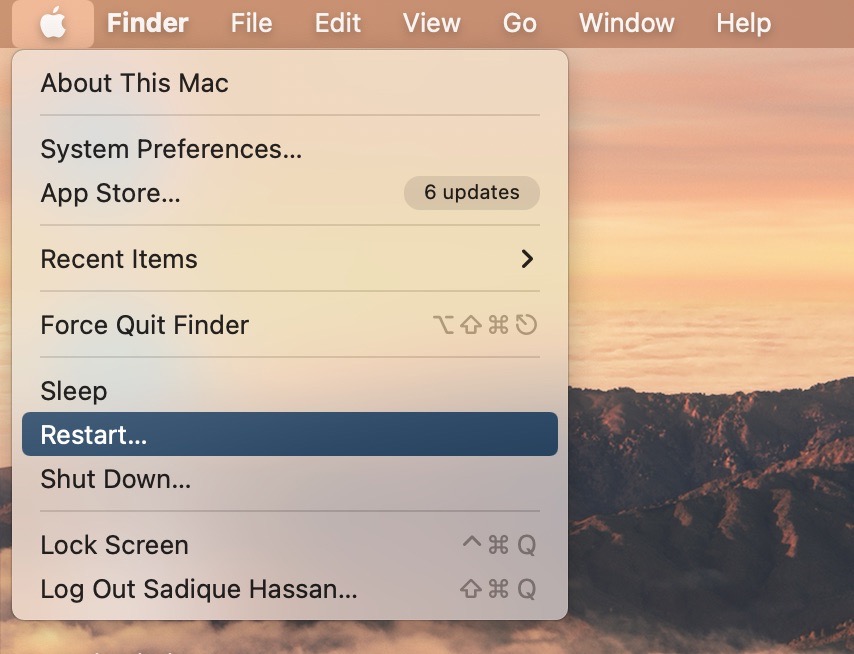
As obvious as it may sound, but trust us, in most cases, a simple reboot is all that is needed to rectify the underlying issue. So give your Mac a restart and then check if it fixes the issue of desktop icons missing or disappeared from your Mac.
FIX 2: Restart Finder
You might also get bugged with this issue if the Finder is not working along the expected lines due to its background services not functioning properly. In such cases, your best bet is to restart Finder and then check out the results. Here’s how it could be done:
- Click on the Apple logo situated at the top left and select Force Quit.
- Then select Finder from the list and hit Relaunch. Wait for it to restart.
- Now check if it fixes the desktop icons missing or disappeared on your Mac.
FIX 3: Tweak Finder Settings
Next up, you should also verify that the Finder has been instructed to show those files and folders on your Mac in the first place. Here’s how:
- Launch Finder, click on Finder at the top menu bar, and select Preferences.
- Now checkmark the desired items under Show these items on Desktop.
- Check if it fixes the desktop icons missing or disappeared on your Mac.
FIX 4: Tweak iCloud Desktop Settings
If you are using iCloud to back up your files on the desktop, then it might also lead to this issue. So you should consider tweaking its setting using the below-given instructions and then check out the results.
- Click on the Apple logo, select System Preferences, and click on Apple ID.
- Then select iCloud from the left-hand side and click Options next to iCloud Drive.
- After that, checkmark Desktop and Document Folders and hit Done.
- Check if it fixes the desktop icons missing or disappeared on your Mac.
FIX 5: Unhide Items via Terminal
You could also unhide the file and folders from your desktop using a single line of command. Here’s how:
- Open Launchpad, go to the Others folder, and launch Terminal.
- Then execute the below command in the Terminal Window: defaults write com.apple.finder CreateDesktop true; killall Finder
- Check if it fixes the desktop icons missing or disappeared on your Mac.
FIX 6: Delete Corrupt Preferences Files
In some cases, this issue might also arise if the Finder and Desktop Files get corrupted. Therefore, you should delete both these files and then let the OS create a fresh instance of the same from scratch. Here’s how it could be done:
- Open Finder, click on Go at the top menu bar, and select Library
- Then go to the Preferences folder and delete the following files [or move it to any other directory, it will act as a backup] com.apple.finder.plist com.apple.desktop.plist
- In some cases, you will only find one of these two files, so whichever is present, delete/move it.
- Once done, restart your Mac. The OS will now recreate these plist files. Once done, the issue should have been fixed.
- Cannot bring Emoji menu using Fn/Globe key on Mac [Fixed]
- Notifications not working on Mac: How to Fix
- Thumbnails not appearing on Mac: How to Fix [Video]
- Enable Allow Apps Downloaded from Anywhere on Mac

(Cancel Reply)
Δ
